
4Reports and Inquiry
Option 2Ageing
Use this function to print customer balances and break them down by ageing category. Detail on invoices can be printed if you choose. The following processing steps accomplish this job.
- Step 1You can use this function to enter the ageing date, choose which date to age from, define the ageing periods, and choose whether or not to print invoice detail on the ageing report.
On the following pages, the screen displayed by this function is shown.
The screen shown below allows you to enter parameters needed to print the Ageing Report.
Transaction Processing menu
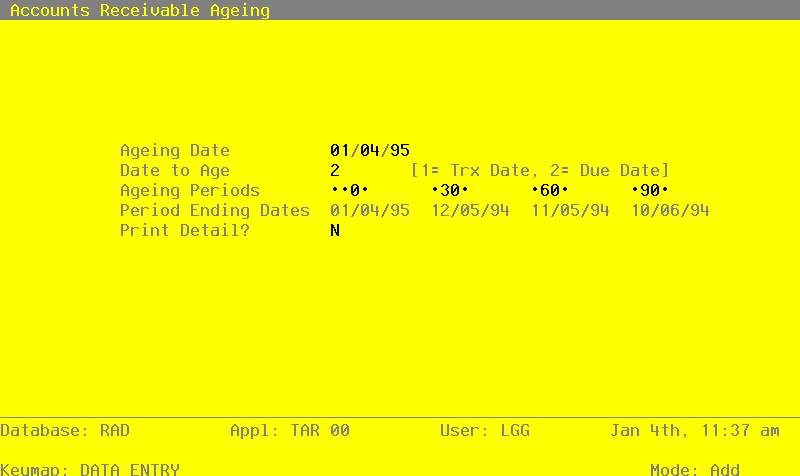
Data items for the preceding screen are described below:
- Ageing Date
Date (YMD)
You can specify the date from which the transactions to be printed will be aged. By default, the system displays today’s date. You can enter a new date to override the display.
- Date to Age
Positive number, 1 digit
The system displays the Ageing Type entry from the Parameters file. If you wish, you can change it. Valid options are:
- 1
- Invoice date
- 2
- Due date
- Ageing Periods
Number, up to 3 digits
The system displays the ageing periods that were entered in the Parameters file for this report. You can override any ageing period.
Each ageing period refers to either the invoice date or the due date, depending on the entry in the Date To Age or Closing Date field. A positive entry indicates the number of days after the invoice or due date. A negative entry indicates the number of days before the invoice or due date.
- Period Ending Dates
Date (YMD) Display only
These dates shown you the actual ending date for each ageing period that is to be printed. This date is determined by subtracting the number of days in the corresponding Ageing Period to the Ageing date. For example if the Ageing Date is 6/30/90 and the ageing periods are 0, 30, 60, and 90, the period Ending Dates will be 6/30/90, 5/31/90, 5/01/90, and 4/01/90.
- Print Transaction Detail?
Y or N Required
Specify whether or not transaction detail should be printed for each customer on the report. The default value is ‘Y’. The display may be changed:
- Y
- Print transaction detail.
- N
- Do not transaction detail.
The entered data is validated. During validation, including access to other files, conditions may be found which cause messages to be displayed. Errors (E), Warning (W), and Messages (M) that may result are shown below:
Press ENTER to save the information on this screen.
- Step 2In preparation for performing a sort/selection process on the Transaction information, this step provides you with a default sequencing of data records by Account Number, Customer Alpha, Customer, Apply To, and Date/Time, giving additional sort order choice by Post Year and Post month, with the option to change modifiable parameters at run time. Selection of data records is provided by Account Number, Customer, Post Year, and Post Month, with the option to enter user-specified comparisons at run time.
- Step 3This is the standard disposition used for all reports not printed on special forms.
- Step 4According to previously specified criteria, this step actually performs the desired selection and/or sorting process.
- Step 5In order to print the Ageing Report, this step formats the Transactions information. As appropriate, group headings appear whenever a change occurs in Account Number. If requested, totals appear whenever a change occurs in Account Number. When totals are specified, the following items are accumulate: Total Balance, Amount Total, and Ageing Period Percent. Grand totals print at the end, showing Total Balance, Amount Total, and Ageing Period Percent.
A sample output is shown below.
                                                       Expert Computing, Inc.
11/08/94 14:58                                                                                                       LGG Page:  1
                                                           Ageing Report

                                               Aged as of 11/08/94 Using Due Date

                                                             11/08/94       10/09/94       09/09/94   08/10/94
Customer                                       Balance     0  & Under     1  To  30     31  To  60     61  To  90       Over  90
=================================================================================================================================


Receivable Account 1030001000MA  Accts Receiv, Corp./Mfg.

00000080  Dominion Business Machines         14675.00-            0.             0.             0.             0.       14675.00-
00000444  Fiberlux                          185210.68             0.      185210.68             0.             0.           0.
                                                ——————         ——————        ——————          ——————        ——————          ——————
                — Account Totals —>        170535.68             0.      185210.68             0.             0.        14675.00-
                                                                .0  %       108.6  %          .0  %          .0  %         8.6- %
                                          ============   ============   ============   ============   ============   ============


Receivable Account 1030001001MA  Accts Receiv, Sales/Mfg.

00000020  Master Sellers Company                688.54             0.             0.             0.             0.         688.54
00000050  Miscellaneous Customer               1220.46             0.             0.             0.             0.        1220.46
                                                ——————        ——————          ——————         ——————        ——————          ——————
                — Account Totals —>            1909.00             0.             0.             0.             0.        1909.00
                                                                .0  %          .0  %          .0  %          .0  %       100.0  %
                                          ============   ============   ============   ============   ============   ============