
1Transaction Processing
Option 1Invoices Entry
Use this function to enter and edit customer invoices. You also have the option of entering invoices through the “Invoices Rapid Entry” function. Invoices can be entered or edited using either function; however, some data items are not available for editing in Rapid Entry.
The normal process of posting invoices includes:
- Entering the invoices.
- Printing the invoices and the Invoices Journal.
- Posting the invoices.
If the journal shows any errors, the errors must be corrected and the journal reprinted. If the journal has been printed and some of the data is modified, the journal must be reprinted before the data can be posted.
On the following pages, the five screens displayed by this function are shown.
The screen shown below presents information about Invoice Control Groups.
When you enter invoices, you will see only one of the two possible screens for Invoice Control Groups. Which screen you see will depend on how you answered two questions on your Parameters file. These are the “Ask Operator ID?” question, and the “Use Transaction Control” question.
If you answered ‘Y’ to both questions, you will see the screen below, and you will be able to enter control and hash totals for your invoices. In addition, a record will be written to the Transaction Control file for each control group posted.
If you answered ‘Y’ to “Ask operator ID?”, and ‘N’ to “Use Transaction Control?”, you will see the second screen, which displays only the Operator ID and the Control Number.
If you answered ‘N’ to both questions, you will see the second screen, but you will not be allowed to edit the Operator ID.
Invoices Control Groups screen
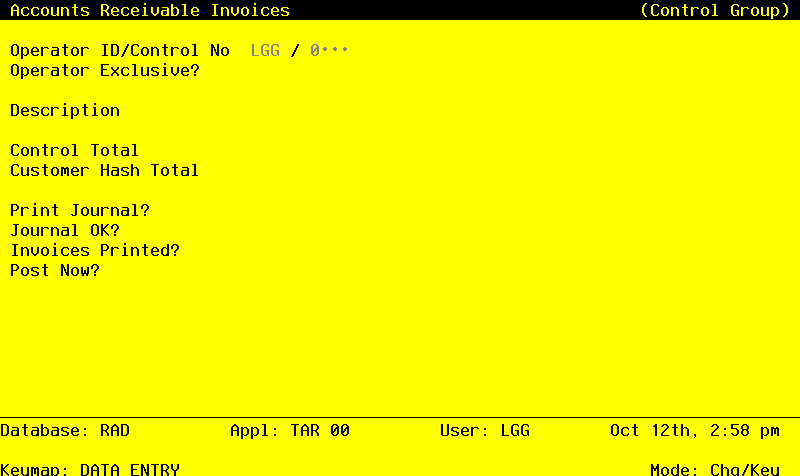
When the key value for a particular record is requested, you can review all the records in the file by selecting the Scan option. The records will be presented on an “Access” screen, and you will be allowed to scan the available data until you find the record you want. Then, position the cursor by that record and press ENTER’ the record will be displayed for editing.
Data items for the preceding screen are described below:
- Operator ID
Upper case, up to 3 characters Required Carries forward in ADD mode
Only number and letters are acceptable.
The operator ID which you entered at log-on is displayed. All control groups are separated by operator.
- Control No
Positive number, up to 7 digits
A sequential number is supplied to identify this group of invoices. This number is printed on the journal, tracked on the Transaction control file, and posted to General Ledger for detail accounts. Although it is not necessary that this number be exactly sequential, the number itself is important as a part of your audit trail.
- Operator Exclusive?
Y or N Required
the initial default value is ‘N’.
Indicate whether or not you want to restrict access to these invoices.
- Y
- Yes, access should be restricted to the user who enters the invoices.
- N
- No, access is not restricted. Any user can edit these invoices.
- Description
Alphanumeric, up to 30 characters Required
Describe this group of invoices. This description appears on the Transaction Control report and inquiry.
- Control Total
Number, up to 9 digits and 2 decimals
Supply the total of all invoices. This total is balanced against the running total being kept by the system as each transaction is entered.
- Customer Hash Total
Positive number, up to 12 digits
Supply the hash total of all customer numbers on this group of invoices. Any discrepancy between the hash total entered and the calculated hash total may represent transposition errors on one or more customer numbers.
- Print Journal?
Y or N Default Y Required
‘Y’ is displayed to indicate that these invoices are ready for printing. Enter ‘N’ if you want to delay the printing of the journal for any reason.
- Journal OK?
Y or N Display only Default N
This indicates whether or not the journal has been printed without errors. If ‘N’, the control group may contain errors and cannot be posted.
- Invoices Printed?
Y or N Display only Default N
This indicates whether or not invoices have been printed for this control group. The printing of invoices is optional.
- Post Now?
Y or N
the initial default value is ‘Y’. This field is requires.
‘Y’ is displayed to indicate that these invoices are ready for posting. Enter ‘N’ if you want to delay posting for any reason.
The entered data is validated. During validation, including access to other files, conditions may be found which cause messages to be displayed. Errors (E), Warnings (W), and Messages (M) that may result are shown below:
Press ENTER to continue to the next screen.
Select Next Record to go to the next Invoice Control Groups record.
At this screen, the use of the MODE keys - ADD, DEL, CHG, or INQ - pertain to those records in the Invoice Control Groups file.
This screen may optionally be used to display information about Invoice Control Groups.
Invoices Operator ID screen
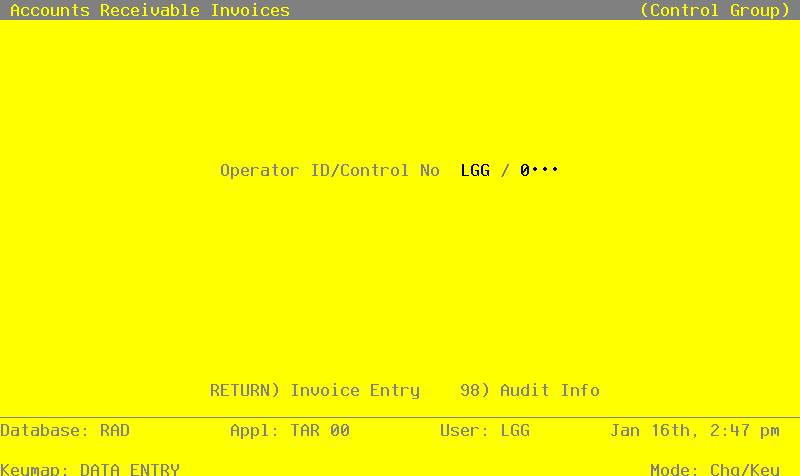
When the key value for a particular record is requested, you can review all the records in the file by selecting the Scan option. The records will be presented on an “Access” screen, and you will be allowed to scan the available data until you find the record you want. Then, position the cursor by that record and press ENTER; the record will be displayed for editing.
Data items for the preceding screen are described below:
- Operator ID
Upper case, up to 3 characters Letters and numbers only Required Carries forward in ADD mode
The operator ID which you entered at log-on is displayed. All control groups are separated by operator.
- Control No
Positive number, up to 4 digits
A sequential number is supplied to identify this group of invoices. This number is printed on the journal, tracked on the Transaction Control file, and posted to General Ledger for detail accounts. Although it is not necessary that this number be exactly sequential, the number itself is important as a part of your audit trail.
The entered data is validated. During validation, including access to other files, conditions may be found which cause messages to be displayed. Errors (E), Warnings (W), and Messages (M) that may result are shown below:
Press ENTER to continue to the next screen.
Select Next Record to go to the next Invoice Control Groups record.
At this screen, the use of the MODE keys - ADD, DEL, CHG, or INQ - pertain to those records in the Invoice Control Groups file.
The screen shown below presents information about Invoices.
This file contains information that applies to the entire invoice, such as customer number, terms code, total invoice amount, freight, and sales tax.
Invoices screen
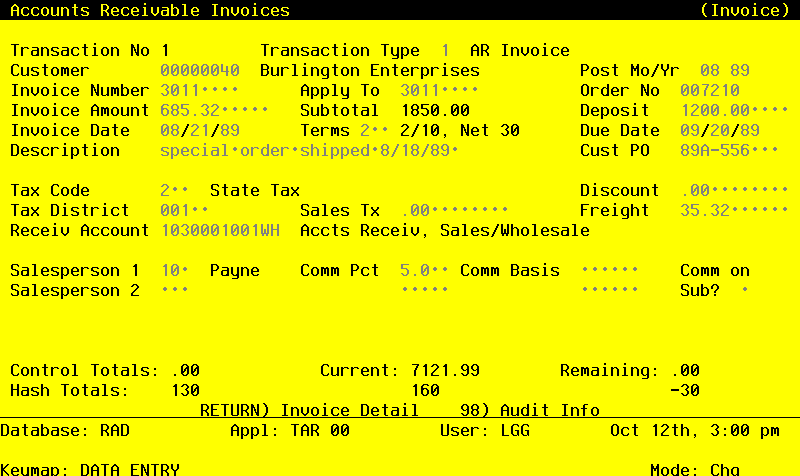
When the key value for a particular record is requested, you can review all the records in the file by selecting the Scan option. The records will be presented on an “Access” screen, and you will be allowed to scan the available data until you find the record you want. Then, position the cursor by that record and press ENTER; the record will be displayed for editing.
Note that the Audit Info option is available at the bottom of this screen. When this option is invoked, the Audit Information overlay appears and displays the date the record was created and who created it, as well as the date the record was last modified and who modified it. Press the END key or the RETURN key to clear the overlay from your screen. The information displayed in the Audit Information overlay is system-supplied and non-modifiable.
Data items for the preceding screen are described below:
- Transaction No
Positive number, up to 4 digits Display only
A sequential transaction number is supplied for each invoice. This number is printed on the journal, and posted to General Ledger for detail accounts. Although it is not necessary that this number be exactly sequential, the number itself is important as a part of your audit trail. It is printed on many reports and inquiries throughout Accounts Receivable.
- Transaction Type
Positive number, 1 digit Carries forward in ADD mode
The system displays a 1-digit code that identifies this type of transaction, along with the description entered for that code on the Descriptions file. The system defaults to an accounts receivable invoice (type 1). However, this value may be changed. If changed, the new description is displayed for verification. Valid choices are:
- 1
- AR Invoice — transaction is entered as an invoice through A/R.
- 2
- Debit/Credit Memo — transaction reflects a debit or credit memo issued.
- 6
- Service Charge — transaction is a service charge on a past-due invoiced.
The transaction Type prints on the Transaction Register and the General Ledger Distribution reports.
- Customer
Upper case, up to 8 characters Numbers only
You can use PF2 to search for an appropriate entry.
Identify the customer who is receiving this invoice. The customer number must be on file in the Customers file; the system displays the customer name so that you can verify your entry.
- Post Month
Upper case, up to 2 characters Letters and numbers only Valid: 01, 02, 03, 04, 05, 06, 07, 08, 09, 10, 11, 12, 13, EY
This field is required, In ADD mode, this field will automatically be saved from one record to the next.
Identify the month to which this transaction is to be posted. The current calendar month is supplied from the Parameters file; if you want to post to a prior or future month, you can change it. If your system is based on 12 accounting periods, enter the calendar month; if you are using 13-period accounting, enter the fiscal period. Valid entries and their meanings are: 1-13: Calendar period
- EY
- End-of-Year
- Post Year
Positive number, up to 2 digits Carries forward in ADD mode
Identify the year to which this transaction is to be posted. The current calendar year is supplied from the Parameters file; if you want to post to a prior or future year you can change it. If you are using 12-month accounting, this will be the calendar year; if you are using 13 period accounting, this will be the fiscal year.
- NOTE
- A value of zero in the Post Year will cause the transaction to be posted to the year 2000.
- Invoice Number
Upper case, up to 8 characters Required
Identify the invoice number for this invoice, debit memo, or credit memo.
- Apply To
Upper case, up to 8 characters Required
This field identifies the invoice to which the transaction applies. By default, the system displays the Invoice Number in this field for Invoice transaction types. For debit or credit memos, you must enter this field; you may want the Apply To to reference the original invoice. In any case, you may override the display.
- Order No
Positive number, up to 6 digits
Identify the sales order to which this invoice applies, if any. If the Order Entry application is part of your system, this number must be on file in the Sales Orders file.
If there is a deposit associated with this invoice, you should have already entered the deposit as a cash receipt using the order number as the “Paid Invoice”, and posted the cash receipt; enter that order number here.
- Invoice Amount
Number, up to 7 digits and 2 decimals
Provide the net invoice amount. The Invoice Amount is calculated by this formula:
Amount = Subtotal - Customer Discount - Deposit + Freight + Sales Tax
For a credit memo, enter a negative amount.
- NOTE
- The “subtotal” as listed above, is defined as the sum of all the invoice line items excluding any memo items.
- Subtotal
Number, up to 7 digits and 2 decimals Display only
The sum of the invoice line items, excluding any memo items, is displayed. This subtotal is calculated using the formula listed under Invoice Amount, above. A “memo” line item might be a detail entry for freight or sales tax, which is also supplied in the invoice record itself. See the documentation on “Discount”, “Freight”, and “Sales Tax” below for additional explanation.
- Deposit
Number, up to 7 digits and 2 decimals
Identify the prepaid deposit on this invoice, if any. This amount is debited to the Deposit account identified in the Parameters file.
Deposits should be entered and deposited as cash receipts, using the Order No as the “Paid Invoice” number, before the invoice is posted. If you enter an amount in this field, you must identify the Order No that was used as the “Paid Invoice” number when the cash receipt was posted, so that the system can track the deposit properly.
- Invoice Date
Date (YMD) Required
Supply the date of the invoice.
- Terms
Positive number, up to 3 digits
You can use PF2 to search for an appropriate entry.
The system displays the terms code from the Customers record; you can override the display. The system also displays the description from the terms file so that you can verify your entry.
- Due Date
Date (YMD) Required
The system displays the due date based on the invoice date and terms for this customer. You may change this date.
- Description
Alphanumeric, up to 30 characters
Describe this invoice. This description will be printed on various reports throughout Accounts Receivable. If you leave this field blank, the system will use the customer’s Purchase Order number as the description.
- Customer PO
Alphanumeric, up to 10 characters
Supply the customer’s Purchase Order number, if any. If the Description field is left blank, the system will use the customer’s PO number in its place. The PO number prints on the invoice; the description prints on statements and dunning letters.
- Tax Code
Positive number, up to 3 digits
You can use PF2 to search for an appropriate entry.
The system displays the Tax Code entered on the Customers record from the Tax Codes file; you can override the display. The system also displays the corresponding description so that you can verify your entry.
- Discount
Number, up to 7 digits and 2 decimals
For an invoice (transaction type 1), supply any discount offered to this particular customer, independent of the usual terms discount. This amount is debited to the Customer Discount account identified in the Parameters file.
You can enter the customer discount here and enter type 2 (customer discount) line items. In this case, the line items are memo-only; that is, they are printed on the invoice but not posted to General Ledger. Rather, the General Ledger posting is taken from this field as described above.
If you leave this field blank and enter discount line items, the General Ledger posting will be made to the account numbers supplied on the line items.
- Tax District
Alphanumeric, up to 5 characters
The system displays the Tax District entered on the Customers record; you can override the display. The tax district must be valid for any Tax Code you entered.
- Sales Tax
Number, up to 7 digits and 2 decimals
For an invoice (transaction type 1) or a debit/credit memo (transaction type 2), supply the sales tax for all line items, if any. This is the amount of tax that is billed to the customer. This amount is credited to the sales tax liability account entered for the tax district in the Tax Codes file.
You can enter the sales tax here and enter type 4 (sales tax) line items. In this case, the line items are memo only; that is, they are printed on the invoice but not posted to General Ledger. Rather, General Ledger is posted using this amount as described above.
If you leave this field blank and enter sales tax line items, the General Ledger posting will be made to the account numbers supplied on the line items.
- Freight
Enter a number with up to 7 digits to left of the decimal and 2 digits to the right of the decimal.
If there are any freight charges, identify them. This amount is credited to the Freight Out account identified in the Parameters file.
You can also enter the freight amount here and enter type 3 (freight) line items. In this case, the line items are memo only: that is, they are printed on the invoice, but not posted to General Ledger. Rather, the General Ledger is posted using this amount, as described above.
If you leave this field blank and enter freight line items, the General Ledger posting will be made to the account numbers supplied on the line items.
- Receivable Account
Upper case, up to 12 characters Required
You can use PF2 to search for an appropriate entry.
Supply the account that should be debited when this invoice is posted. By default, the system displays the receivable account for the customer from the Customer’s record. You may change this account number. If the General Ledger application is part of the system, the account number must be on file in the Chart of Accounts file, and the system displays the description of this account so that you can verify your entry.
- Salesperson
Positive number, up to 3 digits
You can use PF2 to search for an appropriate entry.
If your system includes Commission Accounting, you may supply up to two codes from the Salespersons file to identify the salesperson(s) who made or received credit for the sale. The system displays the corresponding salesperson Alpha entry from that file so that you can verify your entry.
If your system does not include Commission Accounting, you can make an entry here for your information.
- Comm Pct
Positive number, up to 3 digits and 1 decimals
This field specifies the percentage used to calculate the commission earned by the salesperson you entered.
If your system includes Commission Accounting, the system displays the Commission Percent from the Salespersons record for each salesperson that you entered. You can override the display.
If your system does not include Commission Accounting, you can make an entry here for your information.
- Comm Basis
Positive number, up to 3 digits and 2 decimals
Provide the percentage of the commissionable dollars that each Salesperson is allocated for this order. This percentage is applied either to the Subtotal or to each line item, depending on the entry in the “Comm on Sub?” field.
If the commission is split between two salespeople, the first entry represents the percentage that the first salesperson receives, and the second entry represents the percentage that the second salesperson receives.
If Commission Accounting is part of the system, the first entry defaults to ‘100’ and the second to ‘0’. You can override these defaults.
These entries do not need to add up to 100. Any overage or underage will be posted to the “House Account” in Commission Accounting.
- Comm on Sub?
Y or N
Specify the amount on which commissionable dollars are to be calculated. Valid entries are:
- Y
- The invoice Subtotal amount
- N
- Each individual line item amount
Leave this field blank if commissions will not be calculated.
The entered data is validated. During validation, including access to other files, conditions may be found which cause messages to be displayed. Errors (E), Warnings (W), and Messages (M) that may result are shown below:
Press ENTER to display system-supplied information and then press ENTER again to continue to the next screen.
Select Previous Image to go back to the Invoice Control Groups screen. Select Next Record to go to the next Invoices record. Select End to go to the next Invoice Control Groups record.
At this screen, the use of the MODE keys - ADD, DEL, CHG, or INQ - pertain to those records in the Invoices file.
The screen below presents additional information about Invoices.
Invoice - Customer Address screen
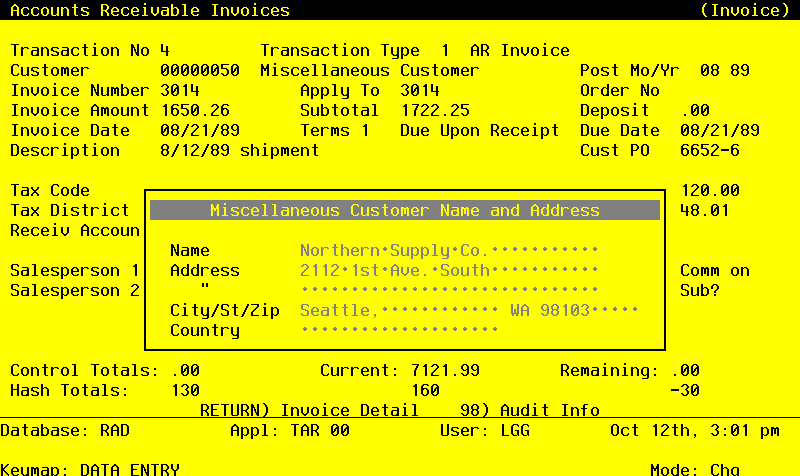
When the key value for a particular record is requested, you can review all the records in the file by selecting the Scan option. The records will be presented on an “Access” screen, and you will be allowed to scan the available data until you find the record you want. Then, position the cursor by that record and press ENTER; the record will be displayed for editing.
Data items for the preceding screen are described below:
- Miscellaneous Customer Name
Alphanumeric, up to 30 characters
Supply the name of this miscellaneous customer. This information will be printed on the invoice and several reports throughout Accounts Receivable.
- Address 1
Alphanumeric, up to 30 characters
Provide the first address line for this miscellaneous customer. You may want to list the shipping address in the first line and the mailing address in the second line.
- Address 2
Alphanumeric, up to 30 characters
Provide the second address line for this miscellaneous customer, if applicable. You may want to list the shopping address in the first address line and the mailing address in the second address line.
- City
Alphanumeric, up to 20 characters
Supply the city for this miscellaneous customer.
- State
Upper case, up to 2 characters
Provide the two-character standard abbreviation for the miscellaneous customer’s state.
- Zip
Upper case, up to 10 characters
Supply the zip code for this miscellaneous customer.
- Country
Alphanumeric, up to 20 characters
Provide the country of this miscellaneous customer, if necessary.
Press ENTER to continue to the next screen.
Select Previous Image to go back to the Invoice Control Groups screen. Select Next Record to go to the next Invoices record. Select End to go to the next Invoice Control Groups record.
At this screen, the use of the MODE keys - ADD, DEL, CHG, or INQ - pertain to those records in the Invoices file.
The screen shown below presents information about Invoice Line Items.
This file identifies and describes the individual purchases made by the customer.
Invoices Line Items screen
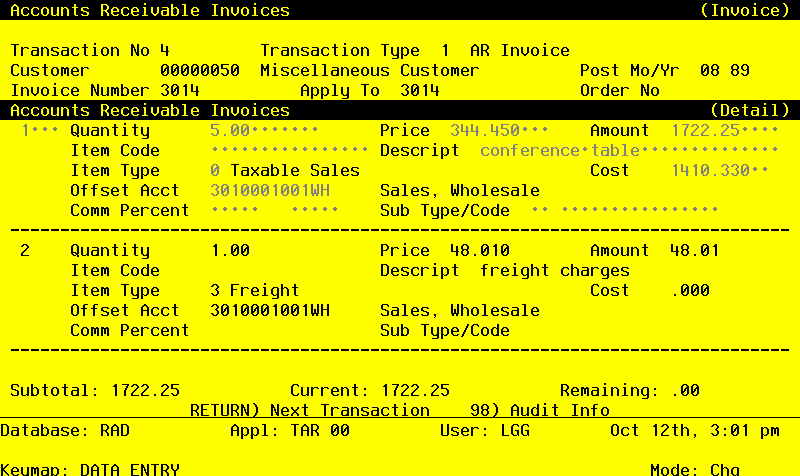
When the key value for a particular record is requested, you can review all the records in the file by selecting the Scan option. The records will be presented on an “Access” screen, and you will be allowed to scan the available data until you find the record you want. Then, position the cursor by that record and press ENTER; the record will be displayed for editing.
Data items for the preceding screen are described below:
- Line Item
Positive number, up to 3 digits
The system automatically number line items in sequence beginning with “1”. You may return to this field and change the number. However, each line item must be identified by a unique number.
- Quantity
Number, up to 7 digits and 2 decimals
Supply the number of items sold. If units do not apply here, enter “1”.
For a credit memo or a discount line item, enter a negative number.
- Price
Positive number, up to 6 digits and 3 decimals
Supply a unit price for the item being sold. If the price per unit does not apply here, enter the line item amount.
- Amount
Number, up to 7 digits and 2 decimals
The system calculates and displays the line item amount based on the Quantity and Price. This number is rounded to 2 decimal positions.
The Amount, Quantity, and Price fields are interrelated. Thus, if you change the Quantity or Price, the Amount is recomputed. If you change the Amount, the Price is recomputed.
- Item Code
Alphanumeric, up to 16 characters
Identify the inventory item code of the product or service being sold, if appropriate. If Inventory Control is part of your system, your entry must be on file in the Inventory Products file.
- Description
Alphanumeric, up to 30 characters
If your system includes Inventory control, the system displays the description (from the Inventory Products file) of the item code you entered in the previous field. You can override the display.
If your system does not include Inventory Control, you can provide a description of the line item.
This entry is printed on invoices, the invoices journal, and the Sales GL Distribution report.
- Item Type
Positive number, 1 digit
Enter a 1-digit code from the Descriptions file that identifies the type of line item. The system displays the description next to this field. Valid codes are:
- 0
- Taxable Sale; 1: Nontaxable Sale; 2: Customer Discount; 3: Freight; 4: Sales Tax; 5: Other
If an entry was made in the Customer Discount field on the header screen, a type 2 line item is memo only. That is, it printed on the invoice but not posted to General Ledger. If no entry was made in the Customer Discount field on the header, a type 2 line item is posted to the offset account entered for the line item. The same holds true for the Freight and Sales Tax fields on the header and type 3 and 4 line items, respectively. If no entry was made on the header, the line item is posted to the offset account. If an entry was made on the header, the line item is memo only.
- Cost
Number, up to 6 digits and 3 decimals
Identify the total Cost of Goods Sold for this line item.
If your system includes Order Entry, and if this invoice was entered through Order Entry, the system displays the cost that was calculated in Order Entry for this line item. You can override the display; if your system does not include Order Entry, supply the total Cost of Goods for this line item.
This field is used to calculate margins for reports and inquiries. It is not posted to General Ledger.
- Offset Account
Upper case, up to 12 characters
You can use PF2 to search for an appropriate entry.
The offset account is defaulted from the customer’s record. You may override this entry. This is the account to which the line item amount will be posted. For invoices, freight, sales tax, and debit memos, this account is credited. For credit memos and discounts, this account is debited.
If your system includes General Ledger, this account number must be on file in the Chart of Accounts file. The system displays the corresponding description so that you can verify your entry.
- Comm Percent
Positive number, up to 3 digits and 1 decimals
If you entered ‘N’ for Comm on Sub? on the invoice header, enter the commission percent to be paid on this line item.
- Sub Type
Upper case, up to 2 characters Letters only
The system displays the subsidiary type for the account, as defined in General Ledger. This reflects the subsidiary to which this line item will be posted.
If General Ledger is not part of your system, you may enter any value in this field. The transactions that are posted to various subsidiary types and codes can be printed on the Subsidiary Codes GL Distributions report on the Monthly Processing menu.
- Sub Code
Upper case, up to 1 characters
Supply a subsidiary code if this line item is to be posted to a subsidiary costing application. If the sub type is ‘GL’, it is assumed that the transaction will flow through to General Subsidiary. You cannot enter a subsidiary code if the subsidiary type is blank; conversely, if the subsidiary type is not blank you must enter a subsidiary code.
The transactions that are posted with the various subsidiary types and codes can be viewed on the Subsidiary Code GL Distributions report on the Monthly Processing menu.
The entered data is validated. During validation, including access to other files, conditions may be found which cause messages to be displayed. Errors (E), Warnings (W), and Messages (M) that may result are shown below:
Press ENTER to display system-supplied information and then press ENTER again to save the information on this screen.
Select Pervious Image to go back to the Invoices screen. Select Next Record to go to the next Invoice Line Items record. Select End to go to the next Invoices record.
At this screen, the use of the MODE keys - ADD, DEL, CHG, or INQ - pertain to those records in the Invoice Line Items file.