
8Financial Statements
Option 4Ratios
You can use this function to define various financial ratios. The current value and the contents of each ratio is printed as separate documents using the Ratio Print function. Common financial ratios such as the “Current Ratio” or “Debt to Equity” can be entered here and calculated by the Ratio Print function.
Any number of ratios can be entered; each ratio requires a “numerator” and a “denominator”. Numerators and denominators can be made up of any number of arithmetic operators. The value of the ratio is derived by executing the arithmetic operations in the sequence in which they are presented, and then dividing the numerator value by the denominator value. For example, the Current Ratio is defined as Current Assets/Current Liabilities. Current Assets is the numerator, Current Liabilities is the denominator. The current Assets might be entered as Cash + Accounts Receivable + Inventories; Current Liabilities might be entered as Accounts Payable + Payroll Taxes Payable + Other Liabilities.
When you use this function, a record of all entries will be printed. For additions, all new field contents are printed; for deletions, the deleted record’s contents are shown; for changes, both old field contents and new field contents are shown; and in all cases, the User ID, date, and time are printed.
The screen shown below presents information about Ratios.
This file defines and describes the financial ratio.
Ratios screen

When the key value for a particular record is requested, you can review all the records in the file by selecting the Scan option. The records will be presented on an “Access” screen, and you will be allowed to scan the available data until you find the record you want. Then, position the cursor by that record and press ENTER; the record will be displayed for editing.
Note that the Audit Info option is available at the bottom of this screen. When this option is invoked, the Audit Information overlay appears and displays the date the record was created and who created it, as well as the date the record was last modified and who modified it. Press the END key or the RETURN key to clear the overlay from your screen. The information displayed in the Audit Information overlay is system-supplied and non-modifiable.
Data items for the preceding screen are described below:
- Code
Positive number, up to 3 digits Scan by this field (access key)
Supply a numeric code to identify the ratio. This number can be used for sorting ratio reports.
- Description
Alphanumeric, up to 30 characters Required
Describe the ratio being defined. This description will print on the list and the report.
Press ENTER to continue to the next screen.
Select the Next Record to go to the next Ratios record.
At this screen, the use of the MODE keys - ADD, DEL, CHG, or INQ - pertain to those records in the Ratios file.
The screen shown below presents information about Ratio Detail.
This field stores the various definitions that will be used to formulate ratios. Ratio analysis capabilities are handled through data entered in this file. The structure of this file is based on two premises:
- That ratio data is composed of a numerator and a denominator.
- That you will need a balance file type and account balance information to formulate ratios.
You construct a numerator and a denominator according to sets of sequential arithmetic operations. Each ratio detail record should define one arithmetic operation that is needed to formulate the ratio. Each arithmetic operation is performed on either a specific balance record or a specific constant value. Each ratio requires at least one record with a numerator type and one record with a denominator type; each detail record must contain either a constant value or the balance information, but not both. You can use any of the four balance files (Account Balances, Budgets, Foreign Balances, or Unit Balances).
Ratio Detail screen
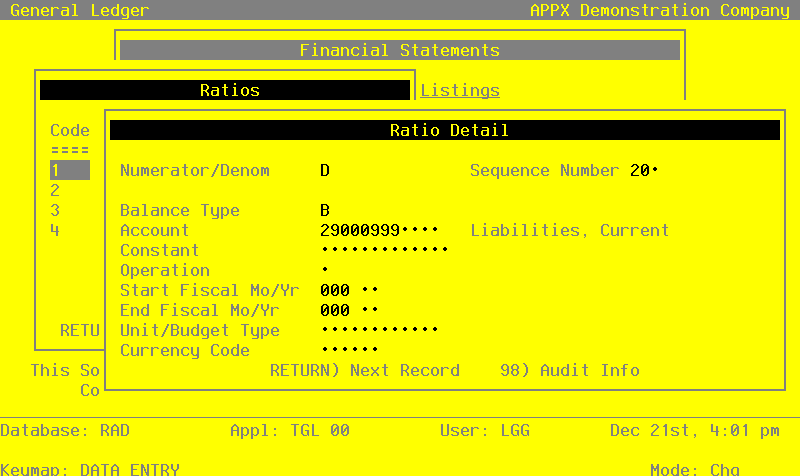
When the key value for a particular record is requested, you can review all the records in the file by selecting the Scan option. The records will be presented on an “Access” screen, and you will be allowed to scan the available data until you find the record you want. Then, position the cursor by that record and press ENTER; the record will be displayed for editing.
Data items for the preceding screen are described below:
- Numerator/Denominator
Upper case, 1 character Letters only Valid: N, D Required Carries forward in ADD mode
Designate the portion of the equation which is currently being defined. The options are:
- N
- Numerator
- D
- Denominator
- Sequence Number
Positive number, up to 3 digits
The system displays a sequential number, beginning with 10 and incrementing by 10 for each record added. This sequence number is used to designate a specific variable in a specific location within the equation. You may change the sequence number to obtain greater flexibility.
The value to be associated with the lowest sequence number is assigned the variable ‘XI’, and the second lowest is assigned the variable ’X2', a process which continues throughout the range of sequence numbers. All mathematical operations within the numerator or denominator are performed in sequence number order.
- Balance Type
Upper case, 1 character Letters only Valid: B, D, F, U Default B Carries forward in ADD mode
This entry determines the type of accounting information to be accessed for this variable. It must be left blank if any entry is made in the Constant field. The options are:
- B
- Balances. The amounts printed are to be actual balances. The system will automatically default to this option.
- D
- Budgets. The amounts printed are to be budgeted account balances.
- F
- Foreign Currency. The amounts printed are to be foreign currency account balances.
- U
- Unit Balances. The amounts printed are to be unit account balances.
- Account
Upper case, up to 12 characters Scan available
Supply the account number for the data to be accessed. This account must be on file in the Chart of Accounts file. The system displays the description so that you can verify your entry.
- Constant
Number, up to 9 digits and 2 decimals
Enter a number to designate a specific value to be used in the equation.
For example, when accounts with credit balances such as liabilities and revenues are used in a ratio calculation, using a ‘-1’ constant will eliminate the negative sign on the ratio. Another example may be to select a constant representing a number of months when a monthly average is to be calculated, or the number of shares of stock outstanding in calculating per share values.
Note that if a constant is entered, the Account and Balance Type fields on this screen must be left blank.
- Operation
Upper case, 1 character Valid: +, -, *, /
This entry identifies the mathematical operation to be applied to the currently defined variable. It should be left blank for the first numerator variable and the first denominator variable. The options are:
- +
- Addition. The current variable is to be added to the previous variable.
- -
- Subtraction. The current variable is to be subtracted from the previous variable.
- /
- Division. The current variable is to be divided into the previous variable.
- *
- Multiplication. The current variable is to be multiplied by the previous variable.
- Start Fiscal Month
Upper case, up to 3 characters Carries forward in ADD mode
This entry designates the month, or the first month in a range of months, to be accessed for balance information. The ratio calculation process will take the difference between the start month and end month values. The options are:
- 001
- 013: Actual Fiscal Month; the ending balance for the month.
- 000
- Current Calendar Month
-1 to -99: Negative Fiscal Month; the number of months prior to the current fiscal month from which information is to be drawn. For example, to represent the prior 12 months of net activity, enter - 12 as the start month.
- SOY
- Start of Year
- EOY
- End of Year
- Start Fiscal Year
Positive number, up to 2 digits Carries forward in ADD mode
If you entered 001-013, SOY, or EOY for the Start Month, identify the starting fiscal year. Otherwise, leave this field blank.
- End Fiscal Month
Upper case, up to 3 characters Carries forward in ADD mode
This entry designates the month, or the last month in a range of months, to be accessed for balance information. The ratio calculation process will take the difference between the start month and end month values. The options are:
- 001
- 013: Actual Fiscal Month, the ending balance for the month.
- 000
- Current Calendar Month
-1 to -99: Negative Fiscal Month; this is the number of months prior to the current fiscal month from which information is to be drawn. For example, if the current fiscal month is 12, ‘-5’ refers to fiscal month 7.
- SOY
- Start of Year
- EOY
- End of Year
- End Fiscal Year
Positive number, up to 2 digits Carries forward in ADD mode
If you entered 001-013, SOY, or EOY for the End Month, identify the ending fiscal year. Otherwise, leave this field blank.
- Unit/Budget Type
Alphanumeric, up to 12 characters Scan available Carries forward in ADD mode
If ‘D’ or ‘U’ was entered in the File Type field, identify the appropriate code for the unit or budget type to be accessed. These codes must be on file in the Types master file. The system displays the description so that you can verify your entry.
- Currency Code
Alphanumeric, up to 6 characters
You can sue Scan to search for an appropriate entry.
If you entered ‘F’ in the File Type field, supply the appropriate code for the foreign currency to be used. This code must be on file in the Exchange Rates master file. The system displays the description so that you can verify your entry.
The entered data is validated. During validation, including access to other files, conditions may be found which cause messages to be displayed. Errors (E), Warnings (W), and Messages (M) that may result are shown below:
Press ENTER to display system-supplied information and then press ENTER again to save the information on this screen.
Select the Previous Image option to go back to the Ratios screen. Select the Next Record option to go to the next Ratio Detail record. Select the End option to go to the next Ratios record.
At this screen, the use of the MODE keys - ADD, DEL, CHG, or INQ - pertain to those records in the Ratio Detail file.