
8Financial Statements
Option 1Statement Text
You can use this function to enter titles, headings, disclaimers, and other embedded text to be printed on the financial statements.
You can specify whether to have the text centered, and whether to have a page number printed.
When you use this function, a record of all entries will be printed. For additions, all new field contents are printed; for deletions, the deleted record’s contents are shown; for changes, both old field contents and new field contents are shown; and in all cases, the User ID, date, and time are printed.
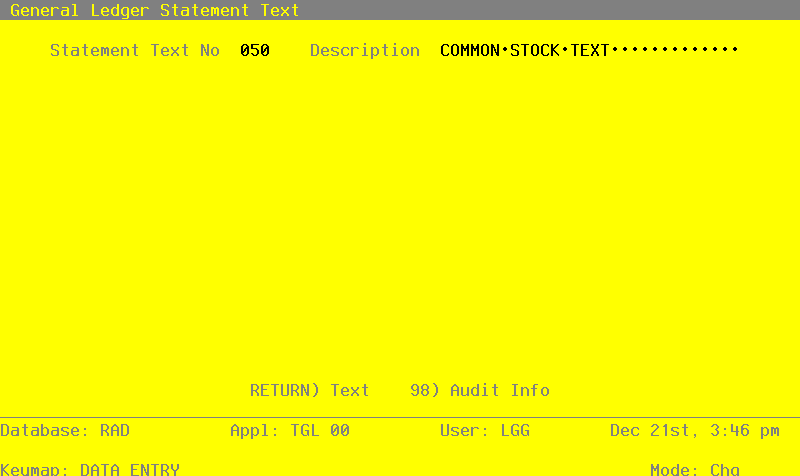
The screen shown below presents information about Statement Text.
This file stores descriptive text that is printed on financial statements. “Headings” and “Disclaimers” in the Statement Printing file use text stored in this file to print on the financial statement. Individual lines within the Statement Detail file may also reference text stored within this file.
Statement Text screen
When the key value for a particular record is requested, you can review all the records in the file by selecting the Scan option. The records will be presented on an “Access” screen, and you will be allowed to scan the available data until you find the record you want. Then, position the cursor by that record and press ENTER; the record will be displayed for editing.
Note that the Audit Info option is available at the bottom of this screen. When this option is invoked, the Audit Information overlay appears and displays the date the record was created and who created it, as well as the date the record was last modified and who modified it. Press the END key or the RETURN key to clear the overlay from your screen. The information displayed in the Audit Information overlay is system-supplied and non-modifiable.
Data items for the preceding screen are described below:
- Statement Text No
Upper case, up to 3 characters Required Scan by this field (access key)
Only numbers re acceptable.
This is the key for this text record.
The value in this field is used to reference the text during Statement Detail or Statement Printing entry, and when financial statements are printed.
- Description
Alphanumeric, up to 40 characters Required
Describe this text entry. This description is for your reference only.
Press ENTER to continue to the next screen.
Select the Next Record option to go to the next Statement Text record.
At this screen, the us of the MODE keys - ADD, DEL, CHG, or INQ - pertain to those records in the Statement Text file.
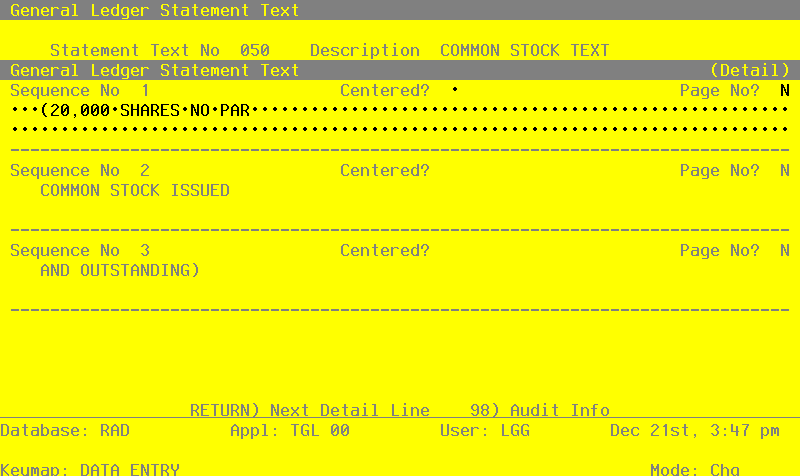
The screen shown below presents information about Statement Text Detail.
You can embed “special value” fields into the text by typing an “up arrow” followed by the name of the field. The special value fields provided are “PAGE”, “DATE”, “YEAR”, and “TIME”. They must be entered in uppercase.
PAGE: Prints in the format “Page #” where “#” is the number of the page being printed.
DATE: Prints in the format “Month, Day, Year”. The date will be the last day of the month for the month and year established in the statement printing record. If these are blank then the current fiscal month and year are used.
YEAR: Prints the calendar year established in the statement printing record. If this is blank then the current fiscal year is converted to calendar.
TIME: Prints in the format “mm/dd/yy/hh/mmAM” using the current system date and time.
Statement Text Detail screen
When the key value for a particular record is requested, you can review all the records in the file by selecting the Scan option. The records will be presented on an “Access” screen, and you will be allowed to scan the available data until you find the record you want. Then, position the cursor by that record and press ENTER; the record will be displayed for editing.
Data items for the preceding screen are described below:
- Sequence No
Positive number, up to 2 digits Display only
This is a sequence number for this line of text.
The sequence number governs the order in which all text entered for this Statement Text will be displayed. For example, a typical financial statement header might use the first sequence number for the company name, the second for the statement title, and the third for the statement period.
A sequence number with blank text can be used to embed blank lines.
- Centered?
Y or N Required Carries forward in ADD mode
Enter ‘Y’ if you wish to automatically center the text. Otherwise, enter ‘N’.
- Page No?
Y or N Default N Required
Enter ’Y’ if a page number is to be automatically appended to this line. If selected, it will print justified on the current line of text.
- Text - Left Half
Alphanumeric, up to 78 characters
Enter the first 78 of 156 characters of text (the remaining 78 characters are in the following field). This text is printed on the financial statement in the location defined in the Statement Detail file for internal text, or in the location defined in the Statement Printing file for headings and disclaimers.
To assist in positioning the text, the screen displays a ruler marking each group of ten characters.
An example of text embedded with a special value field might be “For the Month Ending (up arrow) Date”. This would print on the financial statement as “For the Month Ending August 31, 1990” if 08 / 90 were the statement printing month and year.
- NOTE
- Only the first special value field within a text field will be printed.
- Text - Right Half
Alphanumeric, up to 78 characters
Enter the second 78 of 156 characters of text. This text is printed on the financial statement in the location defined in the Statement Detail file for internal text, or in the location defined in the Statement Printing file for headings and disclaimers.
To assist in positioning the text, the screen displays a ruler marking each group of ten characters.
An example of text embedded with a special value field might be “For the Month Ending (up arrow) Date”. This would print on the financial statement as “For the Month Ending August 31, 1990” if 08 / 90 were the statement printing month and year.
- NOTE
- Only the first special value field within a text field will be printed.
The entered data is validated. During validation, including access to other files, conditions may be found which cause messages to be displayed. Errors (E), Warnings (W), and Messages (M) that may result are shown below:
Press ENTER to save the information on this screen.
Select the Previous Image option to go back to the Statement Text screen. Select the Next Record option to go to the next Statement Text Detail record. Select the End option to go to the next Statement Text record.
At this screen, the use of the MODE keys - ADD, DEL, CHG, or INQ - pertain to those records in the Statement Text Detail file.