
7Foreign Currency Processing
Option 2Foreign Accounts
You can use this function to enter basic information about foreign accounts. In addition, during the Initial Setup phase of your operations, you can enter monthly balances for each foreign account.
When you use this function, a record of all entries will be printed. For additions, all new field contents are printed; for deletions, the deleted record’s contents are shown; for changes, both old field contents and new field contents are shown; and in all cases, the User ID, date, and time are printed.
The screen shown below presents information about Foreign Accounts.
This file contains general information about foreign balances.
Foreign Accounts screen
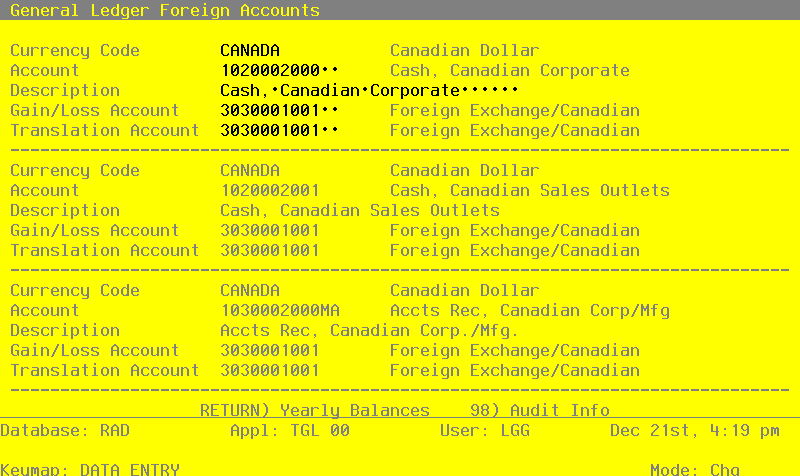
When the key value for a particular record is requested, you can review all the records in the file by selecting the Scan option. The records will be presented on an “Access” screen, and you will be allowed to scan the available data until you find the record you want. Then, position the cursor by that record and press ENTER; the record will be displayed for editing.
Note that the Audit Info option is available at the bottom of this screen. When this option is invoked, the Audit Information overlay appears and displays the date the record was created and who created it, as well as the date the record was last modified and who modified it. Press the END key or the RETURN key to clear the overlay from your screen. The information displayed in the Audit Information overlay is system-supplied and non-modifiable.Data items for the preceding screen are described below:
Data items for the preceding screen are described below:
- Currency Code
Alphanumeric, up to 6 characters Required Scan available Carries forward in ADD mode
Identify the foreign currency for this record. Select a code from the Exchange Rates file. The system displays the description so that you can verify your entry.
- Account
Upper case, up to 12 characters Required Scan available
Define the account number for this record. The system displays the description so that you can verify your entry.
- Description
Alphanumeric, up to 30 characters Required
Describe this foreign balances.
- Gain/Loss Account
Upper case, up to 12 characters Required Scan available
Identify the general ledger account which should be used for posting gains and losses relative to this currency. This is usually a revenue/expense account. When a currency transaction gain or loss is recognized in Accounts Payable or Accounts Receivable, this account is updated. The system displays the description so that you can verify your entry.
- Translation Account
Upper case, up to 12 characters Scan available Carries forward in ADD mode
Identify the account number to use to offset the General Ledger entry made when translation adjustments are generated. This is usually an equity account. The system displays the description so that you can verify your entry.
Press ENTER to display system-supplied information and then press ENTER again to continue to the next screen.
Select the Next Record option to go to the next Foreign Accounts record.
At this screen, the use of the MODE keys - ADD, DEL, CHG, or INQ - pertain to those records in the Foreign Accounts file.
The screen shown below presents information about Foreign Balances.
During the Initial Setup phase of your operations, you can enter monthly foreign balances using this screen. During Live Operations, this screen will not appear.
This file stores foreign currency balances. Its purpose is to maintain information about currencies other than the domestic currency. A record must exist in this field for each record in the Account Balances file that maintains a foreign currency value. Information stored in this file will help the system keep track of currency gains and losses and currency translation gains and losses.
Foreign Balances - Enter screen
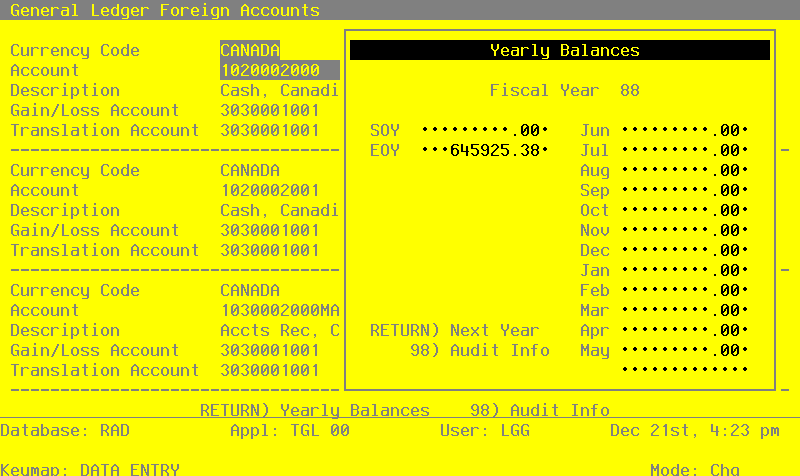
When the key value for a particular record is requested, you can review all the records in the file by selecting the Scan option. The records will be presented on an “Access” screen, and you will be allowed to scan the available data until you find the record you want. Then, position the cursor by that record and press ENTER; the record will be displayed for editing.
Data items for the preceding screen are described below:
- Fiscal Year
Positive number, up to 2 digits Display only
Identify the fiscal year for which you are going to enter balances.
- SOY
Number, up to 9 digits and 2 decimals Display only
Identify the start-of-year balance.
- Monthly Balances
Number, up to 9 digits and 2 decimals Display only
Supply the monthly balance for each fiscal month. Thirteen months are allowed.
- EOY
Number, up to 9 digits and 2 decimals Display only
Identify the end-of-year balance.
The entered data is validated. During validation, including access to other files, conditions may be found which cause messages to be displayed. Errors (E), Warnings (W), and Messages (M) that may result are shown below:
Press ENTER to display system-supplied information and then press ENTER again to continue to the next screen.
Select the Previous Image option to go back to the Foreign Accounts screen. Select the Next Record option to go to the next Foreign Balances record. Select the End option to go to the next Foreign Accounts record.
At this screen, the use of the MODE keys - ADD, DEL, CHG, or INQ - pertain to those records in the Foreign Balances file.
This screen may optionally be used to display information about Foreign Balances.
During the Initial Setup phase of your operations, this screen will not appear. During Live Operations, you can use this screen to view your foreign balances.
Foreign Balances - Display screen

When the key value for a particular record is requested, you can review all the records in the file by selecting the Scan option. The records will be presented on an “Access” screen, and you will be allowed to scan the available data until you find the record you want. Then, position the cursor by that record and press ENTER; the record will be displayed for editing.
Data items for the preceding screen are described below:
- Fiscal Year
Positive number, up to 2 digits
Identify the fiscal year for which you are going to enter balances.
- SOY
Number, up to 9 digits and 2 decimals Display only
Identify the start-of-year balance.
- Monthly Balances
Number, up to 9 digits and 2 decimals Display only
Supply the monthly balance for each fiscal month. Thirteen months are allowed.
- EOY
Number, up to 9 digits and 2 decimals Display only
Identify the end-of-year balance.
The entered data is validated. During validation, including access to other files, conditions may be found which cause messages to be displayed. Errors (E), Warnings (W), and Messages (M) that may result are shown below:
Press ENTER to display system-supplied information and then press ENTER again to save the information on this screen.
Select the Previous Image option to go back to the Foreign Accounts screen. Select the Next Record option to go to the next Foreign Balances record. Select the End option to go to the next Foreign Accounts record.
At this screen, the use of the MODE keys - ADD, DEL, CHG, or INQ - pertain to those records in the Foreign Balances file.