
Chapter 2: System Administration
Importing Registration Info
You can also import registration information directly from an email message that contains your registration document. Select Import Menu from the System Registration Screen to access the Import Registration Menu shown in Figure 2-4 below.
Import Registration menu

This menu contains two options, Typical Import and Custom Import.
Typical Import
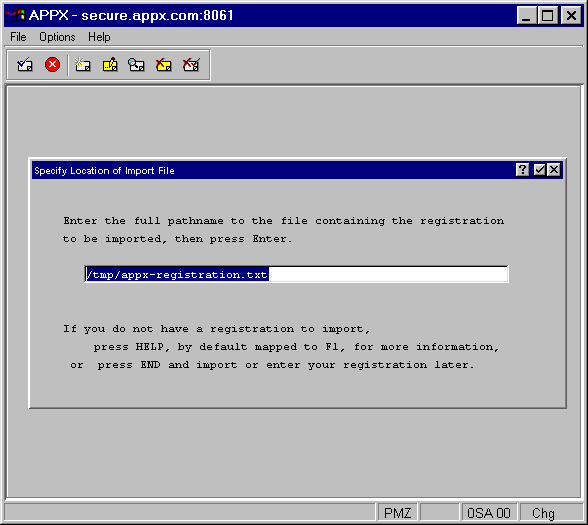
This option imports the registration emailed to you by APPX or your supporting distributor in a single step. When selecting this option, you should enter the complete pathname of your saved email message as shown in Figure 2-5. Then press ENTER to import.
Custom Import
This option provides the same functionality as a typical import but is broken down into steps to give you more feedback regarding the registration import process. Use this option (shown in Figure 2-6) if you are having trouble performing a typical import of your registration.
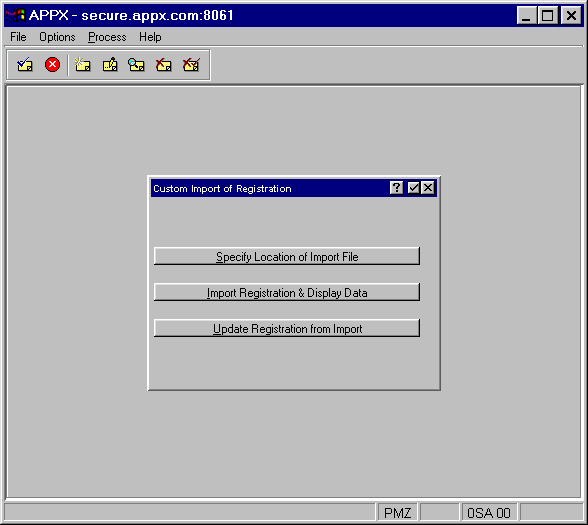
To import, select the three options in the order they appear.
- Specify Location of Import File
By entering pathname, then press ENTER.
- Import Registration & Display Data
To verify that information from the registration document is being imported properly into each registration field. If not, please contact your dealer or APPX support for assistance.
- Update Registration from Import
To update registration information. Do not select this option if the display of registration data indicates that registration information is not being imported properly.