
6Check Processing
Option 11Void Check Stock
Use this function as a quick means to record check stock as “VOID”. Check records designated as Cancel and Void during the Checks Approval/Revision process are already recorded as ‘VOID’ and need not be entered. Do NOT use this function to void posted checks. Posted checks should be voided using the ‘Void Check’ entry function on the Transaction Processing menu. The following processing steps accomplish this job.
- Step 1This function allows you to void check stock that was needed to load the printer but not used, or to void stock used during a check run that was aborted and restarted via the Clear Checks and Restart function. An Outstanding Check record is created for the appropriate checks with a “Void” and “Canceled” status.
On the following pages, the screen displayed by this function is shown.
The screen shown below allows you to void a range of check stock numbers.
Void Check Stock screen
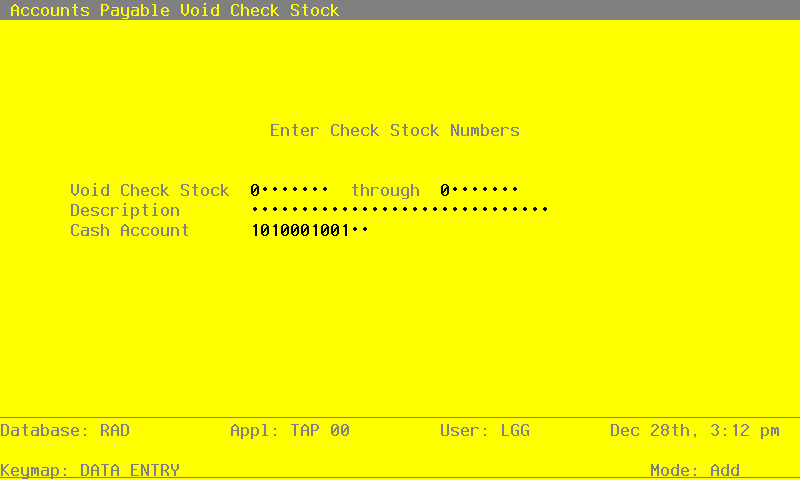
Data items for the preceding screen are described below:
- Starting Check Stock Number
Positive number, up to 8 digits
Enter the starting check stock number of the range of check stock to designate as VOID in the Outstanding Checks file.
- Ending Check Stock Number
Positive number, up to 8 digits
Enter the ending check stock number of the range of check stock to designate as VOID in the Outstanding Checks file.
- Description
Alphanumeric, up to 30 characters Required
This description will accompany the voided check on the Outstanding Checks record. For example, you may want to note that the voided stock was used as “Leader for 2/10/90 Check Run’.
- Cash Account
Upper case, up to 12 characters Required Scan available
Enter the Cash Account that will be included as a reference for the voided check stock. No General Ledger posting will be made to this account during the Void Check process. This is for your information only.
The entered data is validated. During validation, including access to other files, conditions may be found which cause messages to be displayed. Errors (E), Warnings (W), and Messages (M) that may result are shown below:
Press ENTER to display system-supplied information and then press ENTER again to save the information on this screen.
- Step 2This function Void the Check Stock by creating an Outstanding Checks Record for each Check Stock number in the range entered.