
3File Maintenance
Option 6Outstanding Checks
You can use this function to enter and modify outstanding checks. For example, if a check is erroneously canceled in Canceled Checks Entry, you can change the Canceled? status from ‘Y’ to ‘N’ using this function.
During Initial Setup, all the data for this file must be entered. During Live Operations File Maintenance, however, information will default from the given Cash Account Number, Posted Date/Time, and Check Number. The other fields may then be edited.
When you use this function, a record of all entries will be printed. For additions, all new field contents are printed; for deletions, the deleted record’s contents are shown; for changes, both old field contents and new field contents are shown; and in all cases, the User ID, date, and time are printed.
On the following pages, the screen displayed by this function is shown.
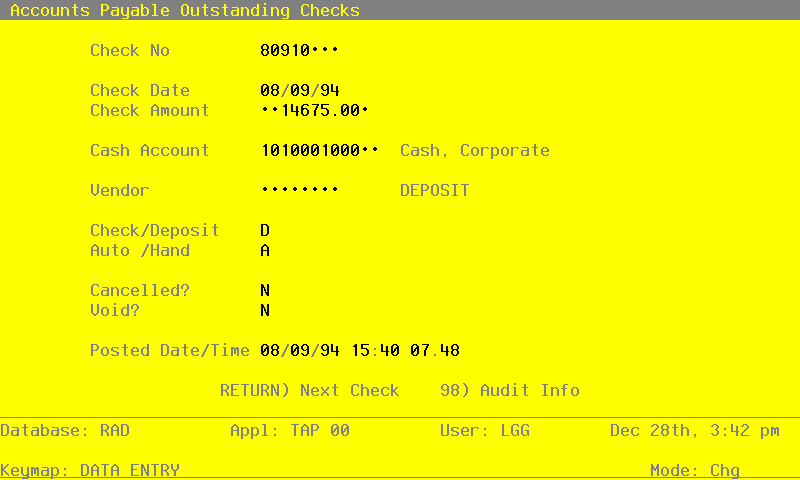
The screen shown below presents information about Outstanding Checks.
Outstanding Checks screen
When the key value for a particular record is requested, you can review all the records in the file by selecting the Scan option. The records will be presented on an “Access” screen, and you will be allowed to scan the available data until you find the record you want. Then, position the cursor by that record and press ENTER; the record will be displayed for editing.
Data items for the preceding screen are described below:
- Check No
Positive number, up to 8 digits
Furnish the check number.
If while using the Canceled Checks Entry function you inadvertently cancel the wrong check, you can change the ‘Canceled’ status of the check via the Outstanding Checks File Maintenance function.
- Check Date
Date (YMD) Required
The date the check was issued is shown.
- Check Amount
Number, up to 7 digits and 2 decimals
Supply the amount of the check.
- Cash Account
Upper case, up to 12 characters Required Scan available Carries forward in ADD mode
Supply the number of the cash account from which the check was paid. The cash account defined in the Parameters file is supplied, but you may change this default. If General Ledger is part of your system, this account must be on file in the General Ledger Chart of Accounts file. The system displays the account description so that you may verify your entry.
- Vendor
Upper case, up to 8 characters Numbers only
The vendor paid by this check is displayed.
- Check / Deposit
Upper case, 1 character Letters only Valid: C, D Default C Required
This field indicates whether this record represents a check (‘C’) or deposit (‘D’) type of transaction. If the Accounts Receivable application is part of your system, cash deposits will be transferred to this file to aid you in reconciling your bank accounts.
- Auto / Hand
Upper case, 1 character Valid: A, H Required
In ADD mode, this field will automatically saved from one record to the next.
This field indicates whether the check was created through Hand Checks Entry or by the Checks Processing function.
- H
- Hand Check
- A
- Automatic or Machine Check
- Cancelled?
Y or N Default N Required
This field indicates whether or not this check has been cancelled, or cleared by your bank.
- Void
Y or N Default N Required
This field indicates whether or not this check has been voided.
- Posted Date/Time
Date and time (YMDHMSH) Required Carries forward in ADD mode
Provide the approximate date and time when this check was posted.
The entered data is validated. During validation, including access to other files, conditions may be found which cause messages to be displayed. Errors (E), Warnings (W), and Messages (M) that may result are shown below:
Press ENTER to display system-supplied information and then press ENTER again to save the information on this screen.
Select Next Record to go to the next Outstanding Checks record.
At this screen, the use of the MODE keys - ADD, DEL, CHG, or INQ - pertain to those records in the Outstanding Checks file.