
7Utilities and Special Edits
Option 8Edit Reorder Records
This function is used to edit reorder records created using the Create Reorder Records function. The product number, warehouse number, vendor, quantity, price, and amount on the reorder record can be changed. The system displays the operator ID under which the record was created and the date on which it was created.
Select “Edit Reorder Records” from the Utilities and Special Edits menu. Here is the Edit Reorder Records screen:
Edit Reorder Records screen
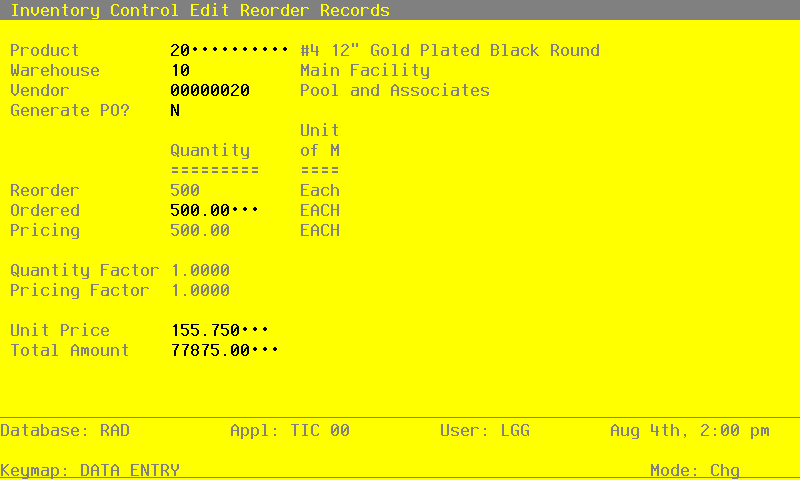
Certain entries on the screen will be automatically displayed. In most cases, the displayed entry can be changed. If an asterisk (*) appears next to one of the fields listed below, it indicates a “display only” field, which cannot be changed.
When the key value for a particular record is requested, you can review all the records in the file by selecting the Scan option. The records will be presented on an “Access” screen, and you will be allowed to scan the available data until you find the record you want. Then, position the cursor by that record and press RETURN; the record will be displayed for editing.
Data items for the preceding screen are described below:
- Product
Enter the number of the product for which a reorder record has been created. You can use the Scan option to find an appropriate entry. The system displays the corresponding product description so that you may verify your entry.
- Warehouse
Enter the number of the warehouse from which a reorder record has been generated. You can use the Scan option to find an appropriate entry. The system displays the corresponding warehouse description so that you may verify your entry.
- Vendor
The system displays the reorder vendor, if any, from the Products By Warehouse record.
You may override the display. You can use the Scan option to find an appropriate entry. The system displays the corresponding vendor name so that you may verify your entry.
- Generate PO?
When you have finished editing this record, you may enter ‘Y’ to indicate that the reorder record is to be used to create a purchase order. If you do not wish to create a purchase order, leave this field set to ‘N’.
- Y
- A purchase order entry is to be created for this reorder record.
- N
- No purchase order entry is to be created.
- Reorder Quantity*
The system displays the Reorder Quantity from the Products By Warehouse record. This quantity is in terms of stockkeeping units.
- Quantity Ordered
The system displays the number of purchasing units to be reordered. You may enter up to 5 digits and 2 decimals to override the display.
- Pricing Qty*
The system displays the number of pricing units to be reordered.
- Quantity Factor*
The system displays the Quantity Factor from the Products By Vendor record.
- Pricing Factor*
The system displays the Pricing Factor from the Products By Vendor record.
- Unit Price
The system displays the current unit price from the Product By Vendor record. You may enter up to 6 digits and 3 decimals to override the display.
- Total Amount
The system displays the extended cost of the product, which is computed as follows:
Pricing Quantity x Unit Price
You may enter up to 7 digits and 2 decimals to override the display.
The entered data is validated. Press RETURN to save the information on the screen.
Select Next Record to go to the next Reorder record.
At this screen, use of the MODE keys — DEL, CHG, or INQ — pertain to those records in the Reorder file.