
3File Maintenance
Option 8Parameters
The Parameters file contains a single record that defines how the Inventory Control application functions. This record contains such information as the fiscal and calendar year, product costing method, and required monthly reports.
When you use this option, a record of all entries will be printed. For additions, all new field contents are printed; for deletions, the deleted record’s contents are shown; for changes, both old field contents and new field contents are shown; and, in all cases, the User ID, date, and time are printed.
Select “Parameters” from the File Maintenance menu. Here is the Parameters entry screen:
Parameters screen, part 1 of 2
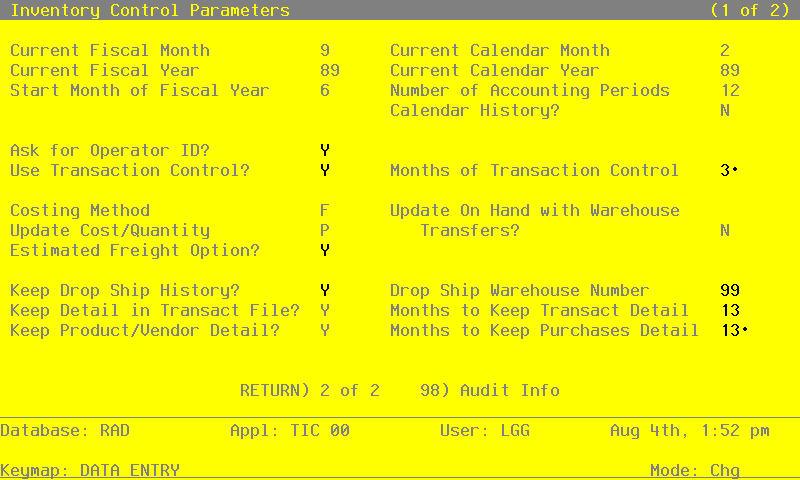
The fields on this screen are automatically displayed. In a few cases, the displayed entry can be changed. If an asterisk (*) appears next to one of the fields listed below, it indicates a “display-only” field, which cannot be changed.
Data items for the preceding screen are described below:
- Current Fiscal Month / Year*
The system displays the current fiscal month and year. The fiscal month can be a value between ‘1’ and ‘13’.
- Current Calendar Month / Year*
The system displays the current calendar month and year.
- Start Month of Fiscal Year*
The system displays the calendar month that begins your fiscal year. For example, if your fiscal year begins on July 1, the start month is ‘7’.
- Number of Accounting Periods*
The system displays ‘12’ or ‘13’ to specify the number of periods in the fiscal year.
- Calendar History?*
The system displays ‘Y’ or ‘N’ to indicate whether or not history in the Products By Warehouse and Products By Vendor files is kept on a calendar year basis.
- Ask for Operator ID?
If this field is set to ‘Y’, the operator ID is requested at the beginning of transaction entry within this application. This permits editing of another operator’s transactions. If this field is set to ‘N’, then the system does not request an operator ID at the beginning of transaction entry. Transactions will ‘belong’ to the operator who entered the transactions; therefore it is not possible to edit another operator’s transactions.
- Use Transaction Control?
Y or N Default Y Required
The system assumes you want to use the Transaction Control feature. This includes the ability to track and report on the Transaction Control file, which is an additional audit trail, and to enter control and hash totals for your transactions. If you do not choose to use this feature, enter ‘N’.
If you want to use this feature and also want to ensure that an operator has exclusive control of his or her own transactions, enter ‘Y’ in this field, and change the default value of the ‘Operator Exclusive?’ field on each Control Group record in Transaction Processing to ‘Y’. NOTE: If you enter ‘Y’ to this question, the system assumes that ‘Ask for Operator ID?’ is also ‘Y’.
- Months of Transaction Control
Positive number, up to 2 digits
Enter the number of months of Transaction Control you want to keep. During close month processing, records older than the number of months specified in this field are deleted.
- Costing Method*
The system displays one of the following codes to specify the costing method used for Inventory Control.
- A
- Average cost
- F
- FIFO (first in first out)
- L
- LIFO (last in first out)
- S
- Standard cost
- T
- Last cost
- Update Cost / Quantity*
The system displays one of the following codes to specify which applications update product costs and quantities:
- A
- Costs are updated by invoice postings from Accounts Payable. Quantities are updated by receipt entries in Inventory Control.
- P
- Costs are updated by invoice postings from Purchase Orders. Quantities are updated by receipt entries from Purchase Orders.
- I
- Costs are updated by receipt postings in Inventory Control. Quantities are updated by receipt entries in Inventory Control.
This field specifies how Inventory Control interfaces with the Purchase Orders and Accounts Payable applications. (This concept is discussed in the Special Considerations section of the “User’s Manual: Initial Setup.”)
- Update On Hand with Warehouse Transfers?*
The system displays ‘Y’ or ‘N’ to indicate whether or not warehouse transfers update on hand quantities in both the sending and the receiving warehouse.
- Y
- Warehouse transfer entries update on hand quantities in both the sending and the receiving warehouse.
N: Warehouse transfer entries update on hand quantities in the sending warehouse and on order quantities in the receiving warehouse. An inventory receipt must be entered at the receiving warehouse to record receipt of the transferred goods and move the on order quantity to on hand.
In either case, the costing of the transaction is recognized when the warehouse transfer is posted.
- Estimated Freight Option?
The system displays ‘Y’ or ‘N’ to indicate whether or not the estimated freight option is to be used. This display can be changed.
- Y
- The estimated freight option is used. The Update Cost/Quantity field must be set to ‘A’ or ‘P’ if this option is chosen.
N: The estimated freight option is not used. For more information on this option, refer to the Special Considerations section of the “User’s Manual: Initial Setup.”
- Keep Drop Ship History?*
The system displays ‘Y’ or ‘N’ to specify whether or not historical values are maintained for “drop shipped” products.
- Y
- History for drop shipped products is maintained in the Products By Warehouse records for the drop ship warehouse (see the next field description).
- N
- History is not kept for drop shipped products.
- Drop Ship Warehouse No
If drop ship history is maintained, the system displays the number of the “dummy” warehouse that is used to track drop shipped products. This display can be changed. The warehouse identified here should be used for drop shipped inventory only.
A record must be set up in the Products By Warehouse file for each product that is drop shipped.
- Keep Detail in Transact File?*
The system displays ‘Y’ or ‘N’ to indicate whether or not transaction detail from Inventory Control and external applications is kept in the Inventory Transactions file.
Y: Transaction detail is kept in the Inventory Transactions file. When Inventory Control transactions and inventory-related transactions from Accounts Payable, Order Entry, or Purchase Orders are posted, detail from these transactions is also posted to this file.
- N
- Transaction detail is not posted to the Inventory Transactions file.
If this field is set to ‘Y’, the following transactions from external applications are posted to the Inventory Transactions file:
- From Accounts Payable: invoices and adjustments
- From Purchase Orders: invoices and receipts
- From Order Entry: invoices
- Months to Keep Transact Detail
The system displays the number of months (or periods) for which transaction detail is kept. You can enter up to 3 digits to override the display. The Close Month function deletes all transactions older than this number of months from the file.
- Keep Product/Vendor Detail?*
The system displays ‘Y’ or ‘N’ to indicate whether or not vendor purchase detail is kept by vendor in the Products By Vendor file. The display can be changed.
Y: Purchase detail is kept by vendor in the Products By Vendor file. A separate Products By Vendor record is maintained for each product/vendor combination in the file.
N: Purchase detail is not kept by vendor in the Products By Vendor file. A record is maintained for each product in the file, and all purchase detail from all vendors is summarized in that record.
- Months to Keep Purchases Detail
The system displays the number of months (or periods) for which purchase detail records are kept in the Product Purchases file. Product Purchases records are created only if the FIFO or LIFO costing method is used (see the Costing Method field). For FIFO, this field indicates how often the Product Purchases file is cleared. The appropriate Close Month function clears all transactions older than the number of months specified here. However, Close Month does not delete records below the on hand quantity in the Products By Warehouse file. That is, the Product Purchases file must include at least one more record than those required to equal the on hand quantity in the Products By Warehouse file.
If you are using the LIFO costing method, records are written to Product Purchases. However, because of the nature of the flow assumption, records must be purged manually. (Refer to the Special Considerations section of the “User’s Manual: Initial Setup” for more details on LIFO implementation.)
Press RETURN to continue to the next screen.
This screen presents additional information about Parameters.
Parameters screen, part 2 of 2
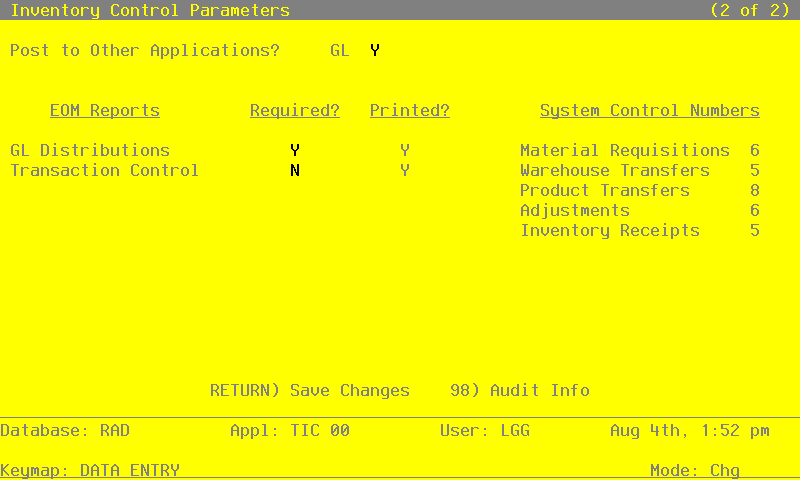
The fields on this screen are automatically displayed. In a few cases, the displayed entry can be changed. If an asterisk (*) appears next to one of the fields listed below, it indicates a “display-only” field, which cannot be changed.
Data items for the preceding screen are described below:
- Post to Other Applications - GL?
The system displays ‘Y’ or ‘N’ to indicate whether or not information can be posted to the General Ledger application.
- EOM Reports Required? Printed?*
The system displays ‘Y’ or ‘N’ for each Monthly Processing report available in the Inventory Control application.
The “Required?” column indicates whether or not the report must be printed before running the Close Month procedure. Displays in this column can be changed.
The system uses the “Printed?” column to indicate whether or not the report has been printed during the current period. Displays in this column cannot be changed.
- System Control Numbers*
The system maintains a running control number for each transaction entry file. This number is defaulted as the next control group number when you enter transactions.
Press RETURN to save the information on these screens.