
3File Maintenance
Option 1Products By Vendor
The Products By Vendor file associates each product with a vendor. If more than one vendor supplies the product, and if the Keep Product/Vendor Detail? option is selected in the Parameters file, then a separate record must be established for each product/vendor combination. If this option is not selected, you must set up records with a product number and a blank vendor number. In this case, all activity is summarized by product.
Month-to-date, year-to-date, and last year totals are kept for the number of units purchased and the dollar amounts of those purchases from each supplying vendor. Depending on the option chosen in the Parameters file, history can be maintained on a calendar or a fiscal year basis. The system maintains price changes for the six months previous to the current month. All data is shown in terms of the vendor’s pricing units.
When you use this option, a record of all entries will be printed. For additions, all new field contents are printed; for deletions, the deleted record’s contents are shown; for changes, both old field contents and new field contents are shown; and, in all cases, the User ID, date, and time are printed.
Select “Products By Vendor” from the File Maintenance menu. Here is the Products By Vendor entry screen:
Products By Vendor screen
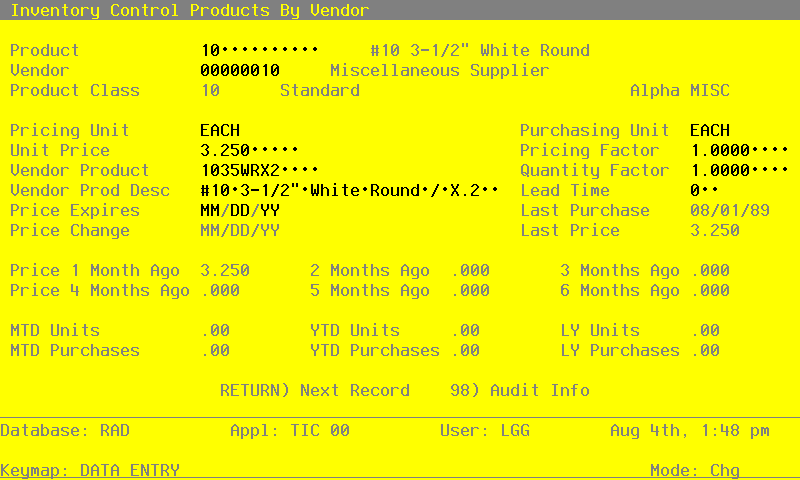
Certain entries on this screen will be automatically displayed. In most cases, the displayed entry can be changed. If an asterisk (*) appears next to one of the fields listed below, it indicates a “display-only” field, which cannot be changed.
When the key value for a particular record is requested, you can review all the records in the file by selecting the Scan option. The records will be presented on an “Access” screen, and you will be allowed to scan the available data until you find the record you want. Then, position the cursor by that record and press RETURN; the record will be displayed for editing.
Data items for the preceding screen are described below:
- Product
Enter the number of the product to be set up on this Products By Vendor record. You can use the Scan option to find an appropriate entry. The product number that you enter must be on file in the Products file. The system displays the product description from that file so that you can verify your entry.
- Vendor
If you have chosen the Keep Product/Vendor Detail? option in the Parameters file, enter the number of the vendor to be set up on this Products By Vendor record. You can use the Scan option to find an appropriate entry. If the Accounts Payable application is part of your system, the vendor number must be on file in the Vendors file. The system displays the vendor name from that file so that you can verify your entry.
Multiple vendors can be entered on separate Products By Vendor records.
If you have not chosen the Keep Product/Vendor Detail? option, leave this field blank.
- Product Class*
The system displays the number of the product class to which the product belongs, based on the entry in the Products file. The corresponding description from the Product Classes file is also displayed.
The system changes this field automatically if the Product Class field on the Products record is changed.
- Alpha*
The system displays the vendor alpha from the Vendors record.
- Pricing Unit
Enter up to 4 characters to identify the pricing unit used by the vendor when quoting prices.
For example, if the vendor price for this product is quoted as $6.00 per foot (for example, of wire), the pricing unit would be ‘FOOT’.
This field is available on various reports and entry functions for informational purpose only.
- Purchasing Unit
Enter up to 4 characters to identify the purchasing unit of measure.
For example, if the pricing unit is a foot (for example, of wire), and it is purchased by rolls, the Purchasing Unit would be ‘ROLL’.
This field is available on various reports and entry functions for informational purpose only.
- Unit Price
Enter up to 6 digits and 3 decimals for the current price of the pricing unit.
The unit price is printed on requests for quotes generated through the Request for Supplier Quote function or through the Purchase Orders application.
- Pricing Factor
Enter up to 5 digits and 4 decimals for the factor used to convert the purchasing unit to the pricing units. The default is ‘1.00’, the pricing factor used if the pricing and purchasing units are the same.
For example, if the purchasing unit is gallons and the pricing unit is pints, then the Pricing Factor entry would be ‘8’. If the purchasing unit is pints and the pricing unit is gallons, then the Pricing Factor entry would be ‘.125’.
As another example, if the purchasing unit is tons and the pricing unit is pounds, the Pricing Factor would be ‘2000’. If the purchasing unit is pounds and the pricing unit is tons, the Pricing Factor would be ‘.0005’.
- Vendor Product
Enter up to 12 characters to identify the vendor’s product number for the product.
If the Purchase Orders application is part of the system, this information is included on purchase orders to the vendor. It is also included on requests for quotes generated through the Request for Supplier Quote function or through the Purchase Orders application.
- Quantity Factor
The system displays ‘1.00’ as the factor used to convert the purchasing units to stockkeeping units. Enter up to 5 digits and 2 decimals to override the display.
For example, if you purchase a product in gallons, but stock the product in pints, the Quantity Factor is ‘8’. On the other hand, if you purchase the product in pints but stock the product in gallons, the Quantity Factor is ‘.125’.
This factor is used to determine how many products are entered into inventory from a purchase (which is denominated in purchasing units).
It is also used by the Create Reorder Records function to convert the reorder quantity for automatically generated purchase orders to purchasing units. When the reorder point (stockkeeping units) is reached, the system uses this factor to convert your reorder quantity (stockkeeping units) into purchasing units.
Here is an example of the relationship between the conversion factors:
Purchasing Unit Gallons (stock purchased in ‘gallons’) Pricing Factor 8 Pricing Unit Pints (stock priced in ‘pints’) Quantity Factor 8 Stockkeeping Unit Pints (stock quantity maintained in ‘pints’)
- Vendor Prod Desc
Enter up to 30 characters for the vendor’s description of the product.
This information is included on Requests for Supplier Quotes. If the Purchase Orders application is part of the system, it is also included on purchase orders and requests for quotes.
- Lead Time
Enter up to 3 digits to identify the number of days of lead time needed when ordering the product from this vendor. Lead time is printed on requests for quotes generated through the Request for Supplier Quote function or through the Purchase Orders application.
- Price Expires
Enter the date on which the Unit Price expires.
This field is for your information only.
- Last Purchase*
The system displays the date of the last purchase for this product from this vendor.
This field is updated when inventory receipts are posted.
If the Purchase Orders application is part of the system, this field is updated on line during purchase order entry. If invoices are entered through Purchase Orders, it is also updated when invoices are posted.
If the Accounts Payable application is part of the system, this field is updated when invoices are posted. It is also updated when Inventory Control adjustments are posted.
- Price Change*
The system displays the date of the last price change for the product from this vendor.
This date is updated when the Unit Price field is changed, or when entries are made using the Purchase Price By Product or Purchase Price By Percentage utility.
- Last Price*
The system displays the unit price of the last purchase.
This field is updated when invoices are posted through the Accounts Payable or Purchase Orders application. If costing is performed through Inventory Control, it is also updated when receipts are posted.
The following items reflect the current price in effect at each month-end for the last six months. These prices are updated during Close Month processing through Inventory Control or Purchase Orders.
- Price 1 Month Ago*
The system displays the unit price charged by the vendor one month ago.
During Close Month processing, the unit price in the Unit Price field rolls back into this field.
- Price 2 Months Ago*
The system displays the unit price charged by the vendor two months ago.
During Close Month processing, the unit price in the Price 1 Month Ago field rolls back into this field.
- Price 3 Months Ago*
The system displays the unit price charged by the vendor three months ago.
During Close Month processing, the unit price in the Price 2 Months Ago field rolls back into this field.
- Price 4 Months Ago*
The system displays the unit price charged by the vendor four months ago.
During Close Month processing, the unit price in the Price 3 Months Ago field rolls back into this field.
- Price 5 Months Ago*
The system displays the unit price charged by the vendor five months ago.
During Close Month processing, the unit price in the Price 4 Months Ago field rolls back into this field.
- Price 6 Months Ago*
The system displays the unit price charged by the vendor six months ago.
During Close Month processing, the unit price in the Price 5 Months Ago field rolls back into this field.
- MTD Units*
The system displays the number of pricing units purchased from the vendor in the current month.
This field is updated when transactions are posted through Inventory Control, Accounts Payable, and Purchase Orders. (See the updating description for the Last Purchase field.)
- YTD Units*
The system displays the number of pricing units purchased from the vendor in the current year, including the current month.
Depending on the specification in the Parameters file, the “current year” may be either the current fiscal year or the current calendar year.
This field is updated when transactions are posted through Inventory Control, Accounts Payable, and Purchase Orders. (See the updating description for the Last Purchase field.)
- LY Units*
The system displays the number of pricing units purchased from the vendor in the previous year.
Depending on the specification in the Parameters file, the “previous year” may be either the previous fiscal year or the previous calendar year.
- MTD Purchases*
The system displays the cost of purchases from the vendor in the current month.
This field is updated when transactions are posted through Inventory Control, Accounts Payable, and Purchase Orders. (See the updating description for the Last Purchase field.)
- YTD Purchases*
The system displays the cost of purchases from the vendor in the current year, including the current month.
Depending on the specification in the Parameters file, the “current year” may be either the current fiscal year or the current calendar year. This field is updated when transactions are posted through Inventory Control, Accounts Payable, and Purchase Orders. (See the updating description for the Last Purchase field.)
- LY Purchases*
The system displays the cost of purchases from the vendor in the previous year.
Depending on the specification in the Parameters file, the “previous year” may be either the previous fiscal year or the previous calendar year.
The entered data is validated. Press RETURN to save the information on this screen.
Select Next Record to go to the next Products By Vendor record.
At this screen the use of the MODE keys—ADD, DEL, CHG, or INQ—pertain to those records in the Products By Vendor file.