
1Initial Setup File Maintenance
Option 8Budgets
You can use this function to enter monthly budget amounts for each budget type and account number combination. This information may be printed on financial statements or on Budget Analysis reports.
You can enter or edit budget amounts for fiscal months 1 to 13, plus Start-of-Year and End-of-Year. Each amount represents the net activity for the month. You can also enter an annual amount and let the system allocate the amount evenly by month or week. For revenue and expense accounts the Start-of- Year amount generally should be zero. If your system includes the Budget Analysis application, before you decide to add a large number of budget records you may wish to use one or more of the utility functions provided on its Utilities menu. These utilities allow you to create, copy, and delete budget records very quickly. The created records can then be edited using this Budgets function.
The screen shown below presents information about Budgets.
Initial Setup Budgets screen
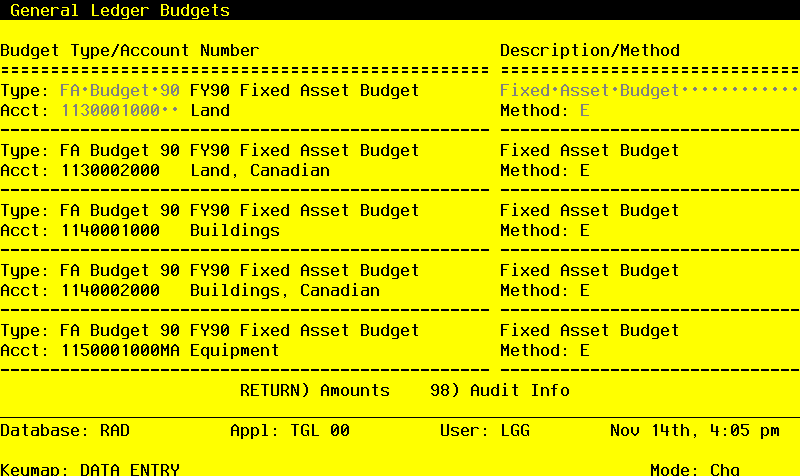
When the key value for a particular record is requested, you can review all the records in the file by selecting the Scan option. The records will be presented on an “Access” screen, and you will be allowed to scan the available data until you find the record you want. Then, position the cursor by that record and press ENTER; the record will be displayed for editing.
Note that the Audit Info option is available at the bottom of this screen. When this option is invoked, the Audit Information overlay appears and displays the date the record was created and who created it, as well as the date the record was last modified and who modified it. Press the END key or the RETURN key to clear the overlay from your screen. The information displayed in the Audit Information overlay is system-supplied and non-modifiable.
Data items for the preceding screen are described below:
- Budget Type
Alphanumeric, up to 12 characters Scan available Carries forward in ADD mode
Identify the budget type. Select one from the Types file. The system displays the description so that you can verify your entry.
- Account
Upper case, up to 12 characters Required Scan available
Identify the account number of the general ledger account to which the budget type applies. The system displays the description so that you can verify your entry.
- Description
Alphanumeric, up to 30 characters
Describe this budget and account combination.
- Method
Upper case, 1 character Letters only Valid: M, W, E Default E
In ADD mode this field will automatically be saved from one record to the next.
Identify the method of budgeting to be used. This determines how budgets are calculated from the annual amount that is entered. Your options are:
- M
- Monthly (divide annual amount evenly over number of months, either 12 or 13)
- W
- Weekly (divide annual amount over weeks in a sequence of 4/4/5-week months)
- E
- Enter each month manually (the system will sum the amounts entered into an annual total)
- NOTE
- The “Weekly” option is not allowed for those installations using 13 period accounting.
The entered data is validated. During validation, including access to other files, conditions may be found which cause messages to be displayed. Errors (E), Warnings (W), and Messages (M) that may result are shown below:
Press ENTER to display system-supplied information and then press ENTER again to continue to the next screen.
Select the Next Record option to go to the next Budgets record.
At this screen, the use of the MODE keys - ADD, DEL, CHG, or INQ - pertain to those records in the Budgets file.
The screen shown below presents information about Budget Amounts.
This file stores monthly budget amounts by budget type, account number, and fiscal year.
Initial Setup Budget Amounts screen
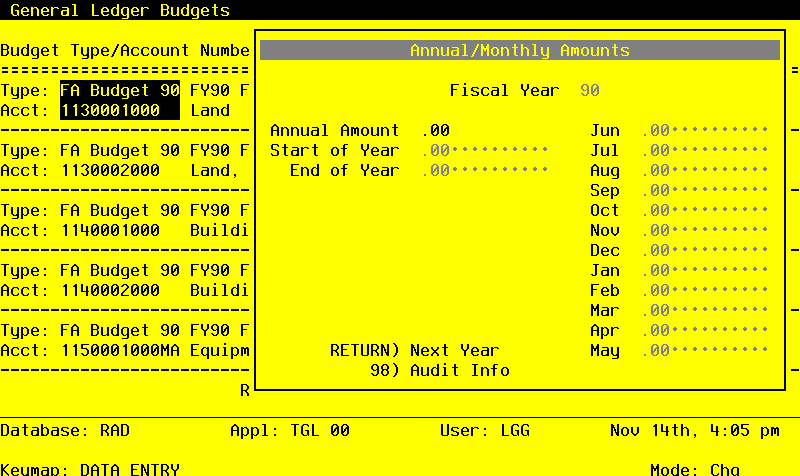
When the key value for a particular record is requested, you can review all the records in the file by selecting the Scan option. The records will be presented on an “Access” screen, and you will be allowed to scan the available data until you find the record you want. Then, position the cursor by that record and press ENTER; the record will be displayed for editing.
Data items for the preceding screen are described below:
- Fiscal Year
Positive number, up to 2 digits
Identify the fiscal year.
- Annual Amount
Number, up to 9 digits and 2 decimals
If using method ‘E’, leave this entry blank. For methods ‘M’ and ‘W’, enter the annual amount for this budget type. A change to this amount will be reflected in the monthly budgets, which will be recalculated automatically.
- Start Of Year
Number, up to 9 digits and 2 decimals
Identify the start-of-year budget amount. This entry is not added to the annual amount, nor is any amount distributed to it. It is normally set to zero for income/expense accounts and to actual or projected figures for asset/liability accounts.
- Monthly Amounts
Number, up to 9 digits and 2 decimals
If the budget method is ‘M’ or ‘W’, the monthly figures will be calculated by the system. If the method is ‘E’, you can enter the budget figures for each month. Budget amounts represent net activity for each month. Thirteen months are provided.
- End of Year
Number, up to 9 digits and 2 decimals
Generally, this amount should be zero except when end-of-year adjustment entries are anticipated. Identify the net end-of-year budget amount for this account. If entered, the end-ofyear amount is added to the annual amount; however, no amount is distributed to it when budget figures are calculated by the system.
The entered data is validated. During validation, including access to other files, conditions may be found which cause messages to be displayed. Errors (E), Warnings (W), and Messages (M) that may result are shown below:
Press ENTER to display system-supplied information and then press ENTER again to save the information on this screen.
Select the Previous Image option to go back to the Budgets screen. Select the Next Record option to go to the next Budget Amounts record. Select the End option to go the next Budgets record.
At this screen, the use of the MODE keys - ADD, DEL, CHG, or INQ - pertain to those records in the Budget Amounts file.