
1Initial Setup File Maintenance
Option 1Parameters
You can use this function to maintain the Parameters file, specifying fundamental information defining how the General Ledger application operates. This allows you to “customize” your General Ledger.
Only one record is required for the General Ledger Parameters file.
When you use this function, a record of all entries will be printed. For additions, all new field contents are printed; for deletions, the deleted record’s contents are shown; for changes, both old field contents and new field contents are shown; and in all cases, the User ID, date, and time are printed.
The screen shown below presents information about Parameters.
Initial Setup Parameters screen, part 1 of 2
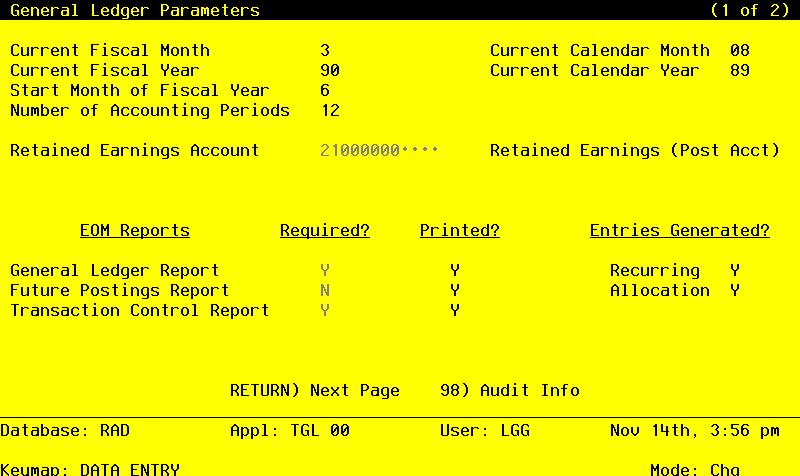
Note that the Audit Info option is available at the bottom of this screen. When this option is invoked, the Audit Information overlay appears and displays the date the record was created and who created it, as well as the date the record was last modified and who modified it. Press the END key or the RETURN key to clear the overlay from your screen. The information displayed in the Audit Information overlay is system-supplied and non-modifiable.
Data items for the preceding screen are described below:
- Current Fiscal Month
Positive number, up to 2 digits
Identify the first month of “live operation” of your accounting system.
- Current Fiscal Year
Positive number, up to 2 digits
Identify the fiscal year.
- Start Month of Fiscal Year
Positive number, up to 2 digits
Identify the first month of your fiscal year. For example, if your fiscal year runs from October 1 through September 30, enter ‘10’.
- Number of Accounting Periods
Positive number, up to 2 digits
Indicate the number of months in your fiscal year. An entry of ‘12’ means that you operate on a calendar month basis, and ‘Start Fiscal Month’ determines the first month of your fiscal year. An entry of 13 means that you operate on a 13-period basis.
- Retained Earnings Account
Upper case, up to 12 characters Required Scan available
Supply the retained earnings account number. This account will be updated automatically during the Close Month process for the last month of the fiscal year when the revenue and expense accounts are summed and zeroed. The system displays the description so that you can verify your entry.
You also have the option to keep retained earnings separately by account component; these parameters can be found on the next screen.
- GL Report Required?
Y or N Default N Required
Enter ‘Y’ if you want printing of the General Ledger Report to be required before end-ofmonth processing can proceed.
- GL Report Printed?
Y or N Default N
This indicates whether or not the General Ledger Report has been printed for this month.
- Recurring Entries Generated?
Y or N Default N
The system indicates whether or not recurring entries have been generated for the current month.
- Futures Postings Report Required?
Y or N Default N Required
Enter ‘Y’ if you want printing of the Future Postings Report to be required before end-ofmonth processing can proceed.
- Future Postings Report Printed?
Y or N Default N
This indicates whether or not the Future Postings Report has been printed for this month.
- Allocation Entries Generated?
Y or N Default N
The system indicates whether or not allocations have been made for the current month.
- Transaction Control Report Required?
Y or N Default N Required
Enter ‘Y’ is you want printing of the Transaction Control Report to be required before end-ofmonth processing can proceed.
- Transaction Control Report Printed?
Y or N Default N
This indicates whether or not the Transaction Control Report has been printed for this month.
The entered data is validated. During validation, including access to other files, conditions may be found which cause messages to be displayed. Errors (E), Warnings (W), and Messages (M) that may result are shown below:
Press ENTER to display system-supplied information and then press ENTER again to continue to the next screen.
The screen below presents additional information about Parameters.
Initial Setup Parameters screen, part 2 of 2
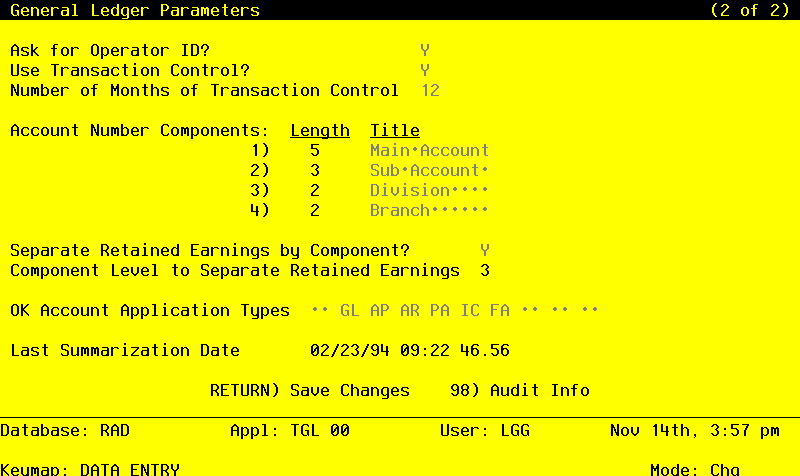
Data items for the preceding screen are described below:
- Ask for Operator ID?
Y or N Default Y Required
The system assumes that you prefer to ask for the operator’s ID during transaction entry. This allows you to edit other operators’ transactions. If you want to bypass all Control Group screens altogether, enter ‘N’. An entry of ‘N’ means that each operator can only enter or edit his or her own transactions. It also means that the system will not track Transaction Control information for you.
- Use Transaction Control?
Y or N Default N Required
The system assumes that you want to use the Transaction Control feature. This includes the ability to process transactions in a foreign currency; track and report on the Transaction Control file, which is an additional audit trail; and enter control and hash totals for your transactions. If you do not choose to use this feature, enter ‘N’.
If you want to use this feature and also want to ensure that an operator has exclusive control of his or her own transactions, enter ‘Y’ in this field, and change the default value of the ‘Operator Exclusive?’ field on each Control Group record in Transaction Processing to ‘Y’.
- NOTE
- If you enter ‘Y’ to this question, the system assumes that “Ask for Operator ID?” is also ‘Y’.
- Months of Transaction Control
Positive number, up to 2 digits
Specify the number of months to keep Transaction Control history records. Records older than this will be deleted during Close Month processing.
- NOTE
- This history is kept by actual date rather than accounting period or posting month.
- Account Component Length
Positive number, up to 2 digits
Define the size of each component of your account number. Each account may be separated into as many as four components. Any component may be up to ten characters in length; the maximum length of the complete account number is 12 characters.
- Account Component Title
Alphanumeric, up to 12 characters Required
Describe each component of your account number.
- Separate Retained Earnings?
Y or N Default N Required
Indicate whether or not retained earnings re to be posted separately by the account component designated in the ‘Component to Separate Retained Earnings’ field.
- Y
- Yes, maintain separate Retained Earnings accounts.
- N
- No, post all Retained Earnings to one account total.
- Component Level to Separate
Positive number, 1 digit
If you want to separate retained earnings by specific account component, supply the component level of the account number where you want to begin separating retained earnings. For example, if the fourth component of the account structure is defined as ‘Division’ and you wish to maintain a separate Retained Earnings account for each ‘division’ then the proper entry would be ‘4’ (for the fourth component). If the third component of your account structure is ‘company’ and the fourth component is ‘branch’ and you wish to maintain a separate Retained Earnings account for each ‘company/branch’ combination then the proper entry would be ‘3’ (for the third component). If the second component of your account structure is ‘company’, the third component is ‘division’, and the fourth component is ‘branch’ and you wish to maintain a separate Retained Earnings account for each ‘company/division/branch’ combination then the proper entry would be ‘2’ (for the second component).
- OK Application Types
Upper case, up to 2 characters Letters only Valid: GL, AR, AP, PA, IC, FA
Supply the application types from the list below that will be allowed for account numbers used in journal entry transactions. If there are no restrictions, leave this field blank. If there are to be any restrictions, all valid application types must be specified. Be sure to include a “blank” type if postings are made to accounts without application types. During transaction entry, this table is checked to ensure that the application type of the account is valid. Your options are:
‘ ‘: Blank Application Type
- AP
- Accounts Payable
- AR
- Accounts Receivable
- FA
- Fixed Assets
- GL
- General Ledger
- IC
- Inventory Control
- PA
- Payroll
- Last Summarization Date
Date and time (YMDHMSH) Display only
The date and time of the last ‘Summarize Accounts’ process is displayed. This field is displayed on the Monthly Status inquiry function, and is updated each time the Summarize Accounts process is run.
The entered data is validated. During validation, including access to other files, conditions may be found which cause messages to be displayed. Errors (E), Warnings (W), and Messages (M) that may result are shown below:
Press ENTER to save the information on this screen.