
Chapter 4: Recovery Processing
Option 6Transaction Control
Use this function to enter or edit information on the Transaction Control file, in the unlikely event of failure during a post.
When you use this function, a record of all entries will be printed. For additions, all new field contents are printed; for deletions, the deleted record’s contents are shown; for changes, both old field contents and new field contents are shown; and in all cases, the User ID, date, and time are printed.
The screen shown below presents information about Transaction Control.
This file contains one record for each control group that was posted. As many months of history as you choose can be saved in this field; the number of months is specified in the Parameters file.
Recovery Processing Transaction Control screen
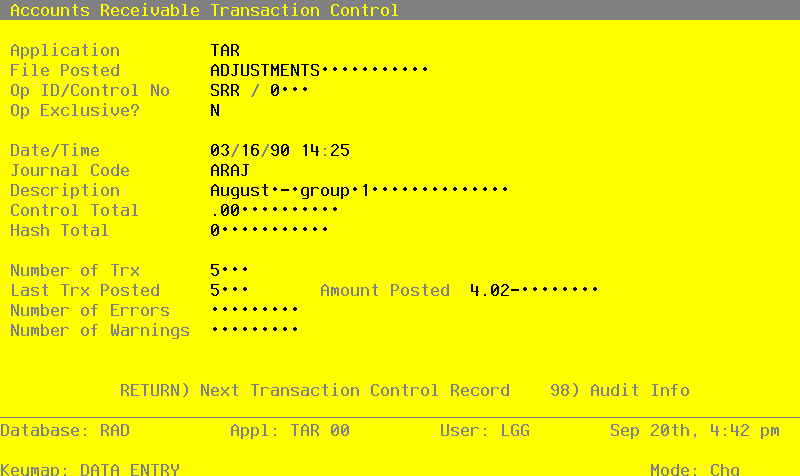
When the key value for a particular record is requested, you can review all the records in the file by selecting the Scan option. the records will be presented on an “Access” screen, and you will be allowed to scan the available data until you find the record you want. Then, position the cursor by that record and press ENTER; the record will be displayed for editing.
Data items for the preceding screen are described below:
- Application
Upper case, up to 3 characters Letters only Required
The system displays the 3-character code for the application from which the control group originated.
- File Posted
Alphanumeric, up to 22 characters Letters and numbers only Required
The system displays the name of the file from which the transactions originated. (For example, INVOICES, ADJUSTMENTS or CASH RECEIPTS).
- Op ID
Upper case, up to 3 characters Letters and numbers only Required
The identification code of the operator who originated the control group is displayed.
- Control No
Positive number, up to 4 digits
The control group number of the set of transactions is displayed.
- Op Exclusive?
Y or N Default N
this field is required.
The system displays ‘Y’ or ‘N’ to indicate whether or not access to this group of transactions was limited to the original operator in Live Operations.
- Date/Time
Date and time (YMDHM) Required
The system displays the date and time when the control group was posted.
- Journal Code
Alphanumeric, up to 4 characters
The system displays a four-digit code that references the journal on which the transactions are shown. In particular, you will see one of the following journal codes:
- ARIV
- Accounts Receivable Invoices
- ARCR
- Accounts Receivable Cash Receipts
- ARAJ
- Accounts Receivable Adjustments
- ARSC
- Accounts Receivable Service Charges
- OEIV
- Order Entry Invoices
- Description
Alphanumeric, up to 30 characters
The system displays a description of the control group. This field was originally entered on the Control Groups screen.
- Control Total
Number, up to 9 digits and 2 decimals
The system displays the total amount entered on the control Groups screen.
- Hash Total
Positive number, up to 12 digits
The system displays the customer number hash total entered on the Control Groups screen.
- Number of Trx
Positive number, up to 4 digits
The system displays the total number of transactions posted from this group.
- Last Trx Posted
Positive number, up to 4 digits
The system displays the transaction number of the last transaction that was posted.
- Amount Posted
Number, up to 9 digits and 2 decimals
The system displays the total amount which was posted for this control group. Depending on the journal code, this could reflect total invoices, total cash receipts, total adjustments, or total service charges.
- Number of Errors
Positive number, up to 9 digits
The system displays the total number of errors that occurred during posting of this control group. These errors appear on the system-generated error log.
- Number of Warnings
Enter a positive number with up to nine digits.
The system displays the number of warnings generated during posting of this control group. These warnings appear on the system-generated error log.
Press ENTER to save the information on this screen.
Select the Next Record option to go to the next Transaction Control record.
At this screen, the use of the MODE keys - ADD, DEL, CHG, or INQ - pertain to those records in the Transaction Control file.