
Chapter 4: Recovery Processing
Option 3MTD Postings
You can use this function to enter and edit MTD Postings records, in the unlikely event that a post failed to complete. This function is only available in Recovery Processing.
When you use this function, a record of all entries will be printed. For additions, all new field contents are printed; for deletions, the deleted record’s contents are shown; for changes, both old field contents and new field contents are shown; and in all cases, the User ID, date, and time are printed.
The screen shown below presents information about Month To Date Postings.
This file contains all General Ledger postings for the Accounts Receivable application. Current and prior month postings are deleted when the month is closed; future month postings are retained until their “post month” matches Accounts Receivable's current month.
Recovery Processing MTD Postings screen
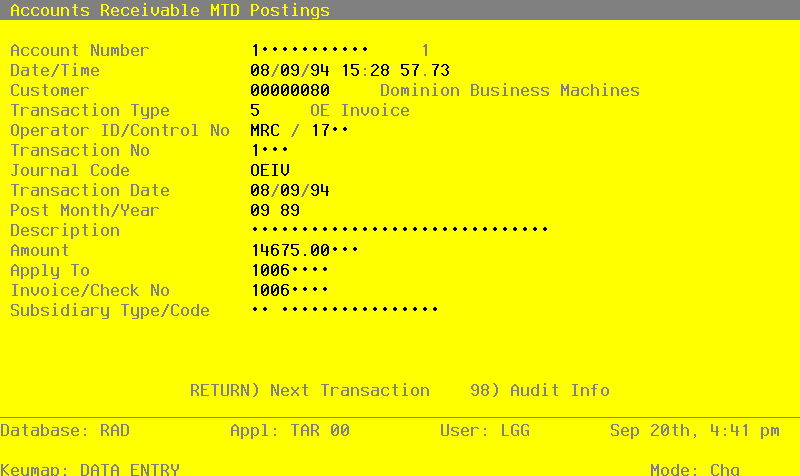
When the key value for a particular record is requested, you can review all the records in the file by selecting the Scan option. the records will be presented on an “Access” screen, and you will be allowed to scan the available data until you find the record you want. Then, position the cursor by that record and press ENTER; the record will be displayed for editing.
Data items for the preceding screen are described below:
- Account Number
Upper case, up to 12 characters Scan available
this field is required.
The system displays the number of the account to which the transaction was posted. If General ledger is part of your system, this account must be on file in the Chart of Accounts file, and the system displays the account description so that you can verify your entry.
- Date/Time
Date and time (YMDHMSH)
this field is required.
The system displays the date and time when the control group was posted.
- Customer
Upper case, up to 8 characters Numbers only Scan available
The system displays the customer number for the transaction posted. This number must be on file in the Customers file; the system displays the customer’s name.
- Transaction Type
Positive number, 1 digit
The system displays the transaction type. Valid entries are:
- 1
- AR Invoice
- 2
- Debit/Credit Memo
- 3
- AR Adjustments
- 4
- Cash Receipt
- 5
- OE Invoice
- 6
- Service Charge
- 7
- Deposit
- Operator ID
Upper case, up to 3 characters Letters and numbers only Required
The system displays the Operator ID of the person who entered the transaction.
- Control No
Positive number, up to 4 digits
The system supplies the Control Number of the original control group.
- Transaction No
Positive number, up to 4 digits
The system displays the transaction number assigned when the transaction was entered.
- Journal Code
Alphanumeric, up to 4 characters
The system displays the code which identifies the journal on which the entry appeared. Values are:
- ARIV
- Invoices Journal
- ARCR
- Cash Receipts Journal
- ARAJ
- Adjustments Journal
- ARSC
- Service Charge Register
- OEIV
- Order Entry Invoices Journal
- Transaction Date
Date (YMD)
The system displays the date of the transaction.
- Post Month
Upper case, up to 2 characters Letters and numbers only Valid: 01, 02, 03, 04, 05, 06, 07,08, 09, 10, 11, 12, 13, EY
The system displays the month to which the entry was posted. If you are using 12-period accounting, this will be the calendar month; if you are using 13-period accounting, this will be the fiscal year.
- Post Year
Positive number, up to 2 digits
The system displays the year to which the entry was posted. If you are using 12-period accounting, this will be the calendar year; if you are using 13-period accounting, this will be the fiscal year.
- Description
Alphanumeric, up to 30 characters
The system displays the transaction description.
- Amount
Number, up to 7 digits and 2 decimals
The system displays the amount posted to the GL account.
- Apply To
Upper case, up to 8 characters
The system displays the number of the invoice, credit memo, or debit memo affected by this transaction. The ‘Apply To’ is generally the invoice number, except for invoices which adjust another invoice. for those adjustments, the ‘Apply To’ refers to the number of the original invoice.
- Invoice/Check No
Upper case, up to 8 characters
The system displays either the invoice number from invoice transactions, or the check number from receipts transactions. the field is blank for adjustments. For invoices which adjust a previously received invoice, the Invoice/Check Number represents the current invoice, and the Apply To refers to the original invoice.
- Subsidiary Type
Upper case, up to 2 characters Letters only
The system displays the subsidiary type entered on this transaction, if any.
- Subsidiary Code
Upper case, up to 16 characters Scan available
The system displays the subsidiary code entered o this transaction, if any.
Press ENTER to display system-supplied information and then press ENTER again to save the information on this screen.
Select the Next Record option to go to the next Month To Date Postings record.
At this screen, the use of the MODE keys - ADD, DEL, CHG, or INQ - pertain to those records in the Month To Date Postings file.