
Chapter 2: Initial Setup File Maintenance
Option 1Parameters
Use this function to enter and edit the Parameters record. Be careful that this information is correct; it controls the operation of the Accounts Receivable application.
When you use this function, a record of all entries will be printed. For additions, all new field contents are printed; for changes, both old field contents and new field contents are shown; and in both cases, the User ID, date, and time are printed.
The screen shown below presents information about Parameters.
Initial Setup Parameters screen, part 1 of 2
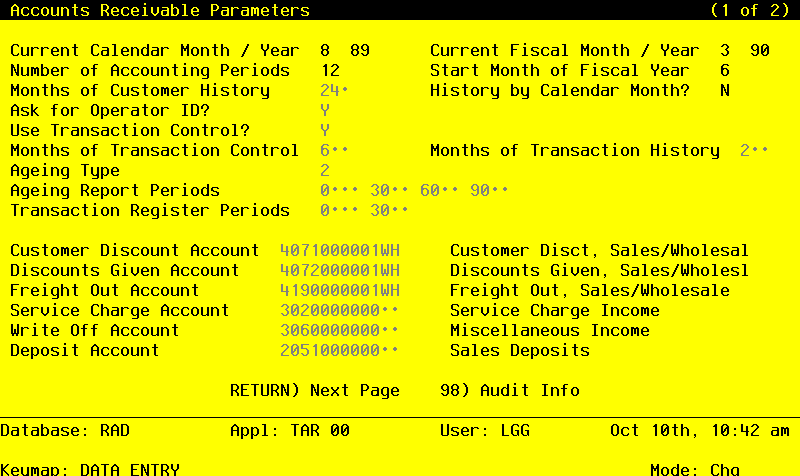
Note that the Audit Info option is available at the bottom of this screen. When this option is invoked, the Audit Information overlay appears and displays the date the record was created and who created it, as well as the date the record was last modified and who modified it. Press the END key or the RETURN key to clear the overlay from your screen. The information displayed in the Audit Information overlay is system-supplied and non-modifiable.
Data items for the preceding screen are described below:
- Current Calendar Month
Positive number, up to 2 digits
Enter the current calendar month. During Live Operations, the system displays the current calendar month.
- Current Calendar Year
Positive number, up to 2 digits
Enter the current calendar year. During Live Operations, the system displays the current calendar year.
- Current Fiscal Month
Positive number, up to 2 digits
If General Ledger is a part of your system, the fiscal month will be supplied for you and you will not be able to change it. If you are operating Accounts Receivable without General Ledger, you should supply the appropriate fiscal month.
- Current Fiscal Year
Positive number, up to 2 digits
If General Ledger is a part of your system, the proper fiscal year will be supplied for you and you will not be able to change it. If you are operating Accounts Receivable without General Ledger, you should supply the appropriate fiscal year.
- Number of Accounting Periods
Positive number, up to 2 digits
If you are in Initial Setup mode, enter eight ‘12’ or ‘13’ to specify the number of periods in the fiscal year. During Live Operations, the system displays either ‘12’ or ‘13’.
If General Ledger is part of your system, this number is provided for you and you cannot change it.
- Start Month of Fiscal Year
Positive number, up to 2 digits
The starting month for your fiscal year is provided from General Ledger, if it is part of your system. If your system does not include General Ledger, enter the starting month for your fiscal year.
- Months of Customer History
Positive number, up to 3 digits
Specify the number of months that summary customer history will be kept on file. After the system reaches this number, the records for the oldest month are deleted during Close Month processing.
- History by Calendar Month?
Y or N Default Y
Normally the system will keep customer history by calendar period. If you would prefer to keep customer history by fiscal period, enter ‘N’. The reports affected by your decision are the Customer History report and the Customer Credit report. The Sales History Inquiry and the Customer Credit Inquiry will also be affected.
NOTE: The option to keep history by fiscal period is not available unless your system includes General Ledger. In the absence of General Ledger, history will be kept by calendar period.
- Ask for Operator ID?
Y or N Default Y Required
The operator ID in any transaction field is always defaulted. If this field is set to ‘Y’, any operator can change the operator ID on any transaction file during data entry. This permits editing of another operator’s transactions. If this field is set to ‘N’, then the system does not allow the operator ID in any transaction file to be changed. This creates an “operator exclusive” environment wherein an operator may not access any transactions except those s/he entered.
If you wish to use the Transaction Control feature, set this field to ‘Y’ and also set the “Use Transaction Control?” field to ‘Y’. This will bring up a screen during Transaction processing that will allow you to establish “operator exclusive” control groups if you choose.
- Use Transaction Control?
Y or N Default Y Required
The system assumes that you wish to use the Transaction Control feature available in Accounts Receivable. Transaction Control allows you to enter control and hash totals for each control group, and tracks the number of transactions posted and the total amount posted. It also notes the last transaction posted and whether any errors or warnings were encountered during posting.
If you do not choose to use this feature, enter ‘N’. If you want to use this feature and also want to ensure that an operator has exclusive control of his or her own transaction, enter ‘Y’ in this field, and change the default value of the ‘Operator Exclusive?’ field on each Control Group record in Transaction Processing to ‘Y’.
- NOTE
- If you enter ‘Y’ to this question, the system assumes that “Ask for Operator ID?” is also ‘Y’.
- Months of Transaction Control
Positive number, up to 3 digits
Enter the number of months of historical Transaction Control records you want to keep. If you are not using the Transaction Control feature, leave this entry blank. Since these records are deleted based on the actual date and time of posting, there may be some slight discrepancy between your choice of month-end closing date and the actual number of months kept. However, Transaction Control history can be useful as an audit trail.
- Months of Transaction History
Positive number, up to 3 digits
Supply the number of months of transaction history you wish to keep. This will be a historical reference of the chronological audit trail for all your transactions, including invoices, receipts, adjustments, service charges, and refunds. This information is transferred from the current Transactions field at end of Month when an invoice nets to zero. If you keep many months of history this field can become very large.
This historical data differs from Transaction Control. Transaction Control history merely reflects the number of transactions and the total value for any given control group of transactions. Transaction History includes the transactions themselves.
- Ageing Type
Upper case, 1 character Default 2
Specify the default ageing basis that will be used for the Ageing and Transaction Register reports in Live Operations:
- 1
- Invoice date
- 2
- Due date
- Ageing Report Periods
Number, up to 3 digits
Define the default ageing periods for the Ageing Report and customer Statements. Up to 4 ageing entries may be entered to define up to 5 actual ageing periods.
Each ageing period refers to either the invoice date or the due date, depending on the entry in the Ageing Type field. A positive entry indicates the number of days after the invoice or due date. A negative entry indicates the number of days before the invoice or due date.
For example, ageing entries of ‘0’, ‘30’, ‘60’, and ‘90’ would define the following five periods:
0 and before
1 to 30
31 to 60
61 to 90
91 and above
These values may be changed when the Ageing Report is printed.
- Transaction Register Periods
Number, up to 3 digits
Define the default ageing periods for the Transaction Register report. Up to 2 ageing entries may be entered to define up to 3 actual ageing periods.
Each ageing period refers to either the invoice date or the due date, depending on the entry in the Ageing Type field. A positive entry indicates the number of days after the invoice or due date. A negative entry indicates the number of days before the invoice or due date.
For example, ageing entries of ‘0’ and ‘30’ would define the following three periods:
0 and before
1 to 30
31 and above
These values may be changed when the Transaction Register report is printed.
- Customer Discount Account
Upper case, up to 12 characters Required Scan available
Enter the General Ledger account to which customer discounts (discounts offered to specific customers independent of terms discounts) will be posted. If General Ledger is part of your system, this account number must be on file in the Chart of Accounts file. The system displays the account description from that file so that you can verify your entry.
This account will be debited for the Customer Discount amount during invoice posting.
- Discounts Given Account
Upper case, up to 12 characters Required
You can use scan to search for an appropriate entry.
Enter the General ledger account to which terms discounts will be posted. If General ledger is part of your system, this account number must be on file in the Chart of Accounts file. the system displays the account description from that file so that you can verify your entry.
This account will be debited for the Discounts Given amount during cash receipts posting.
- Freight Out Account
Upper case, up to 12 characters Required Scan available
Enter the General ledger account to which freight charges on invoices will be posted. If General Ledger is part of your system, this account number must be on file in the Chart of Accounts file. The system displays the account description from that file so that you can verify your entry.
This account will be credited for the Freight amount during invoice posting.
- Service Charge Account
Upper case, up to 12 characters Required Scan available
Enter the General Ledger account to which service charges on past-due invoices will be posted. If General Ledger is part of your system, this account number must be on file in the Chart of Accounts field. The system displays the account description from that file so that you can verify your entry.
This account will be credited during service charge posting.
- Write Off Account
Upper case, up to 12 characters Required Scan available
Enter the General Ledger account to which service charge write off amounts will be posted. This is also the account to which write off amounts entered through Cash Receipts will be posted. If General Ledger is part of your system, this account number must be on file in the Chart of Accounts file. The system displays the account description from that file so that you can verify your entry.
This account will be debited when Write Off Service Charges is run, and also when any write off amounts are posted through Cash Receipts.
- Deposit Account
Upper case, up to 12 characters Required Scan available
Enter the General Ledger account to which customer deposits will be posted. If General ledger is part of your system, this account number must be on file in the Chart of Accounts file. The system displays the account description from that file so that you can verify your entry.
This account will be credited when the deposit is posted through cash receipts, and debited when the deposit is acknowledged through invoices posting.
The entered data is validated. During validation, including access to other field, conditions may be found which cause messages to be displayed. Errors (E), Warnings (W), and Messages (M) that may result are shown below:
Press ENTER to display system-supplied information and then press ENTER again to continue to the next screen.
The screen below presents additional information about Parameters.
Initial Setup Parameters screen, part 2 of 2
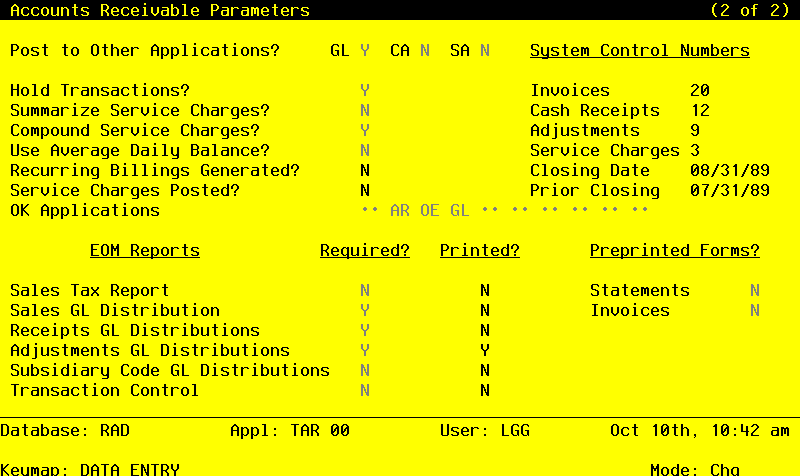
Data items for the preceding screen are described below:
- Post to GL
Y or N Default N Required
Tell the system whether or not to allow information transfer to General Ledger.
- Post to CA
Y or N Default N Required
Tell the system whether or not to allow information transfer to Commission Accounting.
- Post to SA
Y or N Default N Required
Tell the system whether or not to allow information transfer to Sales Analysis.
- Hold Transactions?
Y or N Default N Required
Tell the system whether or not to hold zero-balance invoices beyond the current calendar month rather than deleting them at month-end closing. Since transactions may be entered with a posting date for a future month, the system needs to know how long to keep zero-balance invoices on file. Enter either:
Y: Hold zero-balance invoices until the Accounts Receivable current month reaches the transaction month, as defined by the latest date on the invoice, receipt, or service charge.
- N
- Delete zero-balance invoices during month-end closing, regardless of their transaction dates.
- Invoices Control Number
Positive number, up to 4 digits
The system provides the Control Group number for Invoices. This number will default for the next group of invoices and will be incremented for subsequent groups of invoices.
- Summarize Service Charges?
Y or N Default N Required
If you want the system to issue only one service charge invoice per customer, enter ‘Y’. If you want the system to issue service charges on each past-due invoice, enter ‘N’. On a summary basis, information such as the receivable account and terms is retrieved from the Customers file; on a detail basis, that information comes from the invoice itself. This information can vary from invoice to invoice.
NOTE: The automatic “write off service charges” feature is specifically designed to work on an invoice by invoice basis. If you choose to summarize service charges, any write offs will have to be taken care of individually, either through adjustments or cash receipts.
- NOTE
- If you calculate service charges based on the Average Daily Balance in your customers’ accounts, then you are summarizing service charges.
- Cash Receipts Control Number
Positive number, up to 4 digits
The system provides the Cash Receipts Control Group number. This number will default for the next group of cash receipts and will be incremented for subsequent groups of cash receipts.
- Compound Service Charges?
Y or N Default N Required
Specify whether or not the receivable balance on which service charges will be calculated will include service charge receivables from previous assessments.
- Y
- Include previous service charge assessments in the receivable balance when calculating service charges for the current month.
- N
- Do not include previous service charge assessments in the receivable balance when calculating service charges for the current month.
- Adjustments Control Number
Positive number, up to 4 digits
The system provides the Adjustments Control Group number. This number will default for the next group of adjustments or refunds and will be incremented for subsequent groups of adjustments or refunds.
- Use Average Daily Balance?
Y or N Default N Required
Enter ‘Y’ if you calculate service charges based on an “Average Daily Balance” for your customers. The “Average Daily Balance” will be calculated by summing the balances for each day since the last closing date, and then dividing the total by the number of days since the last closing date. To be consistent in the use of Average Daily Balance, service charges should be calculated using the same day of the month as the “closing date’ each month, and that date should be as close as possible to your month-end closing date.
- Service Charges Control Number
Positive number, up to 4 digits
The system provides a control number for Service Charges. This number will default for the next group of service charges and will be incremented for subsequent groups of service charges.
- Recurring Billings Generated?
Y or N Default N
This field indicates whether or not recurring billing shave been generated in the current period.
During Initial Setup, set this field to ‘N’. During Live Operations, the system displays either ‘Y’ or ‘N’ to indicate whether or not recurring billings have been generated in the current period.
- Closing Date
Date (YMD)
The system stores the closing date for service charges so that it can be printed on the Service Charge Register. The closing date also determines how many days overdue any given invoice is. The system date is the default value; you can change it.
- Service Charges Posted?
Y or N Default N
This field indicates whether or not service charges have been posted for the current period.
During Initial Setup, set this field to an ‘N’. During Live Operations, the system automatically maintains this field.
- Prior Closing Date
Date (YMD)
The system supplies the date that service charges were last calculated. The number of days between the Prior Closing Date and the current Closing Date is used to determine the Average Daily Balance.
- OK Applications
Upper case, up to 2 characters Letters only Valid: AP, AR, FA, GL, IC, PA, PO, OE
Enter the application IDs of those applications which are allowed to interface with Accounts Receivable. If you intend to include blanks as a valid value, the “blank” entry should not be the last entry.
- Sales Tax Report Required
Y or N Default N Required
Indicate whether or not you want to require that the Sales Tax report be printed before running the Close Month procedure.
- Sales Tax Report Printed
Y or N Default N
This field indicates whether or not the Sales Tax report has been printed for the current month.
During Initial Setup, set this field to an ‘N’. During Live Operations, the system automatically maintains this field; it is set to ’Y’ when the Sales Tax report is printed, and set to ‘N’ when invoices are posted.
- Preprinted Statements?
Y or N Default N Required
Indicate whether or not preprinted forms will be used when printing Statements. The format for preprinted statements is the same as the format for regular statements, except that the company name and column headings are not printed by the computer.
Preprinted forms which are appropriate for use with Customer Statements are available from well-known forms companies.
- Sales GL Report Required
Y or N Default N Required
Indicate whether or not you want to require that the Sales GL Distribution report be printed before running the Close Month procedure.
- Sales GL Report Printed
Y or N Default N
This field indicates whether or not the Sales GL Distribution report has been printed for the current month.
During Initial Setup, set this field to an ‘N’. During Live Operations, the system automatically maintains this field; it is set to ‘Y’ when the Sales GL Distributions report is run, and set to ‘N’ when invoices or service charges are posted.
- Preprinted Invoices?
Y or N Default N Required
Indicate whether or not preprinted forms will be used when printing Invoices. The format for preprinted invoices is the same as the formate for regular invoices, except that the company name and column headings are not printed by the computer.
Preprinted forms appropriate for use with Customer invoices are available from well-known forms companies.
- Receipts GL Report Required
Y or N Default N Required
Indicate whether or not you want to require that the cash Receipts GL Distribution report be printed before running the Close Month procedure.
- Receipts GL Report Printed
Y or N Default N
This field indicates whether or not the Cash Receipts GL distribution report has been printed for the current month.
During Initial Setup, set this field to an ‘N’. During Live Operations, the system automatically maintains this field; it is set to ‘Y’ when the Cash Receipts GL Distributions report is printed, and set to ‘N’ when cash receipts are posted.
- Adjustments GL Report Required
Y or N Default N Required
Indicate whether or not you want to require that the Adjustments GL Distribution report be printed before running the Close Month procedure.
- Adjustments GL Report Printed
Y or N Default N
This field indicates whether or not the Adjustments GL Distribution report has been printed for the current month.
During Initial Setup, set this field to an ‘N’. During Live Operations, the system automatically maintains this field; it is set to ‘Y’ when the Adjustments GL Distributions report is printed, and set to ‘N’ when adjustments or refunds are posted.
- Sub Code GL Report Required?
Y or N Default N Required
Indicate whether or not the Subsidiary Code GL Distributions report should be printed before the month is closed.
- Sub Code GL Report Printed?
Y or N Default N
The system will set this field to ‘Y’ when you print the Subsidiary Code Gl
Set this field to ‘N’ in Initial Setup.
During Live Operations, this field is maintained by the system; it is set to ‘Y’ when the Sub Code Gl Distributions report is printed, and set to ‘N’ during any transaction post.
- Transaction Cntrl Rpt Required
Y or N Default N Required
Indicate whether or not the Transaction Control report should be printed before the month is closed.
- Transaction Cntrl Rpt Printed?
Y or N Default N
The system sets this field to ‘Y’ when the Transaction Control report is printed.
During Initial Setup, set this field to ‘N’. During Live Operations, this field is maintained by the system; it is set to ‘Y’ when the Sub Code GL Distributions report is printed, and set to ‘N’ during any transaction post.
The entered data is validated. During validation, including access to other files, conditions may be found which cause messages to be displayed. Errors (E), Warnings (W), and Messages (M) that may result are shown below:
Press ENTER to save the information on this screen.