
Chapter 2: Initial Setup File Maintenance
Option 10Customer History
You can use this function to enter and edit Customer History records. This information is optional; it will be kept for the number of “Months of Customer History” defined in the Parameters file, and printed on the Customer History report. You can view this information through the Sales History inquiry.
When you use this function, a record of all entries will be printed. For additions, all new field contents are printed; for deletions, the deleted record’s contents are shown; for changes, both old field contents and new field contents are shown; and in all cases, the User ID, date, and time are printed.
The screen shown below presents information about Customer History.
Initial Setup Customer History screen
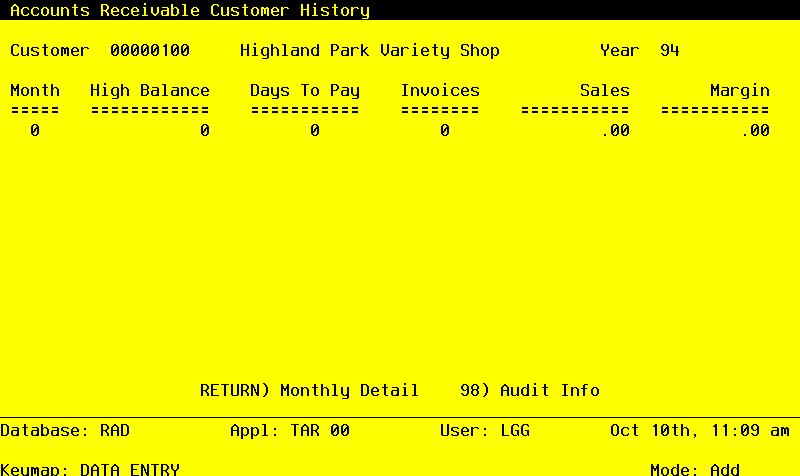
When the key value for a particular record is requested, you can review all the records in the file by selecting the Scan option. The records will be presented on an “Access” screen, and you will be allowed to scan the available data until you find the record you want. Then, position the cursor by that record and press ENTER; the record will be displayed for editing.
Data items for the preceding screen are described below:
- Customer
Upper case, up to 8 characters Numbers only Required Scan available
Identify the customer whose historical information you are entering or changing. The customer number you enter must be on file in the Customers file. The system displays the customer name from that file so that you can verify your entry.
- Year
Positive number, up to 2 digits
Identify the calendar or fiscal year for which you are entering this customer’s historical information. You can indicate in the Accounts Receivable Parameters file whether you are keeping customer history information by calendar or fiscal year.
During Live Operations, this field indicates the year that the Customer History record was created. You can indicate in the Parameters file how many months of this historical information you wish to keep.
The entered data is validated. During validation, including access to other files, conditions may be found which cause messages to be displayed. Errors (E), Warnings (W), and Messages (M) that may result are shown below:
Press ENTER to display system-supplied information and then press ENTER again to continue to the next screen.
Select the Next Record option to go to the next Customer History record.
At this screen, the use of the MODE keys - ADD, DEL, CHG, or INQ - pertain to those records in the Customer History file.
The screen shown below presents information about Customer History by Month.
This file stores monthly sales information by calendar or fiscal month for each customer.
Initial Setup Customer History by Month screen
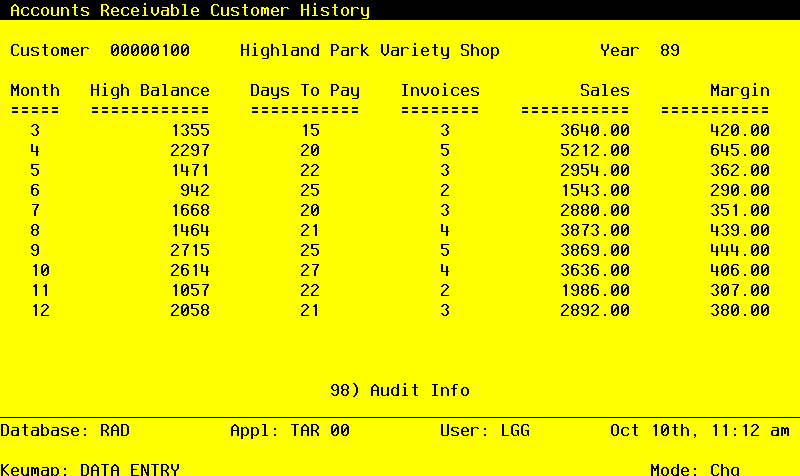
When the key value for a particular record is requested, you can review all the records in the file by selecting the Scan option. The records will be presented on an “Access” screen, and you will be allowed to scan the available data until you find the record you want. Then, position the cursor by that record and press ENTER; the record will be displayed for editing.
Data items for the preceding screen are described below:
- Month
Positive number, up to 2 digits
Identify the calendar or fiscal month for which you are entering customer history. You can indicate in the Accounts Receivable Parameters file whether you want to keep historical information by calendar or fiscal year.
During Live Operations, this field displays the calendar or fiscal month during which this history record was generated.
- High Balance
Number, up to 7 digits
Supply this customer’s highest balance during this month and year. This represents the greatest amount that this customer has owed at any one time during the current year.
- Days to Pay
Number, up to 5 digits
Identify the total number of days it took the customer to pay off the balance for this month and year.
- Invoices
Number, up to 7 digits
Supply the total number of invoices processed for this customer during this month and year.
- Sales
Number, up to 7 digits and 2 decimals
Identify the total dollar amount of sales processed for this customer for this month and year.
- Margin
Number, up to 7 digits and 2 decimals
Identify the actual margin (sales minus cost) on total sales to this customer for this month and year.
The entered data is validated. During validation, including access to other fields, conditions may be found which cause messages to be displayed. Errors (E), Warnings (W), and Messages (M) that may result are shown below:
Press ENTER to save the information on this screen.
Select the previous Image option to go back to the Customer History screen. Select the Next Record option to go to the next Customer History by Month record. Select the End option to go to the next Customer History record.
At this screen, the use of the MODE keys - ADD, DEL, CHG, or INQ - pertain to those records in the Customer History by Month file.