
Chapter 4: Recovery Processing
Option 4Parameters
You can use this function to maintain the Parameters file, specifying the fundamental information defining how the Accounts Payable application operates and interfaces with other applications. This allows you to “customize” your Accounts Payable system.
Only one record is required for the Accounts Payable Parameters file. During Initial Setup, Parameter information must be entered. During Live Operations, however, much of the Parameters information is display only and changes must be made through Recovery Processing.
When you use this function, a record of all entries will be printed. For additions, all new field contents are printed; for deletions, the deleted record’s contents are shown; for changes, both old field contents and new field contents are shown; and in all cases, the User ID, date, and time are printed.
The screen shown below presents information about Parameters.
Recovery Processing Parameters screen, part 1 of 2
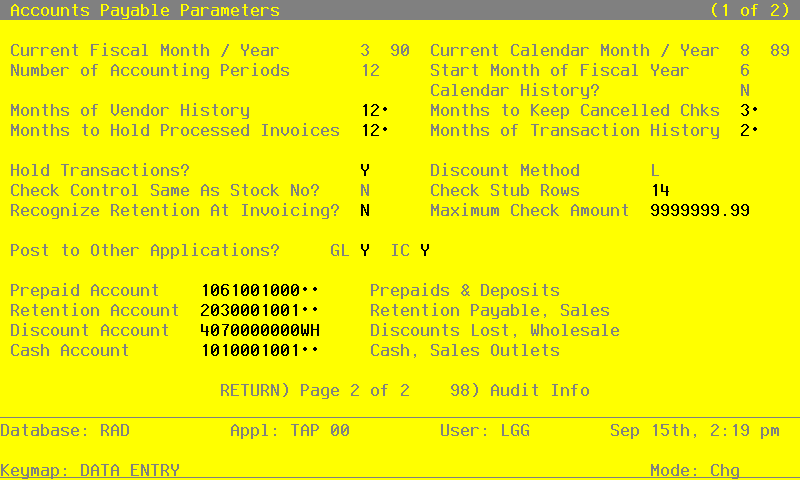
Data items for the preceding screen are described below:
- Fiscal Month
Positive number, up to 2 digits
If General Ledger is a port of your system, the fiscal month is supplied for you and you cannot change it. If you are operating Accounts Payable without General Ledger, you should supply the appropriate fiscal month during Initial Setup.
- Fiscal Year
Positive number, up to 2 digits
If General Ledger is a part of your system, the proper fiscal year is supplied for you and you cannot change it. If you are operating Accounts Payable without General Ledger, you should supply the appropriate fiscal year during Initial Setup.
- Current Calendar Month
Positive number, up to 2 digits Display only
During Initial Setup, specify the first calendar month of “live operation” of you Accounts Payable system. In Live Operations, the system displays the current calendar month. If you are using 13-period accounting this field is blank.
- Current Calendar Year
Positive number, up to 2 digits Display only
During Initial Setup, specify the current calendar year. In Live Operations, the system displays the current calendar year. If you are using 13-period accounting this field is blank.
- Number of Accounting Periods
Positive number, up to 2 digits
Indicate the number of months in your fiscal year. An entry of ‘12’ means you operate on a calendar month basis, and ‘Start Fiscal Month’ determines the first month of your fiscal year. An entry of ‘13’ means you operate on a 13-period basis. If General Ledger is part of your system, the number of periods is supplied for you and you cannot change it.
- Start Month of Fiscal Year
Positive number, up to 2 digits
Identify the first month of your fiscal year. For example, if your fiscal year runs from October 1 through September 30, enter ‘10’. If General Ledger is part of your system, the start month is supplied for you and you cannot change it.
- Vendor History by Calendar?
Default Y
Enter ‘Y’ (YES) or ‘N’ (No).
The system will keep Vendor history by either fiscal or calendar period. If you prefer to keep vendor history by fiscal period enter ‘N’.
- Months of Vendor History
Positive number, up to 3 digits
Designate the number of months of vendor history to keep on file. During Close Month processing, historical records older than the number of months entered here are deleted.
- Months to Keep Cancelled Chcks
Positive number, up to 2 digits
Enter the number of months you want to keep canceled checks. During close month processing, records older than the number of months specified in this field are deleted. Cancelled check records are aged from the check date, not the month in which they are cancelled, to determine if they should be deleted.
The ‘Paid Invoice by check Number’ inquiry uses the Outstanding Checks file, which includes cancelled check history, to supply the paid invoice information.
- Months to Hold Processed Inv.
Positive number, up to 3 digits
Designate the number of months to keep posted invoice numbers on file. These invoice numbers are arranged by vendor, and are used by the system to worn of duplicate entries. The names and addresses of miscellaneous vendor invoices are also deleted during Close Month processing when processed invoices are deleted.
- Months of Transaction History
Positive number, up to 2 digits
Supply the number of months of transaction history you wish to keep. Transactions older than the number of months specified here are deleted during Close Month processing.
- Hold Transactions?
Y or N Default N Required
Indicate ‘Y’ or ‘N’ to tell the system whether to hold zero-balance invoices beyond the current calendar month rather than deleting them at month-end closing. Since transactions may be entered with a posting date for a future month, the system needs to know how long to keep invoices with a balance of zero on file. Enter either:
- Y
- Hold zero-balance invoices until the Accounts Payable current month reaches the transaction month.
- N
- Delete zero-balance invoices during month-end closing, regardless of their transaction dates.
- Discount Method
Upper case, 1 character Valid: E, L Default E
Indicate whether the liabilities are to be initially recorded at the full invoice amount (‘E’arned method) or reduced by the allowable discount (‘L’ost method). Enter either:
E: If the “earned” discount method is used, the liability account is credited at the invoice amount. Discounts are credited only if the liability is paid within the discount period.
L” If the “lost” discount method is used, the liability is automatically credited at the invoice amount less discount. If the discount isn’t taken, the discount account is debited as a lost discount at the time the full invoice amount is paid.
- Check Cntrl Same As Stock No?
Y or N Default N
Indicate whether the system-assigned check control number is required to be the same as the actual imprinted number on the preprinted check stock. This field determines whether you want the numbers to match during the Check Creation procedure. In either case, when the checks are processed the stock number is assigned as the check number to use in identifying the check throughout Accounts Payable. Correcting problems you may encounter during checks Processing is often easier if the check control number is not required to be the same as the stock number. Enter either:
- Y
- Yes, the check control number is the same as the stock number.
- N
- No, the check control number need not be the same.
- Check Stub Rows
Positive number, up to 2 digits
Indicate the number of rows available for printing on the check stub. The standard Accounts Payable check stub has 14 rows.
- Recognize Reten. at Invoicing?
Y or N Default N Required
Indicate whether or not a retention amount is automatically recognized during invoice posting. Enter ether:
Y: During invoice posting, a separate retention invoice record is created for the retention amount specified on the invoice. This amount is credited to the retention account, and the normal liability is reduced accordingly.
N: During invoice posting, retention invoice records are not created for the retention amount. The retention amount is maintained on the invoice record. The separate retention record is created during check posting, if appropriate.
- Maximum Check Amount
Positive number, up to 7 digits and 2 decimals
The initial default value is 9999999.99.
Designate the maximum amount allowed for any check. If this field is blank, the system assumes an entry of ‘0’ and doesn’t allow checks to be created. During checks processing any check with an amount greater than this maximum will not be created. These amount defaults, but can be overridden, during Checks Creation and printing of the Cash Requirements Report.
- Post to GL?
Y or N Default N Required
Indicate ‘Y’ or ‘N’ to tell the system whether or not to allow information to be transferred to the General Ledger application.
- Post to IC?
Y or N Default N Required
Indicate ‘Y’ or ‘N’ to tell the system whether or not to allow information to be transferred to the Inventory Control application.
- Prepaid Account
Upper case, up to 12 characters Required Scan available
Provide the general ledger account to which prepayments are posted. Prepayment entries are optionally made during invoice and hand check entry. If General Ledger Chart of Accounts file the system displays the account description so you may verify your entry.
- Retention Account
Upper case, up to 12 characters Required
You can us Scan to search for an appropriate entry.
Designate the account to be credited for the amount of the liability being retained. If General Ledger is part of your system, this account number must be on file in the General Ledger Chart of Accounts file. The system displays the account description so you may verify your entry.
- Discount Account
Required Scan available
Enter an upper case alphanumeric filed, up to 12 characters in length.
Supply the account to which discount amounts are posted. These discounts can be either earned or lost. If the discount lost method is used, this account will likely be an expense account and maintain a debit balance. For the discounts earned method, either a revenue account or an expense account may be used. In this case, however, the expense account will have a credit balance. If General Ledger is part of you system, this account number must be on file in the General Ledger Chart of Accounts file. The system displays the account description so you may verify your entry.
- Cash Account
Scan available
Enter an upper case alphanumeric filed, up to 12 characters in length.
Supply the cash account number to use as a default during Hand Checks entry, Checks Creation, and Cancelled Checks entry. If General Ledger is part of your system, this account number must be on file in the General Ledger Chart of Accounts file. The system displays the account description so you may verify your entry.
The entered data is validated. During validation, including access to other files, conditions may be found which cause messages to be displayed. Errors (E), Warnings (W), and Messages (M) that may result are shown below:
Press ENTER to display system-supplied information and then press ENTER again to continue to the next screen.
The screen below presents additional information about Parameters.
Recovery Processing Parameters screen, part 2 of 2
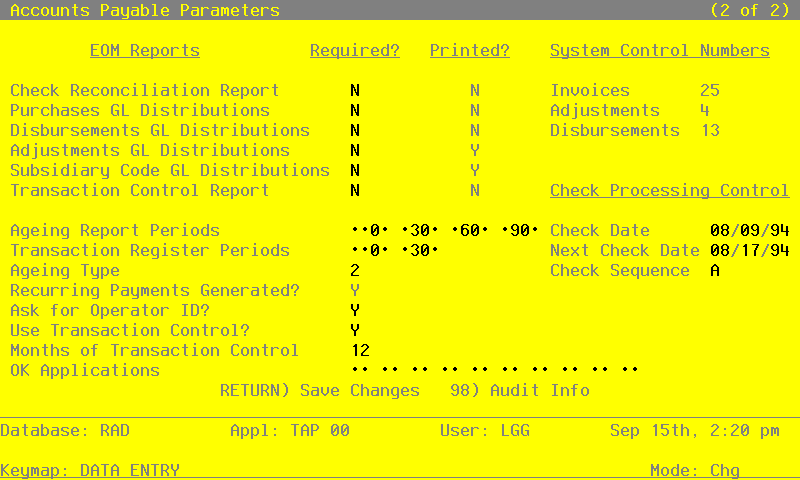
Data items for the preceding screen are described below:
- Check Reconciliation Required?
Y or N Default N
This filed is required.
Enter ‘Y’ if you want printing of the Check Reconciliation Report to be required before endof-month processing can proceed.
- Check Reconciliation Printed.?
Y or N Default N
This indicates whether or not the Check Reconciliation Report has been printed for the current month.
- Invoices Control Number
Positive number, up to 4 digits
The system maintains a running control number for the Invoices file.
- Purchases GL Dist. Required?
Y or N Default N Required
Enter a ‘Y’ if you want printing of the Purchases GL Distributions Report to be required before end-of-month processing can proceed.
- Purchases GL Dist. Printed?
Y or N Default N
This indicates whether or not the Purchases GL Distributions report has been printed for the current month.
- Adjustments Control No
Positive number, up to 4 digits
The system maintains a running control number for the Adjustments file.
- Disburs. GL Dist. Required?
Y or N Default N Required
Enter a ‘Y’ if you want printing of the Disbursements GL Distributions Report to be required before end-of-month processing can proceed.
- Disburs. GL Dist. Printed?
Y or N Default N
This indicates whether or not the Disbursements GL Distributions Report has been printed for the current month.
- Disbursements Control No
Positive number, up to 4 digits
The system maintains a running control number for the Disbursements file.
- Adjustments GL Dist. Required?
Y or N Default N Required
Enter ‘Y’ if you want printing of the Adjustments GL Distributions Report to be required before end-of-month processing can proceed.
- Adjustments GL Dist. Printed?
Y or N Default N
This indicates whether the Adjustments GL Distributions Report has been printed for the current month.
- Sub Code GL Dist. Required?
Y or N Default N Required
Enter a ‘Y’ if you want the Sub Code GL Distributions Report to be required before end-ofmonth processing can proceed.
- Sub Code GL Dist. Printed?
Y or N Default N
This indicates whether or not the Sub Code GL Distributions Report has been printed for the current month.
- Trx Control Report Required?
Y or N Default N Required
Enter ‘Y’ if you want printing of the Transaction Control Report to be required before end-ofmonth processing can proceed.
- Trx Control Report Printed?
Y or N Default N
This indicates whether or not Transaction Control Report has been printed for the current month.
- Ageing Report Periods
Number, up to 3 digits Carries forward in ADD mode
Define the ageing report periods. You may specify up to 4 ageing entries which define 5 actual ageing periods. For example, ageing entries of -30, 0, 60, and 90 would define periods of -30 and before, -29 to 0, 1 to 60, 61 to 90 and 91 and above. These values may be changed prior to report printing.
- Check Date
Date (YMD)
The system sorts the ‘Check Date’ entered in the Cash Requirements Report to use as a default for the Checks Creation function.
- Transaction Register Periods
Number, up to 3 digits Carries forward in ADD mode
Define the transaction register periods. You may specify up to 2 transaction ageing entries which define 3 periods. For example, ageing entries of -30 and 0 would define periods of -30 and before, -29 to 0 and 1 and above. These values may be changed prior to report printing.
- Next Check Date
Date (YMD)
The system stores the ‘Following Check Printing Date’ entered in the Cash Requirements Report to use as a default for the Checks Creation function.
- Ageing Type
Positive number, 1 digit
During Initial Setup, enter ‘1’ or ‘2’ to specify the default ageing basis that will be used for the Ageing and Transaction Register reports in Live Operations:
- 1
- Invoice date
- 2
- Due date
During Live Operations, the system displays a ‘1’ or a ‘2’. The default can be changed for each report printing.
- Check Sequence
Upper case, 1 character Letters only Valid: N, A Required
Enter the means of sequencing system generated checks.
- N
- checks are created in Vendor Number order
- Y
- checks are created in Vendor Alpha order
- Recurring Payments Generated?
Y or N Default N
Indicate whether recurring payments have been generated for the current month., Set this field to ‘N’ in Initial Setup.
During Live Operations, the system automatically maintains this field.
- Ask for Operator ID?
Y or N Default Y Required
The system assumes that you prefer to ask for the operator’s ID during transaction entry. This allows you to edit other operators’ transactions. An entry of ‘N’ means each operator can only enter or edit his or her own transactions. It also means the system will not track Transaction Control information for you.
- Use Transaction Control?
Y or N Default Y Required
The system assumes you want to use the Transaction Control feature. This includes the ability to track and report on the Transaction Control file, which is an additional audit trail, and to enter control and hash totals for your transactions. If you do not choose to use this feature, enter ‘N’.
If you want to use this feature and also want to ensure that an operator has exclusive control of his or her own transactions, enter ‘Y’ in this field, and change the default value of ‘Operator Exclusive?’ Field on each Control Group record in Transaction Processing to ‘Y’.
- NOTE
- If you enter ‘Y’ to this question, the system assumes that ‘Ask for Operator ID?’ is also ‘Y’.
- Months of Transaction Control
Positive number, up to 2 digits
Enter the number of months of Transaction Control information you want to keep. During close month processing, records older than the number of months specified in this field are deleted.
- OK Application Types
Upper case, up to 2 characters Letters only Valid: AP, AR, FA, GL, IC, PA, PO, OE
Supply the application types from the list below that will be allowed for account numbers used in accounts payable transactions. If there are no restrictions, leave this field blank. If there are to be any restrictions, all valid applications must be specified. Be sure to include a “blank” type if postings are made to accounts without application types. During transaction entry, this table is checked to ensure that the application type of the account is valid. Your options are:
‘ ‘ : Blank Application type IC: Inventory Control
- AP
- Accounts Payable PA: Payroll
- AR
- Accounts Receivable PO: Purchase Orders
- FA
- Fixed Assets OE: Order Entry
The entered data is validated. During validation, including access to other files, conditions may be found which cause messages to be displayed. Errors (E), Warnings (W), and Messages )M) that may result are shown below:
Press ENTER to save the information on this screen.