
Chapter 4: Maintenance
Chart of Accounts Details Overlay
The Chart of Accounts Details Overlay, shown in Figure 4-5a below, appears automatically when you save a record or when you click on the Details button from the Chart of Accounts Screen in Chart of Accounts File Maintenance. You remain in the same mode and you cannot change mode from this overlay.
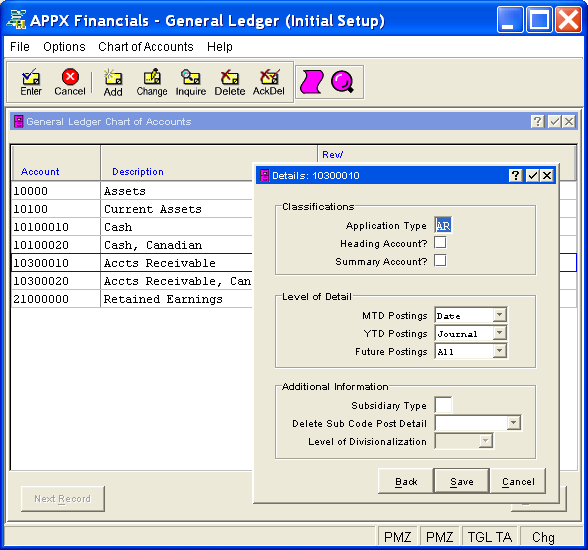
This overlay contains the following fields grouped by sections and pertains only to the current account (which is identified in the title bar).
Classifications
- Application Type
Enter up to two uppercase letters, such as AP, AR, FA, GL, IC or PA, or leave blank.
Application Type is used to validate specifying this account number within a given application. This is accomplished by comparing it against the OK Application Types defined in the Parameters file for that application. For example, you might define your revenue accounts as having an application type of "AR", for Accounts Receivable, and your expense accounts as having an application type of "AP", for Accounts Payable. If the Accounts Payable Parameters file included "AP" as an OK Application Type, but not "AR", the system would prevent you from inadvertently entering a revenue account on, say, an Accounts Payable invoice. At the same time, as long as General Ledger included both "AR" and "AP" as OK Application Types in Parameters File Maintenance, journal entries could be made to either revenue or expense accounts.
- Heading Account?
Select "yes" or
 if this account is a heading account; otherwise, select "no" or
  . The initial default is "no".
Heading accounts are used to format financial statements, and for separating accounts on the Trial Balance Report and Chart of Accounts List. They contain no actual data and will never have any amounts posted to them. An example of a heading account might be "Current Assets".
- Summary Account?
Select "yes" or
if this account is a summary account; otherwise, select "no" or . The initial default is "no".Summary accounts represent the total, or sum, of a grouping of other account balances. They will never have amounts posted directly to them; they are updated only during Process Initial Setup or when the 'Summarize Accounts' function is run in Live Operations. An example of a summary account might be "Total Expenses", which could be defined as the sum of all expense accounts.
You must also enter summary accounts in Summary Accounts File Maintenance.
Level of Detail
You have the following options for the Level of Detail fields for MTD Postings, YTD Postings, and Future Postings:
| None: | Keep no detail (not applicable for MTD or Future Postings) |
| Summary: | Keep a summary by fiscal month/year |
| Journal: | Keep a summary by fiscal month/year and journal code |
| Operator: | Keep a summary by fiscal month/year, journal code, and operator ID |
| Date: | Keep a summary by fiscal month/year, journal code, operator ID, and date |
| All: | Keep all detail |
These options are listed in order of "least detail" to "most detail". All entries containing an intercompany code or a subsidiary code will be kept in detail. Also, be sure to keep at least as much detail in the Future Postings file as you want to maintain in your MTD and YTD Postings files for a given account.
- MTD Postings
Click the list
 button to select the level of detail to be kept in the MTD Postings file as defined above. The initial default value is "All". "None" is not a valid option for this file.
- Y TD Postings
Click the list
button to select the level of detail to be kept in the YTD Postings file as defined above. The initial default value is "All".- Future Postings
Click the list
button to select the level of detail to be kept in the Future Postings file as defined above. The initial default value is "All". "None" is not a valid option for this file.
Additional Information
- Subsidiary Type
If applicable, enter two uppercase letters for the cost accounting subsidiary to which this account is posted; otherwise, leave this field blank. If this is a General Subsidiary account, enter "GL". See General Subsidiary in Chapter 1 of this manual for more information.
- Delete Sub Code Post Detail
For accounts with Subsidiary Type "GL" only, this entry indicates how often General Subsidiary detail postings are deleted from the Subsidiary Postings file. If applicable, click the list
button to select one of the options listed below; otherwise, leave this field blank.
| Never: | Never delete |
| Monthly: | Delete during Close Month processing each month |
| Yearly: | Delete only at the end of the fiscal year |
| This Month: | Delete at the end of this month; after deleting, this value will be converted to "Never" |
- Level of Divisionalization
When implemented, this field will provide for divisionalized accounting by appending account components from the offset account to the primary posting account. This feature has not been implemented.
Press ENTER or click  or the Save button to save the information on this overlay. If any information has changed, the system may redisplay the screen to show any new or changed system-supplied items or to report any error or warning messages. If so, the current screen has not yet been saved; you must address any concerns and press ENTER or click or the Save button again.
When the screen has been saved, you will return to the Chart of Accounts Screen. To return without saving, press END or click  or the Cancel button or click the Back button to return to the previous screen.
The following icons are also available for use on the toolbar:
 List Chart of Accounts: See Chart of Accounts List for further information.
 Display Account Audit Info: See Audit Info for further information.
Click the appropriate icon to perform the desired operation (which first saves the current screen if applicable), after which you will return to where you are.