
Chapter 5: Encrypt the DMO database
Create and assign a dedicated encryption group
A dedicated group makes the conversion's membership clear. It also allows this database to be decrypted later without changing an unrelated group's key.
For example, a payroll database might keep EMPLOYEE, PAYCHECK, and BANKINFO in a dedicated PAYROLL ENCRYPTION group. Assigning that group lets those eligible APPXIO files share one managed key while preserving the required native FMS and storage path. When the payroll key is changed, export and replace every member together. Keep a separate training database in its own group so a training exercise does not change the payroll files' effective key. A group is a settings convenience; users still need the appropriate application and file permissions.
- Open System Administration, Configuration, File System Groups under File Maintenance.
- Add a group named DMO ENCRYPTION. This is an example group name; use a distinct name appropriate to your installation.
- Use the same effective native APPXIO FMS type as the files being converted. The test files use type 9. Your files may use another native APPXIO type. Do not change their storage type merely to enable encryption.
- Keep the required path and other operational attributes consistent with the original configuration. The test group has no path override.
- Open FMS Group Attributes. Click Random Key to create a new group key, save its exact value in the restricted vault under DMO ENCRYPTION, then accept the attributes and save the group. If the site requires password-manager-generated values, enter a new saved value instead, following the choice explained in Set the file key and replace the file. Use a new key for this group rather than reusing PROSPECT's earlier file key.

- Return to the same nine-file selection in DMO Data File Management and open File Specifications in Change mode.
- Assign DMO ENCRYPTION to each selected file's FMS Group field. Save each changed file specification.
- Check that no individual file key overrides the intended group key. Any previously encrypted file must already have been exported under its old working configuration before an override is changed.
- Review the complete list. Every eligible file must have the intended effective group, FMS type, and path.
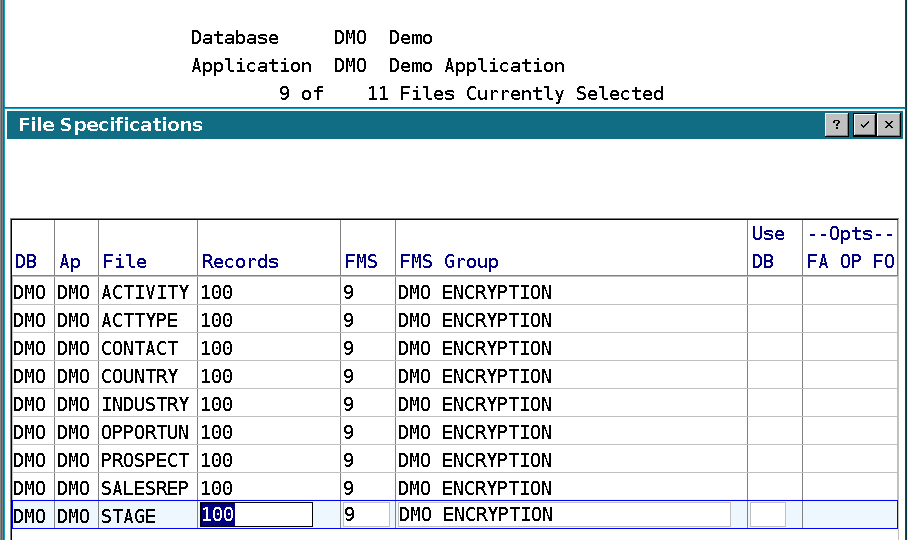
This exercise assigns the group directly to the selected file specifications. It does not change a system-wide default. For additional applications in DMO, repeat the assignments for their eligible files. For a file with a different existing path or native FMS requirement, use a suitable dedicated group that preserves that requirement.