
Chapter 3: Encrypt PROSPECT
Select and export only PROSPECT
- Open DMO Data File Management and File Selection.
- Choose Unselect All.
- Use Go To to locate database DMO, application DMO, version 00, file PROSPECT. Accept the locator.
- Use SELECT to toggle PROSPECT into the selection. In this Desktop Client, use F3. Return to Data File Management with END.
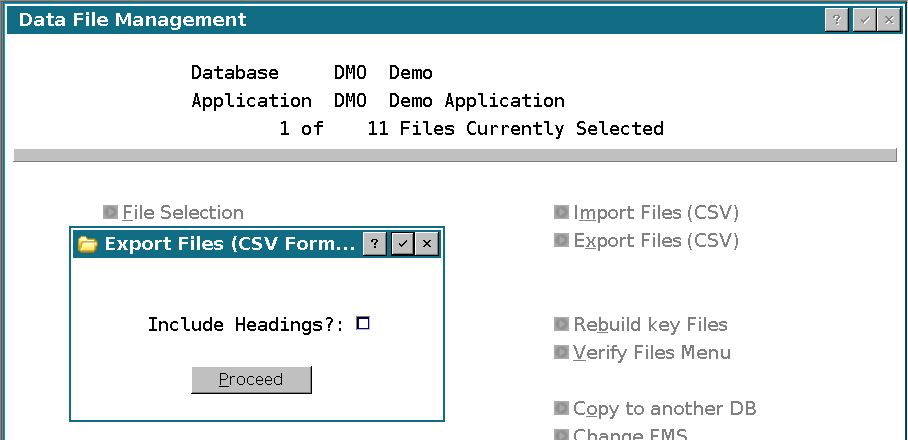
- Confirm that exactly 1 of 11 files is selected in the standard sample. Check that the selected file is PROSPECT. Your total file count may differ.
- Choose Export Files (CSV). Leave Include Headings unchecked for the conversion copy. Click Proceed.
- Confirm that the log identifies PROSPECT and reports every record exported. The example reports Exported 7 of 7 records.
- Preserve this CSV in a restricted location. Record its full pathname and the export count before changing any encryption setting.
The normal export location in this test is APPXPATH/DMO/DMO/Portdata/PROSPECT.csv. Your installation's root and any configured export path may differ. Verify the actual output location and keep a protected copy outside the working export folder, since another export can replace the working CSV.