
3File Maintenance
Option 4Product Classes
The Product Classes file identifies product classifications and the General Ledger accounts used for products within each classification.
Each product class is assigned a unique number. The record in the Products file for each product contains a reference to the product class number. Because the product class is associated with General Ledger accounts, each product is associated with the appropriate General Ledger accounts.
When you use this option, a record of all entries is printed. For additions, all new field contents are printed; for deletions, the deleted record’s contents are shown; for changes, both old field contents and new field contents are shown. In all cases, the User ID, date, and time are printed.
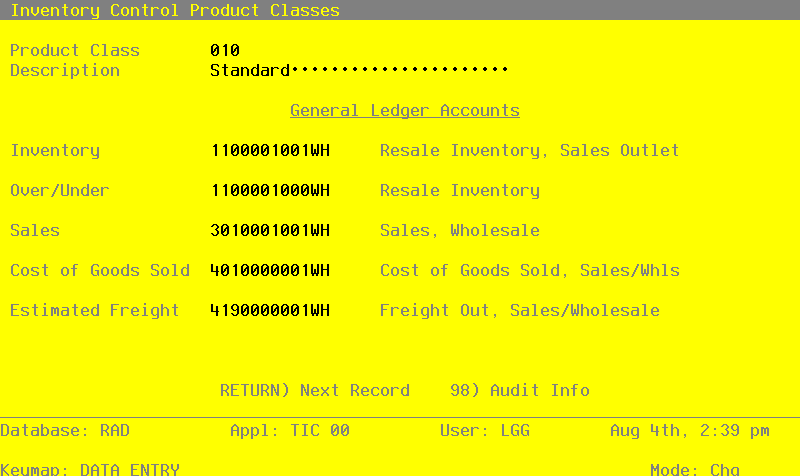
Select “Product Classes” from the File Maintenance menu. The Product Classes entry screen is shown below:
Product Classes screen
When the key value for a particular record is requested, you can review all the records in the file by selecting the Scan option. The records will be presented on an “Access” screen, and you will be allowed to scan the available data until you find the record you want. Then, position the cursor by that record and press RETURN; the record will be displayed for editing.
Data items for the preceding screen are described below:
- Product Class Number
Enter a unique number of up to 3 digits to identify the product class. This is the number that will be used to recall or reference this record elsewhere in the system.
- Description
Enter up to 30 characters to describe the product class.
- Inventory
Enter the default General Ledger account number for the inventory account to which all activity for products in this class will be posted. If the General Ledger application is part of the system, this number must be on file in the Chart of Accounts file. You can use the Scan option to find an appropriate entry. The system displays the corresponding description so that you can verify your entry.
- Over/Under
Enter the General Ledger account number for the adjustment account to which all overages and underages for products in this class will be posted. If the General Ledger application is part of the system, this number must be on file in the Chart of Accounts file. You can use the Scan option to find an appropriate entry. The system displays the corresponding description so that you can verify your entry.
- Sales
Enter the General Ledger account number for the sales account for products in this class. If the General Ledger application is part of the system, this number must be on file in the Chart of Accounts file. You can use the Scan option to find an appropriate entry. The system displays the corresponding description so that you can verify your entry.
- Cost of Goods Sold
Enter the General Ledger account number for the cost of goods sold account for products in this class. If the General Ledger application is part of the system, this number must be on file in the Chart of Accounts file. You can use the Scan option to find an appropriate entry. The system displays the corresponding description so that you can verify your entry.
- Estimated Freight
Enter the General Ledger account number for the estimated freight account to which estimated freight costs for products in this class will be posted. If the General Ledger application is part of the system, this number must be on file in the Chart of Accounts file. You can use the Scan option to find an appropriate entry. The system displays the corresponding description so that you can verify your entry.
If you use this feature in Purchase Orders, you must select it in the Inventory Control Parameters file. The actual percentage is entered on the Products record.
The entered data is validated. Press RETURN to save the information on this screen.
Select Next Record to go to the next Product Classes record.
At this screen the use of the MODE keys—ADD, DEL, CHG, or INQ—pertain to those records in the Product Classes file.