
1Transaction Processing
Option 10Request for Quotes Maintenance
This function is used to enter requests for supplier quotes. Two screens are used: the header to enter general information for a request for quote and the second to enter line items. You can enter any number of line items for a single request for quote.
Many of the fields are not required for a request for quote. However, they can be entered for purchase orders that will be generated using the Generate POs From RFQs function. Alternatively, you can enter only basic information for the request for quote, generate a purchase order from it, and add information to the purchase order using Change mode in the Purchase Orders function.
When you use this option, a record of all entries is printed. For additions, all new field contents are printed; for deletions, the deleted record’s contents are shown; for changes, both old field contents and new field contents are shown. In all cases, the User ID, date, and time are printed.
Select “Request for Quotes Maintenance” from the Special Programs option on the Transaction processing menu. The first of two Request for Quotes entry screens is shown below:
Request for Quotes screen
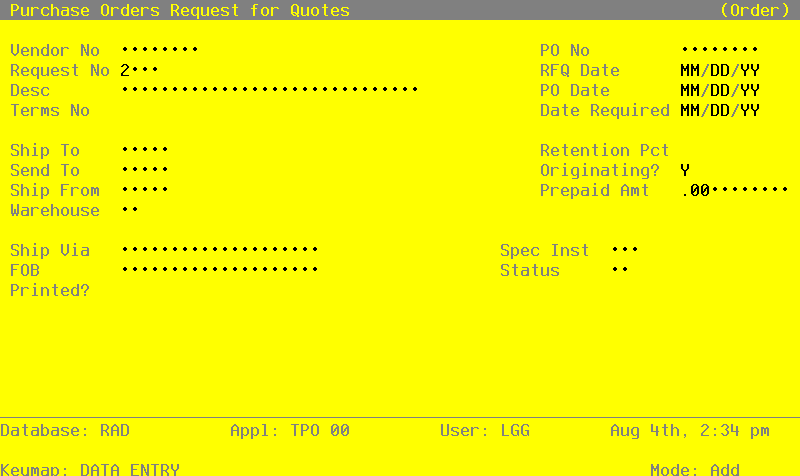
Certain entries on this screen will be automatically displayed. In most cases, the displayed entry can be changed. If an asterisk (*) appears next to one of the fields listed below, it indicates a “display-only” field, which cannot be changed.
When the key value for a particular record is requested, you can review all the records in the file by selecting the Scan option. The records will be presented on an “Access” screen, and you will be allowed to scan the available data until you find the record you want. Then, position the cursor by that record and press RETURN; the record will be displayed for editing.
Data items for the preceding screen are described below:
- Vendor No
Enter the supplying vendor’s number from the Vendors file. You can use the Scan option to find an appropriate entry. The system displays the corresponding name so that you can verify your entry.
- PO No
If this request for quote will be converted to a purchase order, enter up to 8 characters for the ID code that will be assigned to the new purchase order.
If this request for quote will not be converted, leave this field blank.
- Request No
The system provides a sequence number, beginning with ‘1’, for each request for quote.
- RFQ Date
Enter the date for the request for quote.
- Desc
Enter up to l6 characters to describe this request for quote.
If the request for quote is converted to a purchase order, this description is transferred to the purchase order. If Option 17 is used to create an invoice record from the purchase order (see the description of the Invoices Data Entry function), the description is transferred as the invoice description.
- PO Date
If this request for quote will be converted to a purchase order, enter the date for the purchase order.
- Terms No
The system displays the terms code for the vendor you identified in the Vendor No field. You can enter another terms code from the Terms file to change this display. You can use the Scan option to find an appropriate entry. The system displays the corresponding description so that you can verify your entry.
- Date Required
Enter the date the merchandise is required.
- Ship To
If the order (if any) generated from this request for quote will be shipped to an address other than that of the warehouse you select (see the Warehouse field description below), enter the corresponding code from the Alternate Addresses file. You can use the Scan option to find an appropriate entry. The system displays the corresponding Addressee Name so that you can verify your entry.
If no alternate address code is entered, the system displays the first line of the Address entry from the Warehouses record.
- Retention Pct
The system displays the Retention Percent field from the Vendors record. You can enter a different, nondecimal retention percentage to override the display.
The system uses this percentage to compute the retention amount during invoice entry.
- Send To
If the order (if any) generated from this request for quote will be sent to an address other than the address on the Vendors record (see the Vendor No field description), enter the corresponding code from the Alternate Addresses file for that address. You can use the Scan option to find an appropriate entry. The system displays the corresponding Addressee Name so that you can verify your entry.
If no alternate address is entered, the system displays the name from the Vendors record.
- Originating?
If this request for quote will be converted to a purchase order, enter ‘Y’ or ‘N’ to indicate whether or not the order is an original order.
- Y
- This purchase order is the initial order to the vendor.
- N
- The purchase order is not the initial order to the vendor.
This field is for your information only.
- Ship From
If the order (if any) generated from this request for quote will be shipped from an address other than the address on the Vendors record (see the Vendor No field description), enter the corresponding code from the Alternate Addresses file. You can use the Scan option to find an appropriate entry. The system displays the corresponding Addressee Name so that you can verify your entry.
If no alternate address is entered, the system displays the name from the Vendors record.
- Prepaid Amt
Enter up to 7 digits and 2 decimals for the amount prepaid against this purchase order.
- Warehouse
If this request for quote will be converted to a purchase order, enter a 2-digit warehouse number from the Warehouses file to identify the warehouse to which the order will apply. You can use the Scan option to find an appropriate entry. The system displays the corresponding description so that you can verify your entry.
This entry appears as the default Warehouse No when you enter line items for this request for quote.
- Ship Via
If this request for quote will be converted to a purchase order, enter up to 20 characters to identify the freight company to be used.
This entry is printed on the purchase order.
- Spec Instr
If this request for quote will be converted to a purchase order, enter a code from the Special Instructions file for the instructions that will be printed on the purchase order. You can use the Scan option to find an appropriate entry. The system displays the corresponding description so that you can verify your entry.
- FOB
If this request for quote will be converted to a purchase order, enter up to 20 characters to identify the destination or shipping point to which the order (if any) generated from this request for quote will be shipped “free on board.”
This entry is printed on the purchase order.
- Status
Enter a code from the Status Codes file to describe the status of this request for quote. You can use the Scan option to find an appropriate entry. The system displays the corresponding description so that you can verify your entry.
The status code is included on the request for quote form and provides a way to selectively print requests for quotes.
- Printed?*
The system displays ‘Y’ or ‘N’ to indicate whether or not this request for quote has been printed since it was last modified.
The entered data is validated. Press RETURN to save the record and continue.
Select Next Record to go to the next Request for Quotes record.
At this screen, the use of the MODE keys — ADD, DEL, CHG, or INQ — pertain to those records in the Request for Quotes file.
At this point you can enter line items for the request for quote. A sample screen is shown below:
Request for Quote Line Items screen
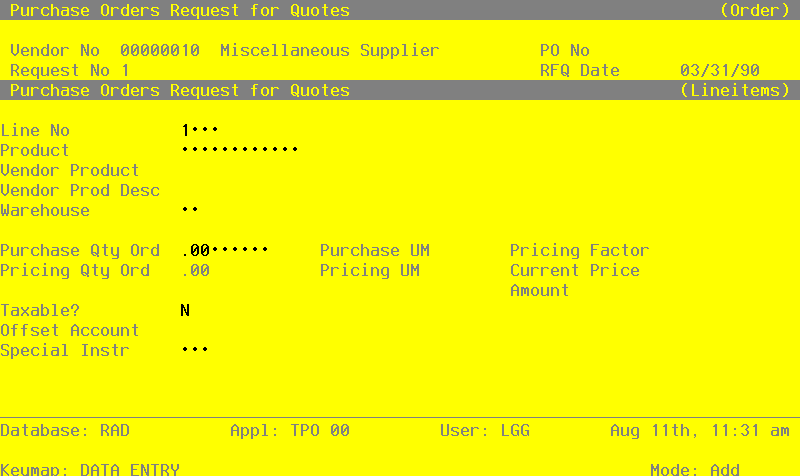
Certain entries on this screen will be automatically displayed. In most cases, the displayed entry can be changed. If an asterisk (*) appears next to one of the fields listed below, it indicates a “display-only” field, which cannot be changed.
When the key value for a particular record is requested, you can review all the records in the file by selecting the Scan option. The records will be presented on an “Access” screen, and you will be allowed to scan the available data until you find the record you want. Then, position the cursor by that record and press RETURN; the record will be displayed for editing.
Data items for the preceding screen are described below:
- Line No
The system provides a line number, beginning with ‘1’, for each line item on the request for quote. If this request for quote is converted to a purchase order, the line number is also used on the order.
- Product
Enter a product number from the Products file. You can use the Scan option to find an appropriate entry. The system verifies that the product is on file in the Products file. It also verifies that this product is on file in the Products By Warehouse and Products By Vendor files for the warehouse and vendor you entered on the previous screen.
If the Products By Vendor record is not on file, the system displays a warning. You can create a Products By Vendor record by selecting Option 17. The record that you create will have valid product and vendor numbers if the following conditions is true:
The option to keep detailed product by vendor information is selected in the Inventory Control Parameters file.
If the option to keep product by vendor detail is not selected, the record you create will have a valid product number and a blank vendor number. The pricing and unit of measure information that you enter on this screen are used as the initial values for the generated Products By Vendor record.
Similarly, if the Products By Warehouse record is not on file, the system displays a warning. You can create a Products By Warehouse record by selecting Option 18.
You should use caution in creating records in this way, as only a skeleton record will be created, and many fields will be filled with default values. One such field is the Qty Factor field, which is set to 1. (See the description of this field in the discussion of the Products By Vendor file in the File Maintenance section of this manual.) You can edit these records later to complete the detail.
- Vendor Product
The system displays the vendor’s number for this product from the Products By Vendor file. You can enter a different vendor product number of up to 12 characters to override the display.
- Vendor Prod Desc
The system displays the vendor’s product description from the Products By Vendor file. You can enter a different description of up to 30 characters to override this display.
- Warehouse
The system displays the Warehouse entry from the previous screen and the corresponding description from the Warehouses file. You can enter a different warehouse number to override the display. You can use the Scan option to find an appropriate entry. The system displays the corresponding description so that you can verify your entry.
- Purchase Qty Ord
Enter up to 5 digits and 2 decimals for the number of purchasing units on the request for quote. The purchasing unit is displayed in the Purchase UM field on this screen (see below).
- Purchase UM*
The system displays the purchasing unit of measure for the product from the Products By Vendor file.
- Pricing Factor*
The system displays the pricing factor for the product from the Products By Vendor file. This is the factor used to convert the number of purchasing units on this request for quote (entered in the Qty Ordered field) to pricing units of measure.
- Pricing Qty Ord*
The system displays the number of pricing units on the request for quote. This is the number of purchasing units on the request (Purch Units Ord) multiplied by the Pricing Factor.
The Pricing unit of measure is displayed in the Pricing UM field on this screen (see below).
- Pricing UM*
The system displays the pricing unit of measure for the product from the Products By Vendor file.
- Current Price
The system displays the unit price of the product from the Products By Vendor file. This is the price per pricing unit of measure quoted by the supplying vendor. (The pricing unit of measure is displayed in the Pricing UM field on this screen.) You can enter a different current price of up to 6 digits and 5 decimals to override the display.
- Amount
The system displays the extended amount of this line item. The amount is computed according to this formula:
Purch Units Ord x Pricing Factor x Current Price
This formula is equivalent to the following:
Pricing Unit x Current Price
You can enter up to 7 digits and 2 decimals to override the display. If you change the amount, the system recalculates the Current Price.
- Taxable?
This field indicates whether or not sales tax is charged for this product.
- Y
- Sales tax is charged for this product.
- N
- Sales tax is not charged for this product.
By default, the system displays ‘N’ in this field. You can enter ‘Y’ to override the display.
If this request for quote is converted to a purchase order, this entry is noted on the purchase order form.
- Offset Account
The system displays the offset account for the product from the Product Classes file, followed by the description of this account from the General Ledger Chart of Accounts file. You can enter a different offset account number to override this display. You can use the Scan option to find an appropriate entry.
- Special Instr
If desired, enter a code from the Special Instructions file for the special instruction to be printed on the request for quote line item. You can use the Scan option to find an appropriate entry. The system displays the corresponding description so that you can verify your entry.
This entered data is validated. Press RETURN to display system-supplied information and then press RETURN again to save the information on this screen.
Select the Previous Image option to go back to the Request for Quotes screen. Select the Next Record option to go to the next Line Items screen. Select the END option to go to the next Request for Quotes screen.
At this screen the use of the MODE keys—ADD, DEL, CHG, or INQ—pertain to those records in the Request for Quotes Line Items file.