
Chapter 6: Create Reports with Crystal Reports 2025
Create a COUNTRY Report
- Start Crystal Reports 2025 and select File, New, Standard Report, or Report wizard on its start page.
- Expand Create New Connection, ODBC (RDO). Select AppxODBC and select Next. Enter the authorized APPX user ID and password, then select Finish. If the Dharma login appears, verify Host localhost, Database appx, the correct user ID and blank Service before submitting. A blank user ID is not an accepted authenticated test.
- Under the new connection, double-click Add Command. Enter the four-column report SQL without a trailing semicolon:
SELECT name, region_label, no_words, post_code_loc
FROM DMO_DMO_COUNTRY
ORDER BY name
- Select OK. Confirm Command appears under Selected Tables, then select Next.
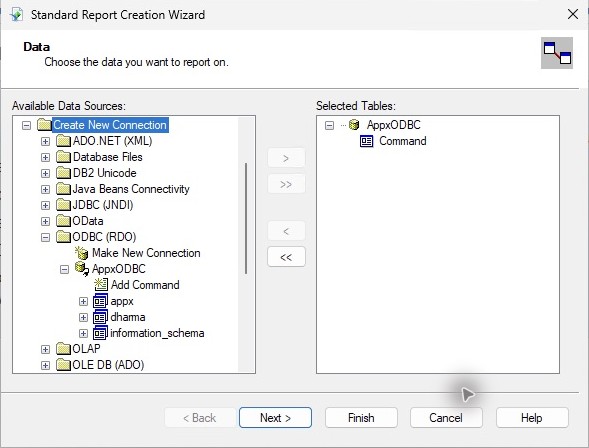
- Add all four fields to Fields to Display in this order: name, region_label, no_words, post_code_loc. Select Finish without adding grouping or selection filters.
- Check Records: 8 and compare complete values with the native expected sample. In this test, names are C, F, I, N, R, U, U, U instead of complete country names. Region labels and nonblank post-code locations also retain only their first character. All eight numeric no_words values agree; the two expected blank text values remain blank.
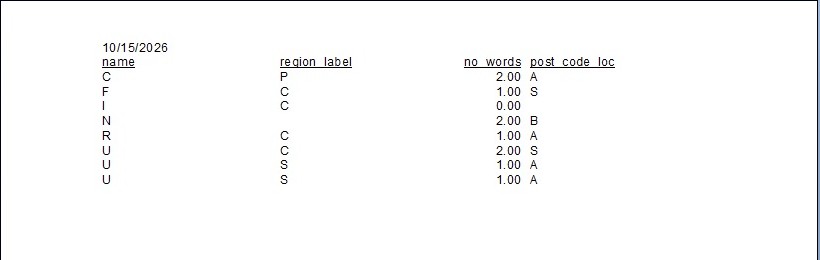
- Select File, Save As and save APPX-621-64-COUNTRY-RDO.rpt locally. Select File, Export, Export Report, choose PDF, Disk file and All pages, then save the exported PDF. Exporting preserves the damaged result; it does not restore native text.
- Close Crystal completely. Reopen the saved report in a fresh process and press F5. Confirm Refresh Report Data. Enter the APPX password in the masked Dharma field, with Service blank. The saved report requested a new password in this test.
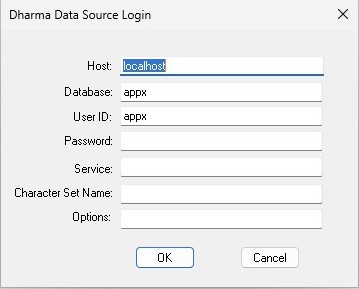
- Wait for Records: 8 and a new refresh timestamp, save the report again and export a second PDF. Compare the refreshed values, not only the initially displayed saved snapshot.
Both PDFs reproduce the independent ODBC projection: eight rows, 32 values and 22 native-value differences. The final two projected rows are identical and cannot identify their source records uniquely. Creation, save and fresh-process authentication/refresh completed; text-value acceptance failed. Widen automatic headings before distributing a report. The test RPT and PDFs are not finished-layout offline examples.