
Chapter 2: Install and Check APPX ODBC
Check the Saved AppxODBC Connection (DSN)
Check the Client Driver and DSN
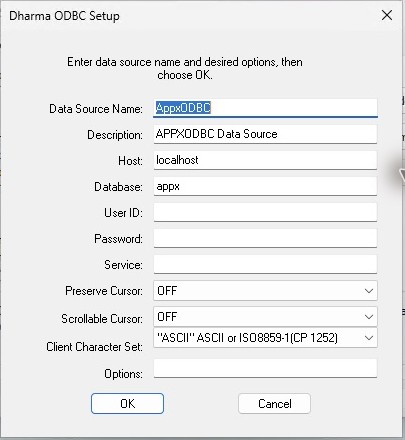
- Open the 64-bit ODBC Administrator, System DSN, AppxODBC, Configure.
- Check Host localhost, Database appx and optional Service blank. Keep the supplied 64-bit AppxODBC Driver.
- Check the client's
C:\Windows\System32\drivers\etc\services. The deliberate tested mapping issqlnw 1992/tcp. Resolve duplicate names rather than assuming the last line wins. - Check the gateway dictionary's backend and the intended APPX login-manager instance. The tested backend is Socket, port 31062.
- Close existing clients before retesting. A saved workbook/report can retain settings that override the DSN; check its connection too.
Independent loopback probes measured blank-Service fallback 1992 and selection through both sqlnw and a custom named mapping. Those port-selection tests used synthetic credentials; the separate live sample queries establish the actual APPX connection.