
Chapter 5: Read APPX Data with Excel, Access and LibreOffice
Load COUNTRY into Excel and Refresh It
The saved Excel workbook uses an explicit query through AppxODBC. It contains an observed sample snapshot with incorrect Unicode text, clearly identified by the native-value comparison. Do not use that snapshot as correct country-name data. The separate 5.5.4 32-bit Excel recipe passes complete sample values on its documented older engine/gateway combination.
- Install/check this edition's driver and DSN, then download the workbook to a working directory.
- Inspect its connection under Data, Queries & Connections, Properties. Keep DSN AppxODBC and clear any old explicit Service override. The command reads
DMO_DMO_COUNTRYordered by name. - Enable this known external connection when Office requests it. Choose Data, Refresh All and enter your authorized APPX login when prompted. Keep the password unsaved.
- Check eight rows and all nine fields. The tested workbook refreshes but displays the Unicode truncation.
- Save, close Excel completely, reopen the workbook, enter the password again and refresh. Check the new result before saving it.
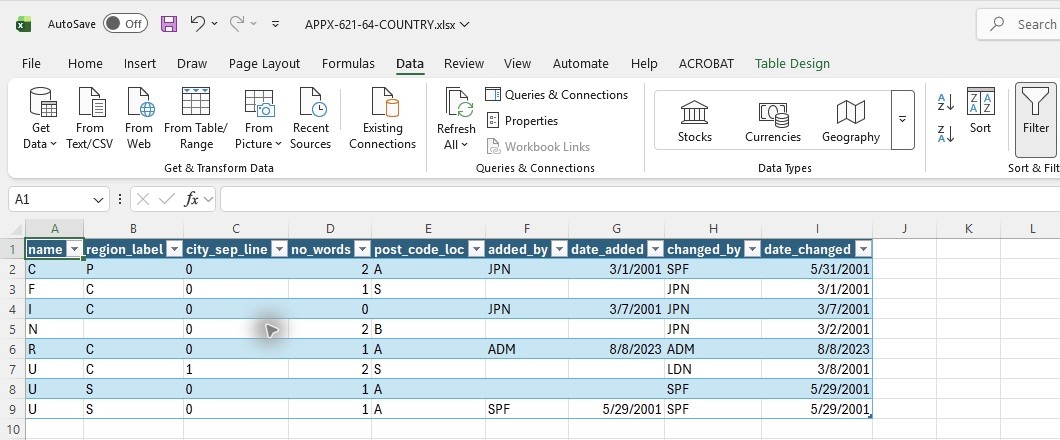
The fresh reopen/password/refresh sequence completed on this stack. Independent inspection of the saved OpenXML workbook checks 72 field values: numeric/date/RAW fields agree, Unicode text does not. No saved password or savePassword flag is present. This direct-query success does not establish that every Power Query navigator or catalog-browsing route will complete.