
3File Maintenance
Option 7Copy Subsidiary Code
This function allows you to create a new set of Subsidiary Codes by Account records based on the terms and structure of an existing set of Subsidiary Codes by Account records. The following processing steps accomplish this job.
- Step 1This function allows you to enter parameters that define the subsidiary code and account range to be copied. For example, if you begin manufacturing a new product, such as “Wicker Tables”, you may discover that tracking the costs of that product includes defining almost exactly the same set of Subsidiary Code by Account records as you already have for the existing product, “Wicker Chairs”. You can use this function to create a new set of Subsidiary Code by Account records for “Wicker Tables”, using the existing set of records for “Wicker Chairs”, thereby saving yourself considerable data entry time.
The screen shown below allows you to enter parameters needed by the Copy Subsidiary Code utility.
Copy Subsidiary Codes screen
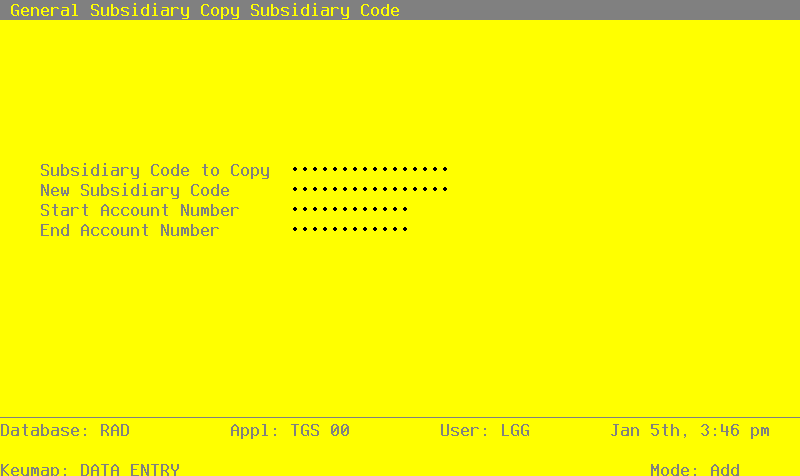
Data items for the preceding screen are described below:
- Subsidiary Code
Upper case, up to 16 characters Required Scan available
Select a subsidiary code for this utility. This must be valid subsidiary code; the system displays the description so that you can verify your entry.
- New Subsidiary Code
Upper case, up to 16 characters Required Scan available
Define the subsidiary code to be created, based on the subsidiary code you just entered and the range of accounts you will enter next. This must be a valid subsidiary code. The description is displayed so that you can verify your entry.
- Start Account Number
Upper case, up to 12 characters Scan available
Define the account number that is the first account of the range of accounts you want to select for this utility. For example, if you want to select a range of accounts beginning with account number 40000, enter ‘40000’ in this field. The utility will only include valid subsidiary code and account combinations within the defined range.
If you leave the account range blank, the utility will include all accounts for the entered subsidiary code.
- End Account Number
Upper case, up to 12 characters Scan available
Define the account number that is the last account of the range you want to select for this utility. For example, if you want to select the range of accounts beginning with 40000 and ending with ‘49999’ in this field. The utility will only include valid subsidiary code and account combinations within the defined range.
If you leave the account range blank the utility will include all accounts for the entered subsidiary code.
The entered data is validated. During validation, including access to other files, conditions may be found which cause messages to be displayed. Errors (E), Warnings(W), and Messages (M) that may result are shown below:
Press ENTER to display system-supplied information and then press ENTER again to save the information on this screen.
- Step 2This disposition type is used for all standard processing functions within General Subsidiary.
- Step 3This step processes the information for Subsidiary Codes by Account. Under certain conditions, records in the Subsidiary Codes by Account file will be added.