
3File Maintenance
Option 2Subsidiary Codes by Account
This function allows you to enter or edit subsidiary codes by account.
Use this function to identify each account whose detail you want to keep, in relationship to a particular Subsidiary Code. For example, if you are tracking payroll costs for a particular product being manufactured, the account might be “Wages Expense” and the Subsidiary Code might be “Wicker Chairs”. Initially, you can select whether to enter (ADD), update (CHG), delete (DEL), or review (INQ).
When you use this function, a record of all entries will be printed. For additions, all new field contents are printed; for deletions, the deleted records contents are shown; for changes, both old field contents and new field contents are shown; and in all cases, the User ID, date, and time are printed.
The screen shown below presents information about Subsidiary Codes by Account.
This file stores summary information about subsidiary codes, including budget information, debits, credits, and MTD, YTD, and Life-to-Date totals. In addition, it contains descriptive information Subsidiary codes are intended to allow you to track additional detail information for specified accounts.
Subsidiary Codes by Account screen
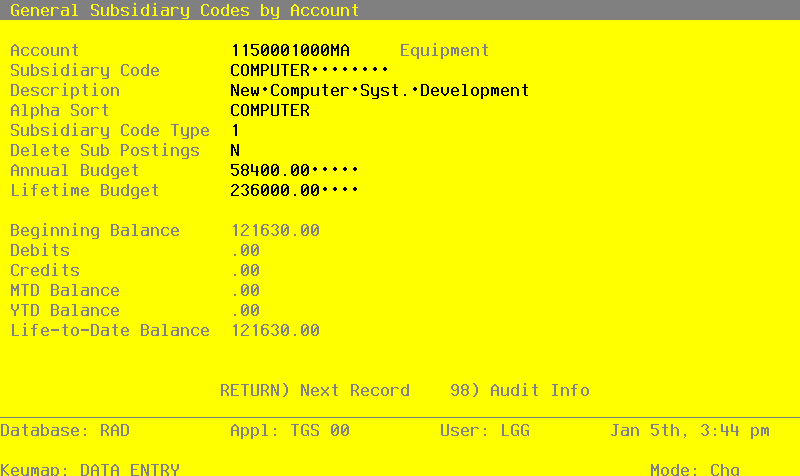
When the key value for a particular record is requested, you can review all the records in the file by selecting the Scan option. The records will be presented on an “Access” screen, and you will be allowed to scan the available data until you find the record you want. Then, position the cursor by that record and press ENTER; the record will be displayed for editing.
Note that the Audit Info option is available at the bottom of this screen. When this option is invoked, the Audit Information overlay appears and displays the date the record was created and who created it, as well as the date the record was last modified and who modified it. Press the END key or the RETURN key to clear the overlay from your screen. The information displayed in the Audit Information overlay is system-supplied and non-modifiable.
Data items for the preceding screen are described below:
- Account
Upper case, up to 12 characters Required Scan available
Supply a General Ledger account to be attached to this subsidiary code. This must be a valid account, with a Sub Type of ‘GL’. The system displays the description so that you can verify your entry.
- Subsidiary Code
Upper case, up to 16 characters Required Scan available Scan by this field (access key)
Identify the subsidiary code. This must be a valid code in the Subsidiary Codes file.
- Description
Required
Enter an alphanumeric filed, up to 30 characters in length.
Name or describe this subsidiary code/account combination. The description from the Subsidiary Codes file is supplied as a default value; you can change it.
- Alpha Sort
Alphanumeric, up to 8 characters Required Scan by this field (access key)
A value is supplied from the Subsidiary Codes file; you can change it. Define a combination of characters to represent where this record should be placed in a sorted report, in relation to other subsidiary codes by account.
- Subsidiary Code Type
Positive number, 1 digit Carries forward in ADD mode
A default value is supplied from the Subsidiary Codes file; you can change it.
Indicate whether or not detail should be summarized for this subsidiary code. Valid entries and meanings are:
- 1
- Keep Detail only according to the Chart of Accounts file
- 2
- Create a Balance Forward record a End of Month
This field is used in conjunction with the “Delete Sub Code Postings” field. “Balance Forward” subsidiary codes are summed at the end of each month, for delete type ‘M’ and ‘T’; and at the end of the fiscal year for delete type ‘Y’’ and that sum is placed into a Balance Forward record. The detail is then deleted.
- Delete Sub Code Postings
Upper case, 1 character Letters only Valid: N, M, y, T Default M Required
A default value is supplied from the General Ledger Chart of Accounts file; you can change it. Indicate how often detail postings are to be deleted from the subsidiary code postings file. Your options and their meanings are:
- N
- Never
- M
- Delete during Close Month processing each month
- Y
- Delete only at the end of the fiscal year
- T
- Delete at the end of this month
- NOTE
- If you enter ‘T’, after the detail has been deleted this item is reset to ‘N’.
- Annual Budget
Number, up to 9 digits and 2 decimals
Supply the amount budgeted for this subsidiary code and account combination for this fiscal year.
- Lifetime Budget
Number, up to 9 digits and 2 decimals
Supply the amount budgeted for this subsidiary code and account combination, for the full life of the subsidiary code.
- Beginning Balance
Number, up to 9 digits and 2 decimals Display only
This is the beginning balance for this subsidiary code and account combination, for the current fiscal year. For revenue and expense accounts, this will be zero. This amount may be entered manually during the Initial Setup phase of your operations.
- Debits
Number, up to 9 digits and 2 decimals Display only
This is the total amount of debits posted to this subsidiary code and account combination, for the current fiscal year. This amount may be entered manually during the Initial Setup phase of your operations.
- Credits
Number, up to 9 digits and 2 decimals Display only
This is the total amount of credits posted to this subsidiary code and account combination, for the current fiscal year. This amount may be entered manually during the Initial Setup phase of your operations.
- Month-to-Date Balance
Number, up to 9 digits and 2 decimals Display only
This is the month-to-date balance for this subsidiary code and account combination. This amount may be entered manually during the Initial Setup phase of your operations.
- Year-to-Date Balance
Number, up to 9 digits and 2 decimals Display only
This is the year-to-date balance for this subsidiary code and account combination, for the current fiscal year. This amount may be entered manually during the Initial Setup phase of your operations.
- Life-to-Date Balance
Number, up to 9 digits and 2 decimals Display only
This is the life-to-date balance for this subsidiary code and account combination. This amount can be manually entered during the Initial Setup phase of your operations.
The entered data is validated. During validation, including access to other files, conditions may be found which cause messages to be displayed. Errors (E), Warnings (W), and Messages (M) that may result are shown below:
Press ENTER to display system-supplied information and then press ENTER again to save the information on this screen.
Select the Next Record option to go to the next Subsidiary Codes by Account record.
At this screen, the use of the MODE keys - ADD, DEL, CHG, or INQ - pertain to those records in the Subsidiary Codes by Account file.