
Chapter 4: Recovery Processing
Option 7Transaction Detail
This function is used for maintenance of the TRANACT file. It is accessed only via Recovery Processing.
Select “Material Requisitions” from the Recovery Processing menu. Here is the first Material Requisitions entry screen:
Recovery Processing Material Requisitions screen
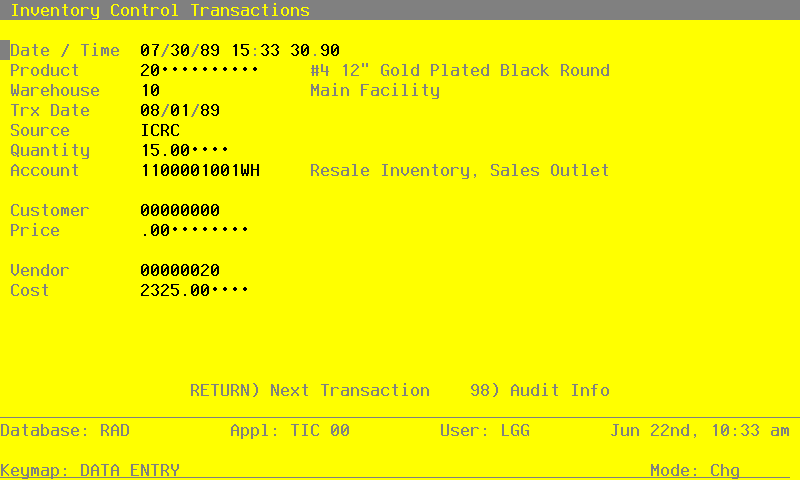
When the key value for a particular record is requested, you can review all the records in the file by selecting the Scan option. The records will be presented on an “Access” screen, and you will be allowed to scan the available data until you find the record you want. Then, position the cursor by that record and press RETURN; the record will be displayed for editing.
Data items for the preceding screen are described below:
- Date/Time
Enter the date and time when the Operator ID group was posted.
- Product
The system displays up to 12 characters to identify the product on the transaction item, along with the description from the Products file. The description cannot be changed. If you change the product number, the new product number must be on file in the Products file.
- Warehouse
The system displays up to two digits to identify the warehouse on the transaction item, along with the corresponding description from the Warehouses file. If you change the Warehouse number, the new Warehouse number must be on file in the Warehouse file.
- Trx Date
The system displays the date the transaction item was posted. The date can be changed
- Journal Code
The system displays the code for the journal on which the transaction is shown. The code can be changed. Valid journal codes are
APAJ Accounts Payable Adjustments
APIV Accounts Payable Invoices
ICAJ Inventory Adjustments
ICPT Inventory Product Transfers
ICRC Inventory Receipts
ICRQ Inventory Requisitions
ICRL Inventory Requisitions Released
ICWT Inventory Warehouse
- Quantity
If appropriate, the system displays up to 5 digits and two decimals for the quantity on the transaction item. The display can be changed.
- Account
Enter the General Ledger account
- Customer
If the transaction applied to a customer, the system displays up to 8 digits to identify the customer. The display can be changed. If you change the Customer number, the new Customer number must be on file in the Customer file.
- Price
If this transaction involved a sales price, the system displays up to 6 digits and 3 decimals to indicate the price. The price can be changed.
- Vendor
If this transaction item applied to a particular vendor, the system displays up to 8 digits to identify the vendor. The display can be changed. If you change the vendor number and if Accounts Payable is part of the system, the new Vendor number must be on file in the Vendor file.
- Cost
If this transaction item involved a cost, the system displays up to 7 digits and 2 decimals to indicate the cost. The display can be changed.
The entered data is validated. Press RETURN to save the information on this screen.
Select Next Record to go to the next Material Requisition Line Items record.
At this screen, use of the MODE keys — ADD, DEL, CHG, or INQ — pertain to those records in the Material Requisition Line Items file.