
Chapter 4: Recovery Processing
Option 6Material Requisitions
This function is used to edit the descriptive information or to select the Cancel option on Material Requisitions records. The actual Material Requisitions may be added or edited in Initial Setup and Recovery Processing or may be changed by posting Material Requisitions entries.
Select “Material Requisitions” from the Recovery Processing menu. Here is the first Material Requisitions entry screen:
Material Requisitions screen
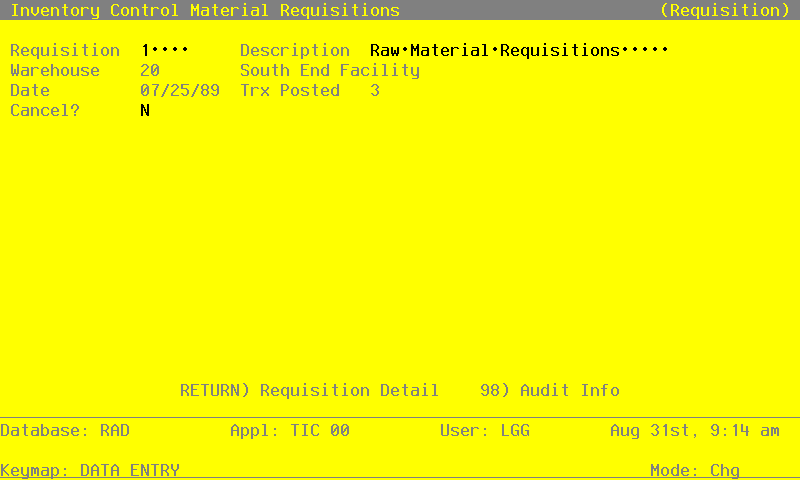
When the key value for a particular record is requested, you can review all the records in the file by selecting the Scan option. The records will be presented on an “Access” screen, and you will be allowed to scan the available data until you find the record you want. Then, position the cursor by that record and press RETURN; the record will be displayed for editing.
Data items for the preceding screen are described below:
- Requisition
Enter up to 5 digits to identify the requisition.
- Description
Enter up to 30 characters to describe the requisition.
- Warehouse
Enter up to 2 digits to identify the warehouse where the requisitioned product is located. You the Warehouses file. The system displays the corresponding description so that you can verify your entry.
- Date
Enter the date of this requisition.
- Trx Posted
Enter up to 4 digits for the number of line items that have been posted for this requisition.
During Live Operations, the system increments this field by the number of requisition or release line items posted every time the Material Requisitions Post function is run for this requisition.
- Cancel?
If you want to cancel this requisition, enter ‘Y’. If not, enter ‘N’. The default is ‘N’.
If you cancel this requisition, it will be deleted when the Material Requisitions Post function is run during Live Operations. The Total Quantity Requested on the Material Requisition line item and the Requis’d quantity on the Products By Warehouse record will be reduced accordingly.
Fully released requisitions are automatically cancelled.
The entered data is validated. Press RETURN to save the information on this screen.
Select Next Record to go to the next Material Requisitions record.
At this screen, use of the MODE keys — ADD, DEL, CHG, or INQ — pertain to those records in the Material Requisitions file.
You can now enter line items for the requisition on the second half of the screen. Here is a sample line item entry screen:
Material Requisition Line Items screen
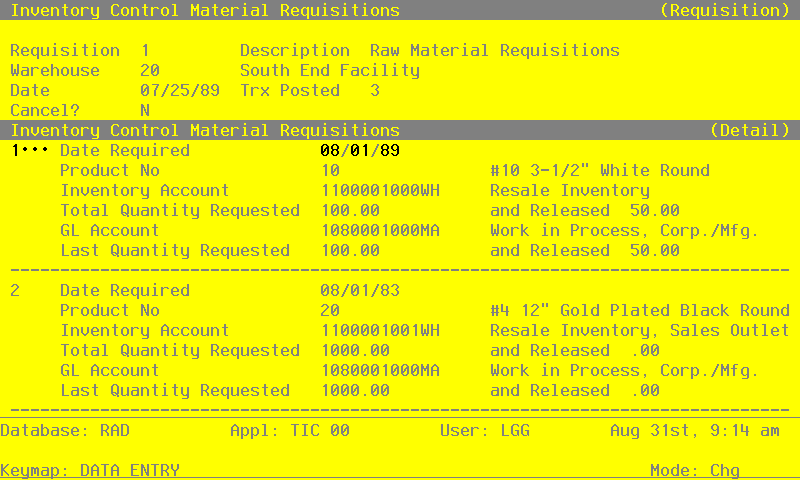
Data items for the preceding screen are described below:
- Line No
Enter a unique number of up to 3 digits to identify this line item.
- Date Required
Enter the date on which the requisitioned product is required.
- Product No
Enter a code to identify the requisitioned product. You can use the Scan option to find an appropriate entry; the product number must be on file in the Products file. The system displays the corresponding description so that you can verify your entry.
- Inventory Account*
The system displays the inventory account to which the requisition is applied and the corresponding description from the General Ledger Chart of Accounts file.
- Total Quantity Requested
Enter up to 5 digits and 2 decimals for the total stockkeeping quantity requested for this line item.
- and Released
Enter up to 5 digits and 2 decimals for the total stockkeeping quantity released for this line item.
- GL Account
For a release, enter the General Ledger account that was debited for this line item during posting. You can use the Scan option to find an appropriate entry. If the General Ledger application is part of your system, this account must be on file in the General Ledger Chart of Accounts file. The system displays the corresponding description of this account so that you can verify your entry.
Because the account is required for releases but not for requisitions, this field may be blank if no releases have been posted. If an entry is made in this case, it is used for information only.
- Last Quantity Requested
Enter up to 5 digits and 2 decimals for the last stockkeeping quantity requested for this line item.
- and Released
Enter up to 5 digits and 2 decimals for the last stockkeeping quantity released for this line item.
The entered data is validated. Press RETURN to save the information on this screen.
Select Next Record to go to the next Material Requisition Line Items record.
At this screen, use of the MODE keys — ADD, DEL, CHG, or INQ — pertain to those records in the Material Requisition Line Items file.