
1Initial Setup File Maintenance
Option 5Product Discounts By Customer
The Product Discounts By Customer file is used only if the Order Entry application is part of your system. This file specifies special prices or discounts that are given to particular customers.
Special prices for any quantity range can be specified in one of two ways:
- Using price breaks. An option in this file specifies whether the price breaks in this file override the base sales prices in the Products By Warehouse file, or whether they are added to or subtracted from the base sales prices.
- Using percentage breaks. The percentage is added to or subtracted from the base sales price in the Products By Warehouse file.
Quantity breaks specify the quantity ranges for each price or percentage break in this file. If no quantity breaks are specified, the quantity ranges in the Products By Warehouse file are used.
If desired, this file can specify an additional percentage to be subtracted from or added to the base sales price. This percentage can be applied by itself, or it can be applied in addition to the price or percentage breaks. An ending date can be given for special pricing for any customer.
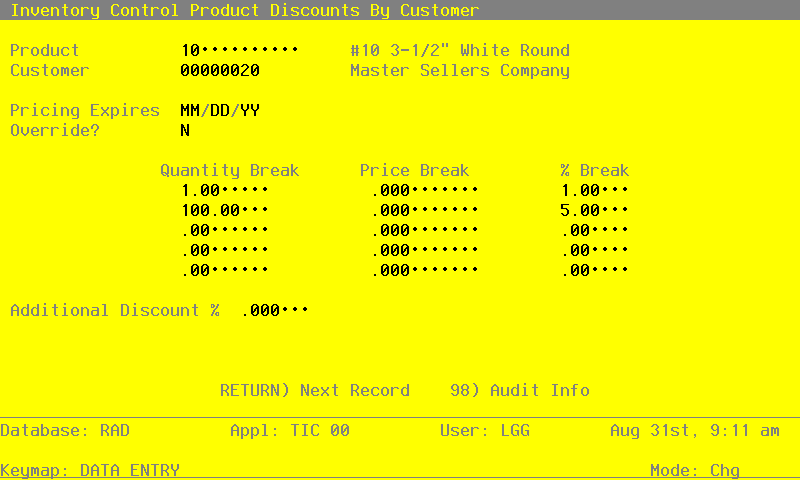
Select “Product Discounts By Customer” from the File Maintenance menu. The Product Discounts By Customer entry screen is shown below.
Product Discounts By Customer screen
When the key value for a particular record is requested, you can review all the records in the file by selecting the Scan option. The records will be presented on an “Access” screen, and you will be allowed to scan the available data until you find the record you want. Then, position the cursor by that record and press RETURN; the record will be displayed for editing.
Data items for the preceding screen are described below:
- Product
Enter a code to identify the product for which the customer will receive discounts. You can use the Scan option to find an appropriate entry. The product number must be on file in the Products file. The system displays the corresponding description so that you can verify your entry.
- Customer
Enter a code to identify the customer who will receive the discounts. You can use the Scan option to find an appropriate entry. If the Accounts Receivable application is part of the system, the customer number must be on file in the Accounts Receivable Customers file. The system displays the corresponding description so that you can verify your entry.
- Pricing Expires
Enter the date the discounts on this record expire. If these discounts are good indefinitely, leave this field blank.
If the Order Entry application is part of the system, and if the current date is after the date in this field, any sales orders that are entered will use the pricing on the Products By Warehouse record and will not apply these discounts.
- Override?
Enter ‘Y’ or ‘N’ to specify whether or not the price breaks you enter in this file will override those in the Products By Warehouse file.
Y: The price breaks in this file will override those in the Products By Warehouse file. These prices will be used instead of the prices in the Products By Warehouse file for the given quantity ranges.
N: The price breaks in this file will not override those in the Products By Warehouse file. These prices will be subtracted from or added to the prices in the Products By Warehouse file for the given quantity ranges.
- Quantity Break
If you do not want to use the quantity breaks specified in the Products By Warehouse file, enter a quantity break of up to 5 digits and 2 decimals for each price or percentage break.
If you do not enter quantity breaks, the system uses the quantity ranges stored on the Products By Warehouse record in applying the price or percentage breaks that you enter here.
- Price Break
You can specify special prices for the customer as dollar amounts for each quantity range. In this case, enter up to 5 digits and 2 decimals for the price break associated with each quantity break.
If the Override? field (see above) is ‘Y’, these prices will override the base sales prices in the Products By Warehouse file for each quantity break.
If the Override? field is ‘N’, these prices will be used to adjust the base sales prices. A positive Price Break is a discount amount and will reduce the base price. A negative Price Break will increase the base price.
If you make entries in Price Break fields, you cannot make entries in the % Break fields.
- % Break
You can also specify special prices for the customer as percentage decreases or increases of the base sales prices in the Products By Warehouse file for each quantity range. In this case, enter a positive or negative value of up to 3 digits and 2 decimals for the percentage to adjust the base price for each quantity break. A positive Percentage Break is a discount percentage and will reduce the base price; a negative Percentage Break will increase the base price.
If you make entries in Percentage Break fields, you cannot make entries in the Price Break fields (see Price Break).
- Additional Discount %
If an additional discount percentage will be applied for this customer, enter up to 2 digits and 3 decimals for the additional discount percentage.
The additional discount is applied to each of the sales prices and quantities stored on the Products By Warehouse record for each product/warehouse combination.
The entered data is validated. Press RETURN to save the information on this screen.
Select Next Record to go to the next Product Discounts By Customer record.
At this screen, use of the MODE keys — ADD, DEL, CHG, or INQ — pertain to those records in the Product Discounts By Customer file.