
2Initial Setup Opening Entries
Option 3Tags Entry
This function allows you to enter or edit initial physical inventory counts using numbered tags. This procedure can simplify the count process and provide a more accurate count in a large warehouse environment.
Select “Tags Entry” from the Tags Count option on the Opening Entries menu. Here is the Tags entry screen:
Tags screen
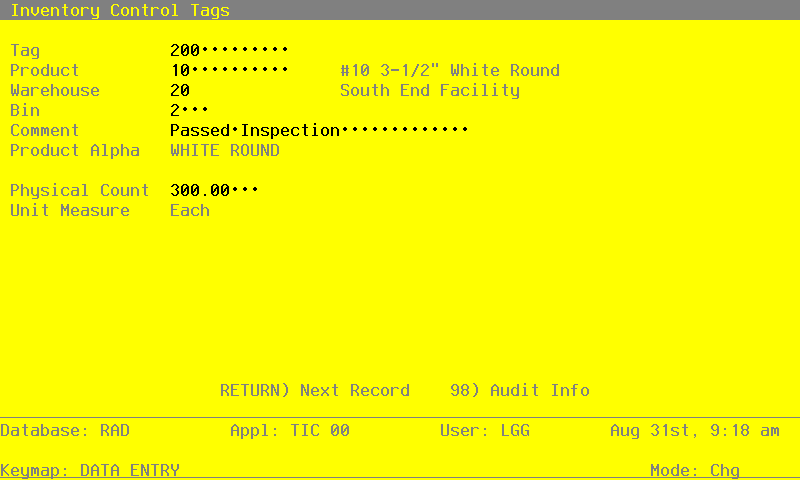
Data items for the preceding screen are described below:
- Tag
Enter up to 12 digits to identify the inventory tag number for which data is being entered.
- Product
Required
Enter a code to identify the product counted with this tag. You can use the Scan option to find an appropriate entry; this product must be on file in the Products file. The system displays the corresponding description so that you can verify your entry.
- Warehouse
Enter a code to identify the warehouse where the product counted with this tag was located.
You can use the Scan option to find an appropriate entry; this warehouse must be on file in the Warehouses file. The system displays the corresponding description so that you can verify your entry.
- Bin
Enter up to 4 characters to identify the warehouse bin of the product counted with this tag.
- Comment
Enter a comment of up to 30 characters which relates to this tag.
- Product Alpha*
The system displays the product alpha from the Products By Warehouse file.
- Physical Count
Enter up to 5 digits and 2 decimals for the number of stockkeeping units tagged for this product in this warehouse and bin.
This entry does not update the Physical field in the Products By Warehouse record until the Tags Process function is run.
- Unit Measure*
The system displays the stockkeeping unit of measure for the product from the Products file.
The entered data is validated. Press RETURN to save the information on this screen.
Select Next Record to go to the next Tags record.
At this screen, use of the MODE keys — ADD, DEL, CHG, or INQ — pertain to those records in the Tags file.