
3File Maintenance
Option 5Parameters
The Parameters file contains a single record that defines how the Order Entry application functions. This record includes the following information:
- Whether or not Order Entry posts data to General Ledger, Accounts Receivable, Inventory Control, Commission Accounting, and Sales Analysis
- Next invoice number and sales order number available
When you use this option, a record of all entries will be printed. For additions, all new field contents are printed; for deletions, the deleted record’s contents are shown; for changes, both old field contents and new field contents are shown; and, in all cases, the User ID, date, and time are printed.
Select “Parameters” from the File Maintenance menu. The Parameters entry screen is shown below:
Parameters screen
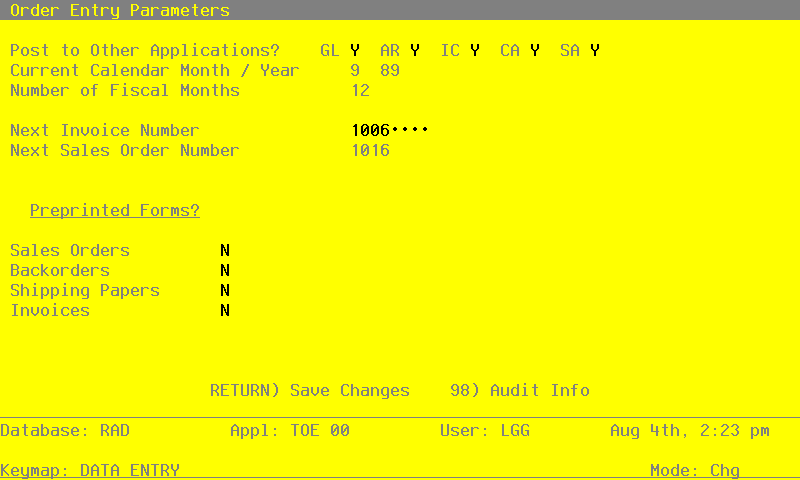
The fields on this record are automatically displayed. In a few cases, the displayed entry can be changed. If an asterisk (*) appears next to one of the fields listed below, it indicates a “display only” field, which cannot be changed.
Data items for the preceding screen are described below:
- Post to Other Applications?
The system displays ‘Y’ or ‘N’ to indicate whether or not information can be transferred to each of the applications listed. Abbreviations are:
- GL
- General Ledger
- AR
- Accounts Receivable
- IC
- Inventory Control
- CA
- Commission Accounting
- SA
- Sales Analysis
To set the Post to GL field to ‘Y’, you must also set the Post to AR field to ‘Y’. The Post to GL field controls the posting of the cost of goods sold/inventory entry to the General Ledger application. The GL posting option in the Accounts Receivable application Parameters file controls the accounts receivable/sales entry posting to the General Ledger application.
If your Accounts Receivable Post to GL flag is set to ‘Y,’ and your Order Entry Post to GL flag is set to ‘N,’ General Ledger is not updated with Cost of Goods Sold, and there will be no associated record written to the Accounts Receivable Month-to-Date Postings file.
- Calendar Month/Year*
The system displays the current calendar month and year.
- Number of Fiscal Months*
The system displays ‘12’ or ‘13’ to specify the number of periods in the year.
- Next Invoice Number
The system displays the next invoice number that will be assigned when invoices are printed in the Order Entry application. You may enter up to 8 digits to override the display.
- Next Sales Order Number*
The system displays the next sales order number that will be assigned when sales orders are entered or generated.
Preprinted Forms?
- Sales Orders
Enter ‘Y’ is you plan to use special preprinted forms for your Sales Orders.
- Backorders
Enter ‘Y’ if you plan to use special preprinted forms for your Backorders.
- Shipping Papers
Enter ‘Y’ if you plan to use special preprinted forms for your Shipping Papers.
- Invoices
Enter ‘Y’ if you plan to use special preprinted forms for your Invoices.
The entered data is validated. Press RETURN to save the information on this screen.