
1Transaction Processing
Option 2Shipping Confirmation
You can use this program to enter shipping confirmation information into the Sales Orders records. However, you can avoid this step by entering a ship date during Sales Orders entry. Before printing invoices for customers’ orders, you have the option of confirming and updating data in the following fields:
- Instruction
- Freight
- Other
- Back Order?
- Ship Date
Only those order records that contain a Ship Date are selected for invoice printing. Credit and debit memos must also have a Ship Date entered so that they can be included during invoice printing.
You may also change specific line items, by confirming and updating data in the following fields:
- Instruction
- Back Order?
- Shipped
- Backordered
An additional feature is available that allows you to use Option 17 to fully confirm all line items. In doing so, the system defaults the amount from the Qty Ordered field to the Qty Shipped field and sets all backordered quantities to zero for each line item.
After you finish entering shipping confirmations, the system creates a modification log showing which quantities were released and which were backordered.
Select “Shipping Confirmation” from the Transaction Processing menu. A sample Shipping Confirmation screen is shown below:
Shipping Confirmation screen
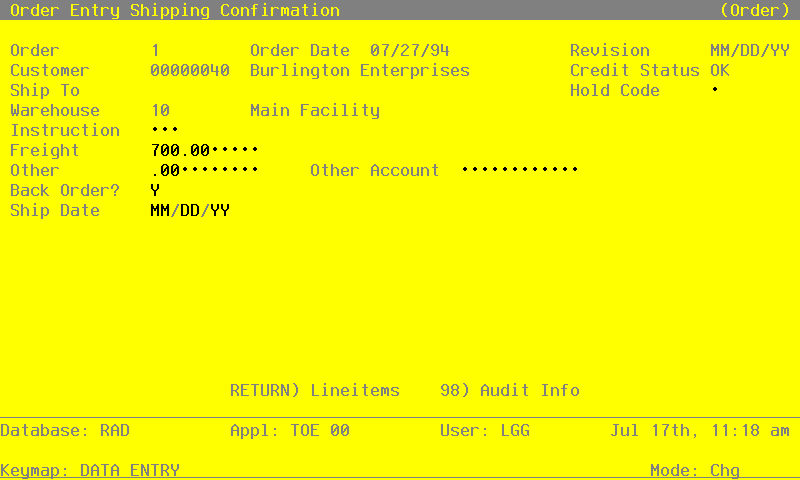
Certain entries on this record will be automatically displayed. In most cases, the displayed entry can be changed. If an asterisk (*) appears next to one of the fields listed below, it indicates a “display only” field, which cannot be changed.
When the key value for a particular record is requested, you can review all the records in the file by selecting the Scan option. The records will be presented on an “Access” screen, and you will be allowed to scan the available data until you find the record you want. Then, position the cursor by that record and press ENTER; the record will be displayed for editing.
Data items for the preceding screen are described below:
- Order
Enter up to 6 digits to identify the open order being confirmed for shipping. Press RETURN to display the defaults for the other fields. The Order field may no longer be changed.
- Order Date*
The system displays the Order Date entered on the order record.
- Revision*
If a Revision Date was specified on the order record, the system displays it here.
- Customer*
The system displays the customer number entered on the order record; the corresponding name is displayed.
- Credit Status*
The system displays the customer’s credit status code from the Accounts Receivable Customers record. These codes can only be changed on that record and include:
- NO
- The customer’s Balance exceeds the customer’s Credit Limit.
- OK
- The customer’s Credit Limit is not exceeded.
- BAD
- For some reason other than Credit Limit, this customer is considered to be a poor credit risk.
- Ship To*
The system displays the ship to number entered on the order header record; the corresponding description is displayed from the Addresses file.
- Hold Code
If a hold code was specified for this customer’s order, the system displays that 1-character code from the order header record. You may accept the default or blank it out to indicate that this order is no longer on hold and that an invoice can be printed for this order.
You may define one or more values for this field, but remember that if you make any entry here, the system will prevent you from entering a ship date (at this time or during Sales Orders entry) and will impose a credit hold on this order.
If the order is not on hold, leave this field blank.
- Warehouse*
The system displays the Warehouse entered on the order record; the corresponding description is displayed from the Inventory Control Warehouses file.
- Instruction
If any special instructions were specified on the order record, the system displays that code; the corresponding description is displayed from the Instructions file. You may enter a code from the Special Instructions file to override the display. You can use the Scan option to find an appropriate entry.
- Freight
If there were any freight charges entered on the order, the system displays that amount here. You may enter up to 5 digits and 2 decimals to override the display.
If you do override this amount, (for example, in the case of a partial shipment), the original amount in this field will be lost.
- Other
If there were any “other” charges entered on the order, the system displays that amount here. You may enter up to 7 digits and 2 decimals to override the display.
If you do override this amount, (for example, in the case of a partial shipment), the original amount in this field will be lost.
- Back Order?
Depending on the entry made on the order record, the system displays ‘Y’ or ‘N’. You may enter a new value to indicate whether or not items on the order may be backordered.
- Y
- Items on this order may be backordered.
- N
- Items on this order may not be backordered.
- Ship Date
If a Date Shipped was entered on the order header record, the system displays that date. You may enter a new date to override the display. Either way, a ship date must be present if the order is to be invoiced.
However, if a Hold Code is specified for this order, the system will prevent you from entering a ship date at this time.
After you have finished entering this information, you can either use Option 17 to fully confirm all line items or you can press RETURN to “page” through the line items. The system automatically displays the first line item record associated with the order. You may only edit the Instruction, Back Order?, Shipped, and Backordered fields for the shipping confirmation.
Here is a sample line item screen:
Shipping Confirmation Line Items screen

Certain entries on this record will be automatically displayed. In most cases, the displayed entry can be changed. If an asterisk (*) appears next to one of the fields listed below, it indicates a “display only” field, which cannot be changed.
Data items for the preceding screen are described below.
- Line*
The system displays the line number assigned to the Sales Order line item record.
- Product Description*
The system displays the Product Description entered on the Sales Order line item record.
- Units Ordered*
The system displays the stockkeeping Unit of Measure for the product from the Inventory Control Products record and the Qty Ordered on the Sales Order line item record.
- Dsc%/Whse*
If a Price Disc Pct was specified for the line item, the system displays that percentage from the Sales Order line item record and the Warehouse entered on the Sales Order line item record.
- Price*
The system displays the Unit Price entered on the Sales Order line item record.
- Amount*
The system calculates and displays the amount of this line item by multiplying the unit price by the quantity ordered, and discounting the resulting amount by the Price Disc Pct.
- Instruction
If any special instructions were specified for this line item, the system displays that code. You can use the Scan option to find an appropriate entry. You may enter a code from the Special Instructions file to override the display.
- Back Order?
Depending on the entry made on the Sales Order line item record, the system displays ‘Y’ or ‘N’. You may enter a new value to indicate whether or not this item may be backordered.
- Y
- This item may be backordered for this order.
- N
- This item may not be backordered for this order.
- Shipped
The system displays the Qty Shipped from the Sales Order line item record, if any. To enter or change the quantity shipped, enter up to 5 digits and 2 decimals to override the display. If you used the Option 17 feature, this field will be set to Qty Ordered from the Sales Order line item record.
- Backordered
The system displays the Qty Backordered entry made on the Sales Order line item record. You may enter up to 5 digits and 2 decimals to override the display. If you used the Option 17 feature, this field will be set to zero.
Press RETURN to save the contents of this screen.