Chapter 7: The Exceptions File
Defining Exceptions via Application Design
Exceptions can also be defined and maintained directly from Application Design. This maintenance is performed in either Data Dictionary Management (for Domains, Files, and Fields) or in Process Management (all processes).
Using Figure 14, determine what items exceptions can be made for. Then define, modify, or delete exceptions by following these instructions:
- When you are positioned at the field--or within a row of image text-- you want to define an exception for, select
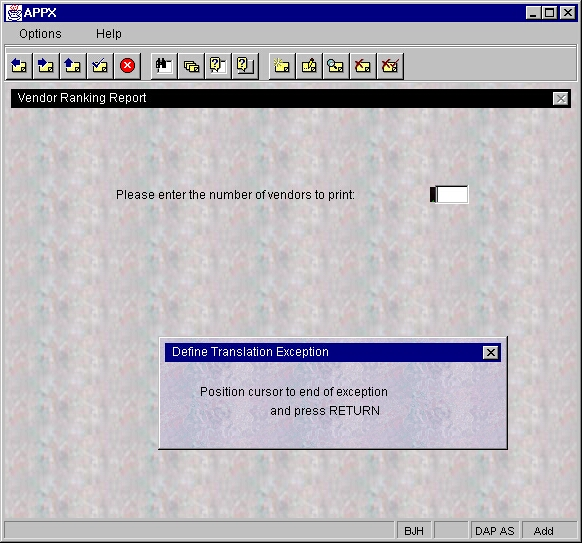
OPTION 95 (OPTION, OPTION, 9, 5). This option initiates the Exceptions File Editor. - If you are defining an exception for a row or partial row of image text, the editor instructs you to move the cursor to the last character in the string of text (or row) you are defining an exception for. Move the cursor to the end of the string or row and press
ENTER. See Figure 18. If you are not defining an exception for a row or partial row, skip this step. - The editor needs to know the Presentation Language you are defining the exception for. Enter the Language ID (or click ▼ to select from a drop-down list) then press
ENTERtwice. - Select the appropriate Mode (
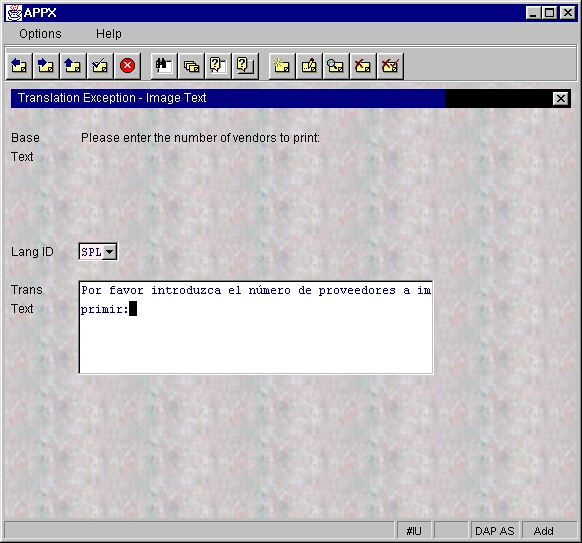
ADD MODE,CHANGE MODEorDELETE MODE) depending on whether you want to add a new exception, change an existing one, or delete an unnecessary one. - Type the exception’s translation in the presentation language you indicated. The exception can also be modified or deleted at this point. (See Figure 19).
- When finished, press ENTER to save the translation (or
ACKNOWLEDGE DELETEto delete it). - Enter translations in additional Presentation Languages, pressing
ENTERafter each. Or, you can modify/delete existing exceptions. - When all translations are defined, modified or deleted for this field or image, select
ENDto exit the Exceptions Definition Process and return to Data Dictionary Management or Process Management.
Warning: It is important to note that truncation may occur if the translated text is longer than the original design language text. This could result in incomplete translations being presented to the user as data fields are not shifted right on images to accommodate translations that exceed the length of the original text. To avoid this, make sure enough space exists on the image for all of the item’s translations to fit.