
Chapter 3: The System Translator
Entering/Editing Translations
Once the System Dictionary has been populated, you can begin defining translations for your first translated language. These translations are kept in the Translations File and are simply links between two dictionary entries of two selected languages, the “from” language and the “to” language. To create these translations, follow these steps:
- Select
Enter/Edit Translationsin the Utility section of the System Administration Translation Menu. - When prompted to enter the “From” and “To” languages, enter the corresponding language ID’s (ENG and DUT, for example. If you do not know the ID’s, you can select them from a drop-down list by clicking the appropriate ▼ button then double-clicking your selection. See Figure 5.
- Press
ENTERtwice to initiate the Enter/Edit Translations Input Process.
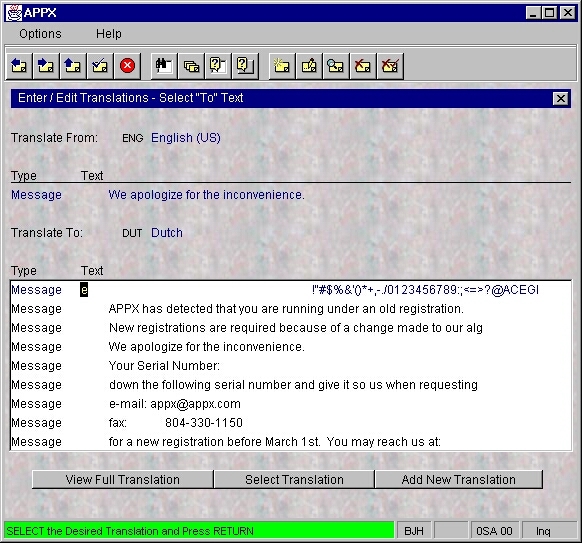
- The Enter/Edit Translations Input Process displays records from the Dictionary File created earlier. See the example of this input in Figure 6. Only the first 65 characters of each entry are shown. Use the option buttons at the bottom of the screen to view longer entries. For each “From” record in this file, you must define the translation for the “To” language. It is best to start with the first entry and work your way through the Dictionary File until all entries have been translated. If you want to start with a specific entry, select
INQUIRE MODEfirst (the other modes are inactive in this process), type the first part of the word or phrase you want to translate then pressENTER. - To translate an entry, double click the entry to translate (or move the cursor to it and press
ENTERtwice) then clickAdd Translation
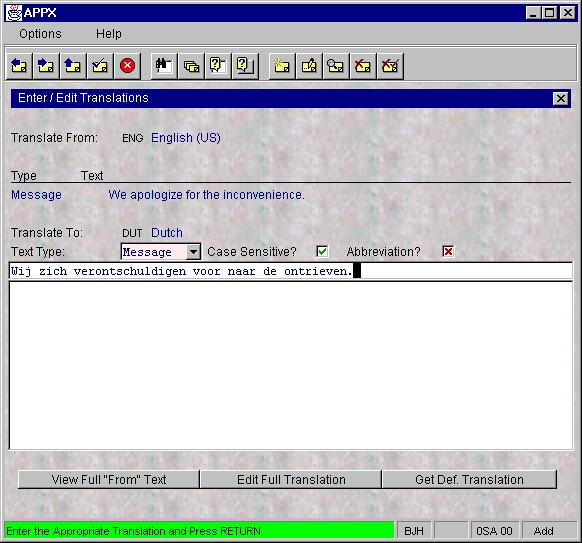
- Type the translation and press
ENTERwhen finished. - Continue in this manner until all entries for the “from” language have been translated. As you complete the translation for each entry, a record is written to the Translation File that contains the primary keys of both the “from” and the “to” entries, linking the original text to the translated text. Note that the Dictionary entry in the Design Language is now checked as Translatable.
To translate to another language, exit the program and start it again specifying another “to” language.