Chapter 10: Tips & Tricks
Multiple Data Sources
If you work in an environment where you routinely need to extract data from multiple APPX servers, you might find this tip useful. This explains how to set up appx/ODBC so that it can retrieve data from the correct server. First, a little background: when appx/ODBC is first installed, it creates a directory called ‘appx.dbs’ in the installation directory. This is where the imported file definitions (among other things) are stored. When you run asql, the information about the server you connect to is also stored in this directory. The appxodbc entry in the ‘ODBC Data Source’ in control panel also refers to this directory.
Therefore, to support multiple server connections, we must:
- manually create a new directory for the additional data source
- manually add an entry to the ODBC control panel.
To manually create the new directory, open a DOS box and enter the following:
c:\> cd “c:\Program Files\appxodbc”
c:\Program Files\appxodbc> mdcreate appxnt
In this example, ‘appxnt’ will be the name of our alternate appx server, but put can put any legal file name. Do not put the ‘.dbs’ extension, the mdcreate program will do that automatically. This assumes you have used the default path when installing appx/ODBC.
Next, we need to manually add a new entry to the Control Panel. Go to ‘Start’, then ‘Settings’, then ‘ODBC Data Sources’. Click on the ‘System DSN’ tab, then click ‘Add’ (See Figure 29).
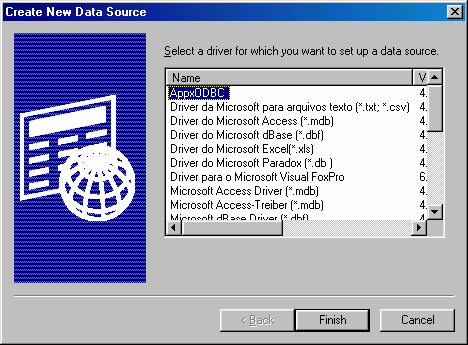
Select the AppxODBC driver, then click ‘Finish’ (See Figure 30).
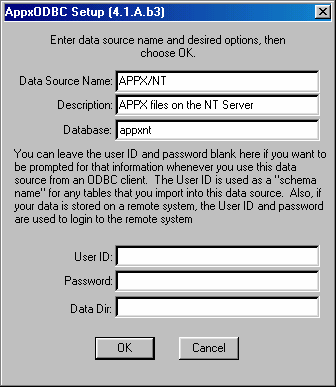
The ‘Data Source Name’ can be anything you like. This is what you will see when working with the various ODBC clients. The Description is also for your own use. The ‘Database’ must be the same name as you used in the ‘mdcreate’ command above. Click Ok when finished.
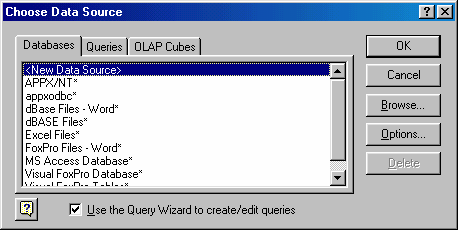
Now you can run asql and other ODBC clients as usual, and you will have a choice of servers. For example, the ‘Choose Data Source’ dialog box from Excel will show multiple appx/ODBC sources (See Figure 31).