Chapter 5: Using APPX Files with Access
Using APPX Files with Access
APPX® databases can be imported into or linked to Microsoft® Access databases. While a few basic steps will be covered here, your favorite reference source (or on-line help) for Access should be consulted for more detailed instructions on this feature. On-line, view the topic importing data for details. You can either Import the data, or Link the Data, these instructions are applicable for both. The difference between importing and linking is this: if you import the data, then Access has it’s own copy of the APPX® data. Changes you make in Access will not be reflected in the APPX® data, and vice versa. If you link the tables, then you have established a connection between Access and your APPX® data. Change made by either program will be reflected in the APPX® database.
Note: The SQL Server driver and ODBC support files may not be installed on your machine if Access was installed using the “typical” option. If these files are not present, you will not be able to import or link APPX® databases into Access. Rerun Access Setup and install the necessary files before trying again.
- After creating an Access database, open the new database.
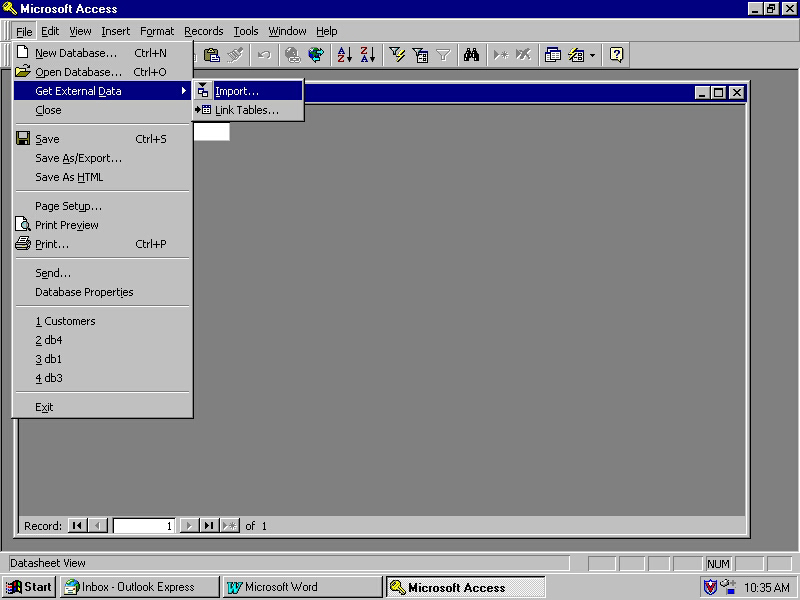
- From the taskbar, select
File, Get External DatathenImport(orLink Tables). See Figure 13.
- In the
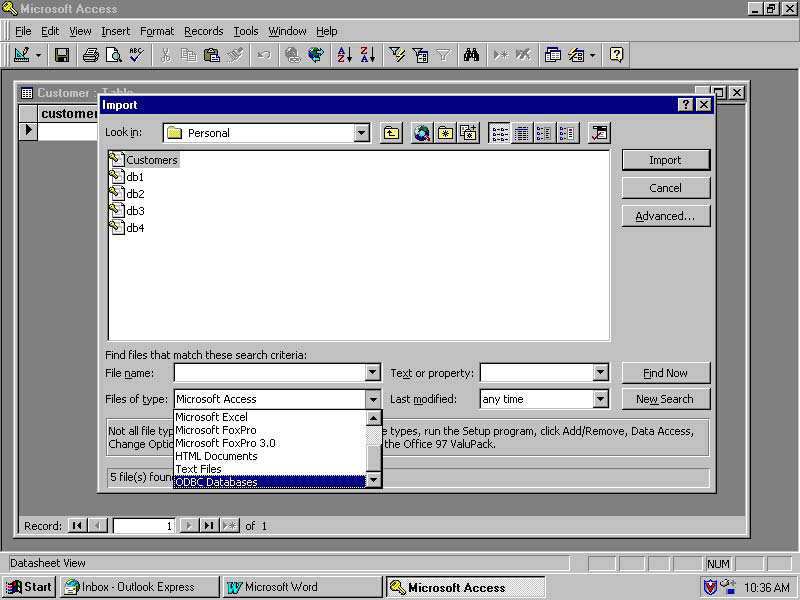
Import(orLink) pop-up, selectODBC Databasesin the Files of Type box (see Figure 14). ClickOK.
- On the
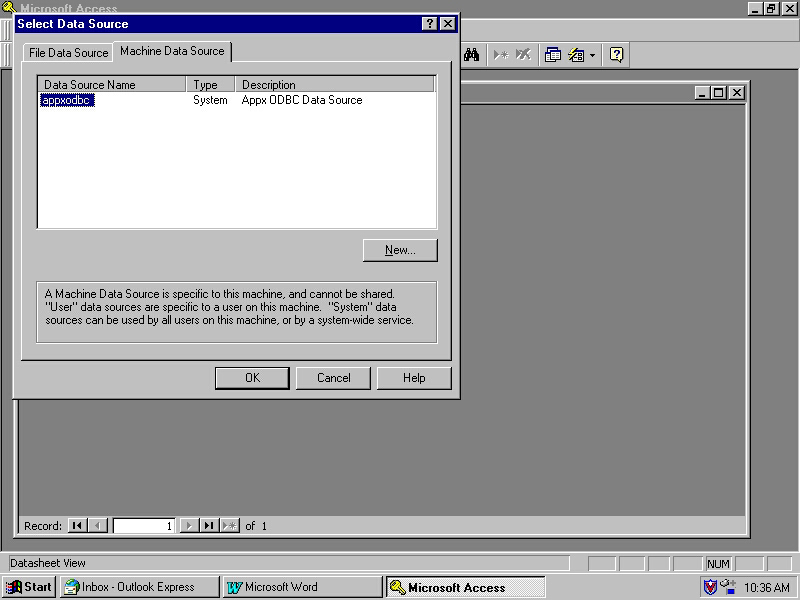
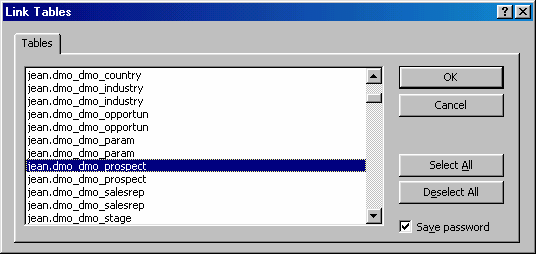
Select Data Sourcepop-up, click theMachine Data Sourcetab and clickAppxODBC(see Figure 15). ClickOk. You will be prompted for your user id and password. As with Excel, leave the Data field as is, and do not put anything in the Data Dir field. - From the Import Objects pop-up, select the name of the APPX® file you want to import. Click
OK. Note the file names are prefixed with the name of the user that imported them with ‘asql’, the APPX® database ID, and the APPX® application ID. See Figure 16.
Note: Make sure you check the ‘Save Password’ box. If you fail to do so, then the connection will work for this session, but not the next time you open the Access Database. In this case, just re-link the table following this procedure, and ensure you check the ‘Save Password’ box. If you are importing the data, then it doesn’t matter.
- The APPX® file selected for import is now a table within the Access database.