
Chapter 6: Using APPX Files with Crystal Reports
Using APPX Files with Crystal Reports
Crystal Reports™ can be used to create reports from APPX® files residing on a remote server or a local PC. Accessing these APPX® files is simple when following these steps:
Note: The PROFESSIONAL version of Seagate’s Crystal Reports™ is required in conjunction with APPX/ODBC. If you are currently using the STANDARD version, it must be upgraded for the APPX/ODBC interface to work.
- On the Crystal Reports taskbar, select
FilethenNewto define a new report. - Select the report format from the
Report Galleryor selectCustom. - On the next window, click the
SQL/ODBCbutton to select the data source (see Figure 17).

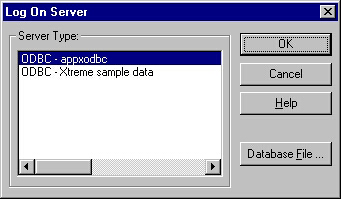
- On the Logon Server pop-up, select
ODBC–appxodbcas the Server Type and clickOK(see Figure 18).
Tip: If you receive an error message stating that Crystal Reports™ Pro, not Standard, is required to connect to this database AND you have already upgraded from the Standard Version to the Professional Version, delete the file P2SODBC.DLL from both C:\WINDOWS\CRYSTAL and C:\WINDOWS\SYSTEM32 and reinstall Crystal Reports™. The error occurs because this ODBC interface file is not replaced during the upgrade process.
- In a few moments, Crystal Reports™ connects to the APPX/ODBC database and asks you to select the file or files you want to use in your report. From the file list, double click the required files to select them (see Figure 19).
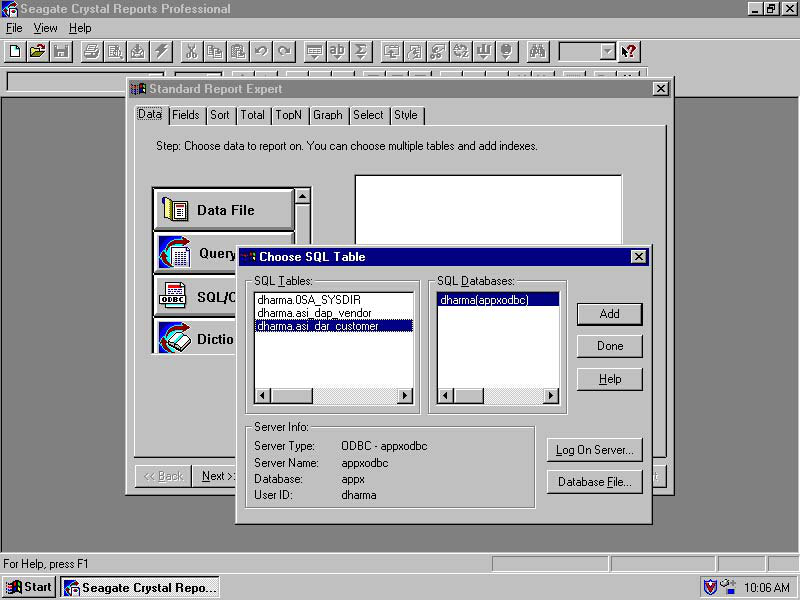
- When all the required APPX® files are selected, click the
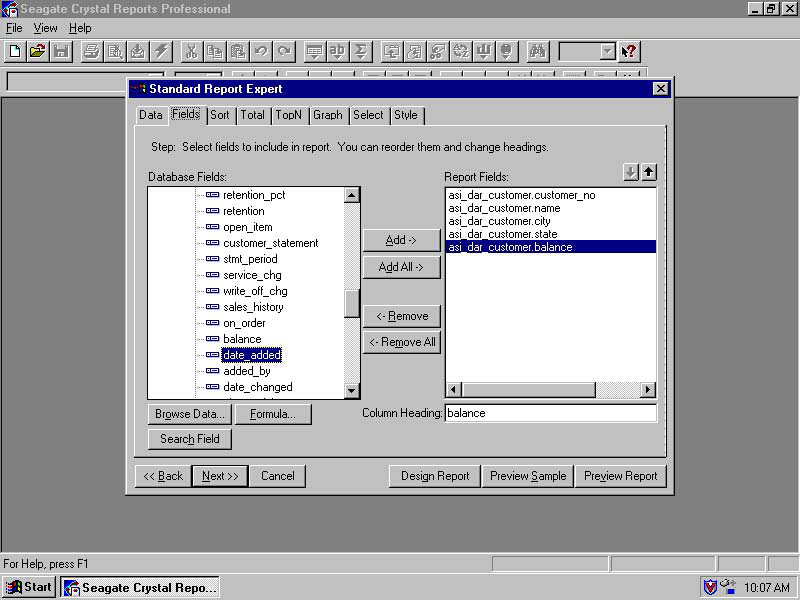
DONEbutton. - Crystal Reports™ then asks for the fields you want to use on the report. Double click on required fields to select them (see Figure 20). If you have chosen multiple APPX® files, Crystal prompts you to define any relations (links) between fields. These links function in the same manner as APPX® data-lookups. See your Crystal Reports™ manual or on-line help for details.
With the fields selected, you can then design or preview a report, or preview a sample report by clicking on the appropriate button on the bottom right of your screen.
You can also use Crystal Reports™ to perform an SQL query on an APPX® file. Use the Crystal Reports™ SQL Query Designer application instead of the Report Designer application to create your queries. See your Crystal Reports™ manual for details.