
Chapter 6: Create Reports with Crystal Reports 2016
Create a COUNTRY Report through ODBC
- Start 32-bit Crystal Reports 2016. Select File → New → Standard Report and begin on the wizard's Data page.
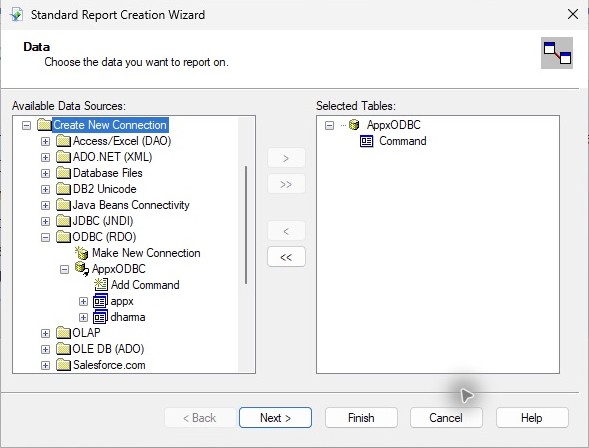
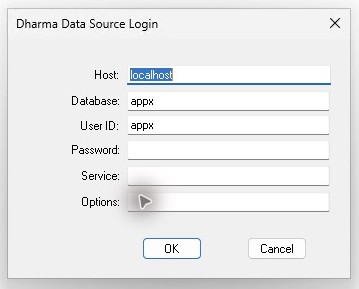
- Expand Create New Connection → ODBC (RDO). Select AppxODBC, enter the authorized APPX user and password, and finish the connection. The DSN selects the gateway; Database appx selects its SQL dictionary. Leave Service empty when that optional field is displayed, using the default lookup described in the glossary.
- Under the new ODBC connection, double-click Add Command. Enter the four-column COUNTRY report SQL, without a trailing semicolon:
SELECT name, region_label, no_words, post_code_loc
FROM DMO_DMO_COUNTRY
ORDER BY name
- Select OK. Confirm Command is listed under Selected Tables, then select Next.
- Add the four fields to Fields to Display in order: name, region_label, no_words, post_code_loc. Select Finish without grouping or selection filters.
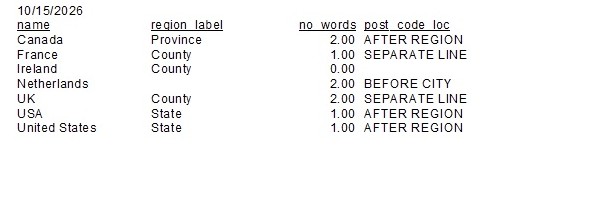
- Check all seven records in Preview, including the blank region for Netherlands and blank post-code location for Ireland. The report must show Records: 7 after the query completes.
- Select File → Save As and save APPX-552-COUNTRY-RDO.rpt locally.
- Select File → Export → Export Report, choose PDF and Disk file, and export All pages. Check the PDF against the expected sample. All 28 report-field values agreed in this test.
- Close Crystal completely, reopen the saved report and press F5. Choose Refresh Report Data, supply the APPX password in the masked Dharma login and wait for the new query. Confirm Records: 7 and a current refresh timestamp, then save again. Initially displayed cached records do not prove a new query ran.
Creation, exported values and fresh-process refresh all passed with the configuration above. Report formatting is a separate task: widen or shorten the automatic headings before publishing a business report. No RPT or report PDF is included as a finished-layout example in the cookbook attachments.