
Chapter 2: Install and Check APPX ODBC
Install the 5.5.2 Gateway and ASQL
- Confirm that APPX 5.5.2 is installed and licensed and that an authorized user can open its DMO application. Check the engine's actual version if an existing folder has been upgraded. This example uses a clean official 32-bit 5.5.2 installation at
C:\appx\Appx.552and its login manager onlocalhost:31053. The usual APPX port is 8060; use the configured port at your site. - Download the official 5.5.2 gateway and 5.5.2 driver and ASQL package. The APPX download archive also provides the matching server installation.
- Verify the downloads from Command Prompt, one command at a time:
certutil.exe -hashfile "AppxODBCserver_windows.exe" SHA256
certutil.exe -hashfile "AppxODBCdriver+ASQL_windows.exe" SHA256
| Download | SHA-256 |
|---|---|
AppxODBCserver_windows.exe | 12f7a0d0f06cd0a457356458d4282a45f46cecd8aeb0202e34b5fe55a1e91a58 |
AppxODBCdriver+ASQL_windows.exe | c378ff56bb39b6745adbae2efef15038b5f0fa9e5cb309d4691d1c71cb767947 |
- Right-click the gateway installer and select Run as administrator. Select Next and keep
C:\Program Files (x86)\AppxODBCserverand the default Start menu folder.
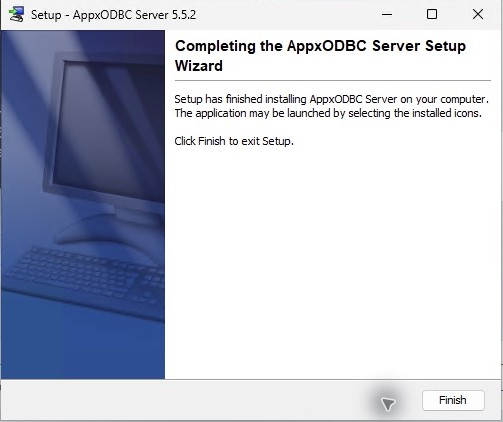
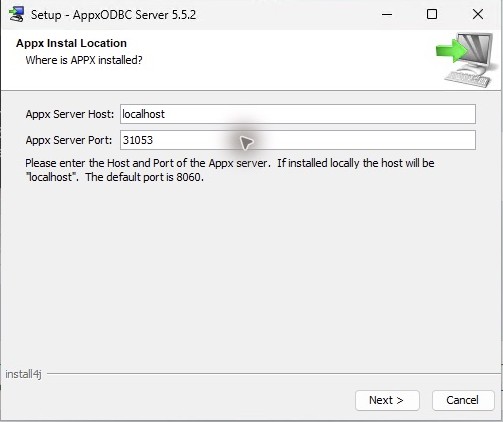
- Enter the APPX server's hostname and login-manager port. The example uses
localhostand31053. These fields identify the APPX backend, not the ODBC gateway port. Complete the wizard.
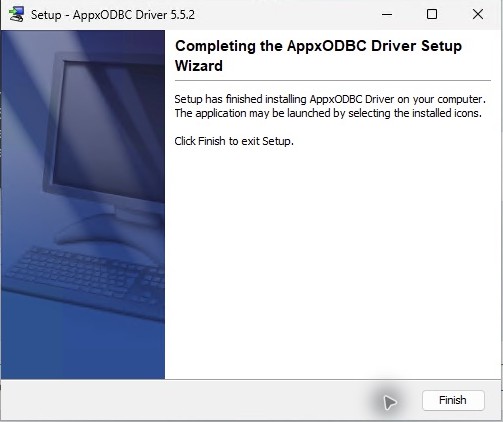
- On the ASQL administration computer, run the matching driver and ASQL installer as administrator. Keep
C:\Program Files (x86)\AppxODBCDriverand the default Start menu folder.
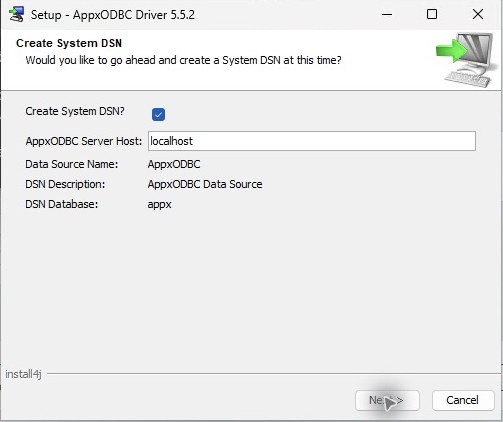
- Keep Create System DSN selected. Enter the gateway hostname,
localhostwhen it is on this computer. Keep Data Source Name AppxODBC and Database appx. Complete setup, then check the gateway Windows service and DSN.
The installer creates the default dictionary; an additional mdcreate command is unnecessary. Preserve an existing gateway dictionary and configuration before replacing an installation. Use the ASQL import recipe after the connection checks.