
Chapter 5: Read APPX Data with Excel, Access and LibreOffice
Load COUNTRY into LibreOffice Calc and Refresh It
First complete the registered Base connection and COUNTRY direct SQL query. Use Calc from the same 32-bit LibreOffice installation and profile. The AppxODBC Windows DSN and the registered Base connection have different roles: the DSN selects the gateway; the registered name locates the .odb file and its saved query.
- From Base, select File → New → Spreadsheet, or start the matching 32-bit Calc executable. Create a blank spreadsheet and select cell A1.
- Select View → Data Sources. Expand APPX-552-COUNTRY → Queries and select COUNTRY. Supply the APPX login if requested. The data browser displays the query's rows above the worksheet.
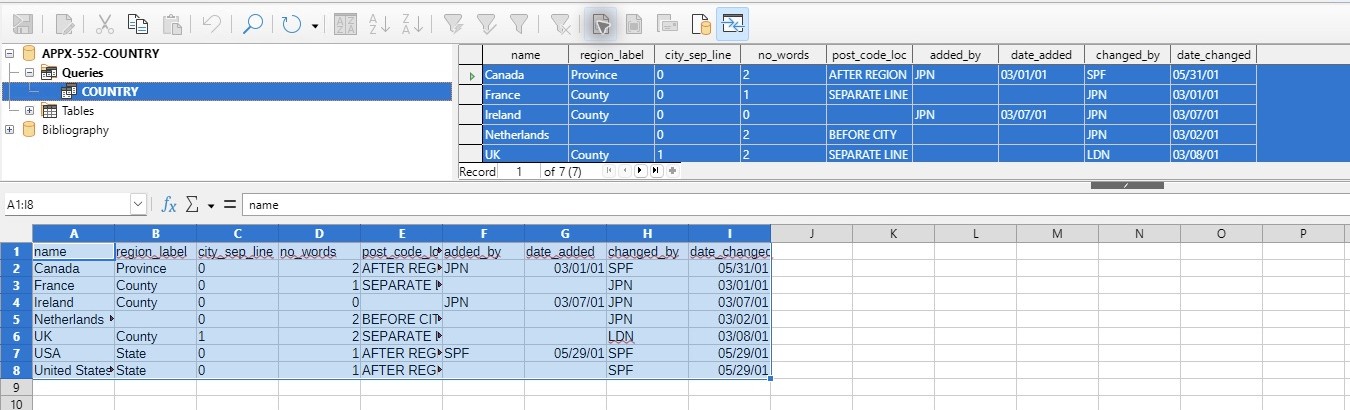
- Click the data browser's upper-left corner to select all seven records, then select Data to Text on its toolbar. The records appear at the selected worksheet cell A1, with field headings and a refreshable database range. Ordinary Copy/Paste produces a static copy and does not establish this connection.
- Check A1:I8: one heading row, 7 data rows, and 9 columns. Select columns A through I and use Format → Columns → Optimal Width to fit their contents if necessary. Use View → Data Sources again to hide the data browser and see the worksheet.
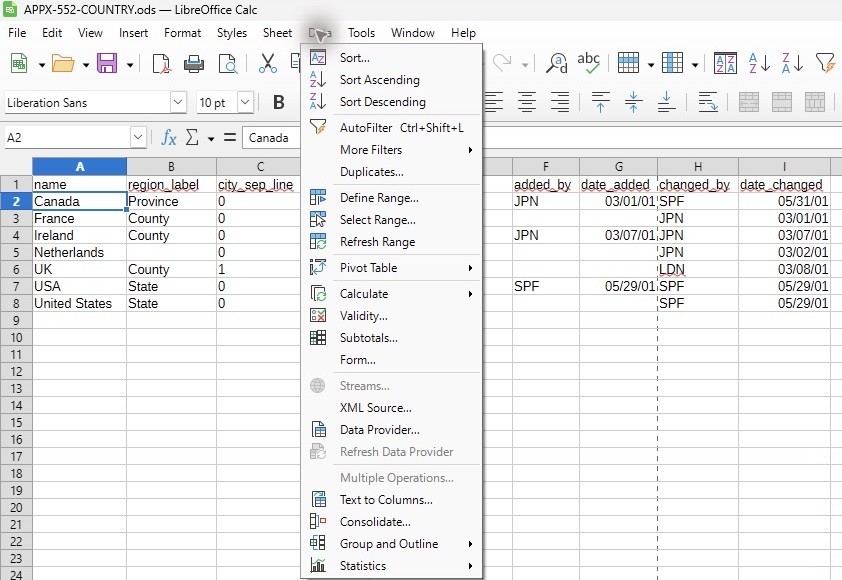
- Select a cell within the imported range, then select Data → Refresh Range. Wait for completion and check the same values. This re-runs the source query; editing the worksheet is not a supported way to update APPX.
- Save as APPX-552-COUNTRY.ods, retaining the ODF Spreadsheet format. Keep APPX-552-COUNTRY.odb at its registered location. The workbook's database range refers to the registered connection name and saved query.
- Exit LibreOffice, reopen the ODS in the matching 32-bit installation and profile, select a cell inside the imported range, and use Data → Refresh Range again. Supply the APPX password when prompted, wait for completion, and save.
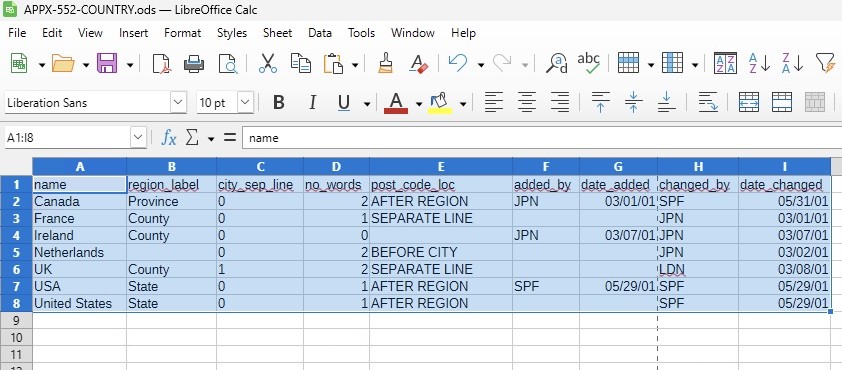
The ODS was reopened in a fresh process with its existing profile registration, and refresh completed after the APPX password prompt. The refreshed, saved ODS values were compared with an independent native APPX export: all 7 records and all 9 fields agree, including empty audit dates. The saved file contains database range Import1, target Sheet1.A1:I8, and source query COUNTRY. Date cells remain date values even when the displayed date format differs from another client.
Keep the .odb connection, its LibreOffice registration, the Windows DSN and gateway access available for refresh. A workbook copied to another computer carries its saved worksheet data, but it does not install a driver, create a DSN or register its Base connection. Use the registration repair when the named source cannot be found. LibreOffice describes the Refresh Range command separately from refreshing a data-browser display.