
Chapter 5: Read APPX Data with Excel, Access and LibreOffice
Load COUNTRY into Excel and Refresh It
Use the Legacy Microsoft Query route in 32-bit Excel. If the command is hidden, open File → Options → Data and enable From Microsoft Query (Legacy) under Show legacy data import wizards.
- Create a blank workbook and select Data → Get Data → Legacy Wizards → From Microsoft Query (Legacy).
- On Databases, select AppxODBC, keep Use the Query Wizard to create/edit queries checked, and select OK.
- Enter the APPX user and password in the Dharma login dialog.
- In the Query Wizard, expand
dmo_dmo_countryand add its nine columns to Columns in your query. - Select Next, keep the first sample unfiltered, and sort by
name. - Select Next, keep Return Data to Microsoft Excel selected, and select Finish.
- In Import Data, choose Table, choose cell
$A$1on the existing worksheet, and select OK.
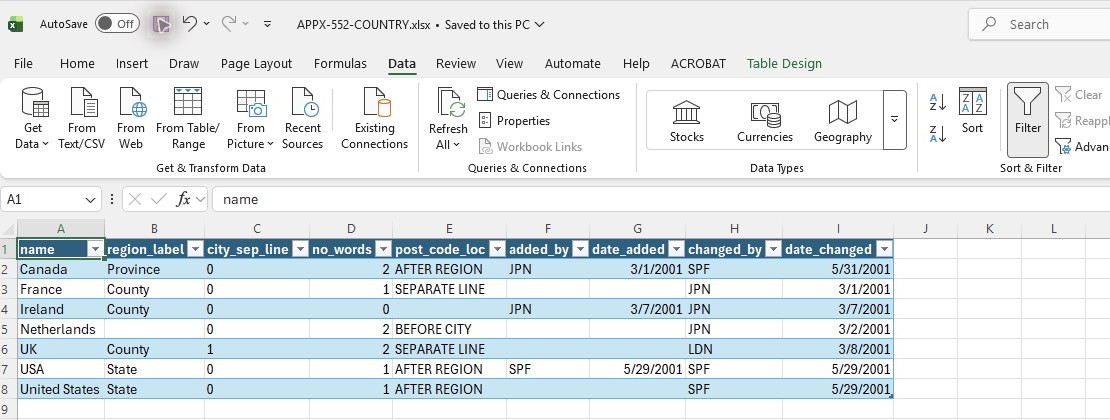
- Wait until Excel returns to Ready. The worksheet contains 7 data rows and 9 columns, plus the heading row.
- Select Table Design → Refresh, wait for Ready, and check the same seven complete records.
- Save the workbook locally. On reopening, refresh the external query and supply the APPX login when prompted.
Compare the saved worksheet with the native APPX sample after converting Excel date serials to dates. The workbook retains an external query that can refresh. Leave password saving disabled.
The fresh workbook was saved, reopened and refreshed through AppxODBC. All seven records and nine fields match the independently read native APPX sample, including dates and blank fields. No password is saved in the workbook connection.
A second login during the first import
The query wizard and worksheet use separate connections. A successful wizard login does not supply the password for the worksheet's connection. If another login appears when returning data or refreshing, confirm the intended DSN and enter the APPX password there too. Leave password saving disabled. Wait for all seven records before accepting the import. The saved workbook passed a fresh reopen, new password prompt and refresh.
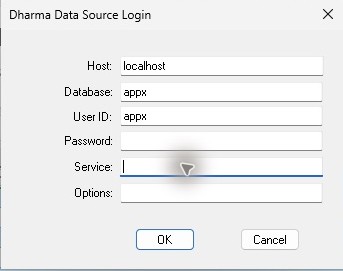
Leave Service empty, as pictured. This native refresh passed with the supplied 5.5.2 driver; all seven records and nine fields match the sample. Blank selects the default sqlnw lookup, reaching this gateway on TCP 1990. Database appx selects the SQL dictionary. A saved workbook can retain Service=sqlnw even after the DSN is cleared: clear that field in its login dialog, finish the refresh, and save the workbook. Service and saved-connection overrides.
Create the connection with this edition's installed driver. A workbook copied from a newer-driver configuration can first report Invalid connection string attribute; create a fresh query through the wizard instead of assuming those saved attributes are compatible.