
Chapter 5: Read APPX Data with Excel, Access and LibreOffice
Connect LibreOffice Base and Save a COUNTRY Query
Use direct SQL mode for this edition. The saved direct SQL query passed with the matching 5.5.2 engine/gateway/ASQL, supplied Dharma 9.01 x86 driver and 32-bit LibreOffice 26.2.6.3. Ordinary table browsing and Base's parsed-query route returned -20217 Unable to fetch data; the working alternative is the direct SQL procedure immediately below. A visible table name or successful login alone does not accept the browse route.
The Base document stores a connection and query definition. It does not copy APPX records into an embedded Base database. First create the shared COUNTRY table definition with ASQL.
- Start 32-bit LibreOffice Base. In Database Wizard, select Connect to an existing database → ODBC, then Next.
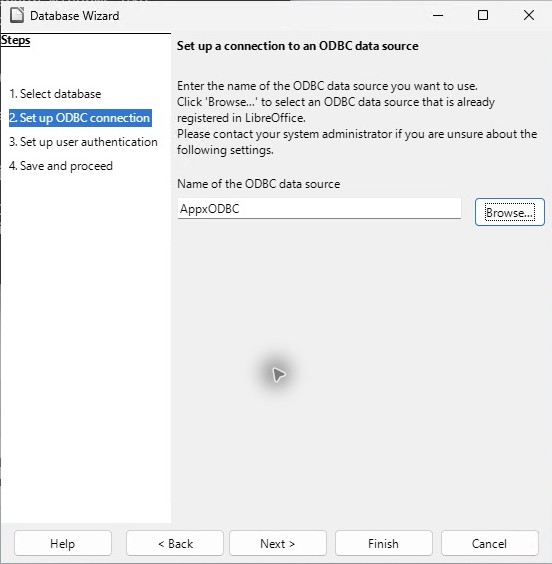
- Select Browse, choose the existing AppxODBC data source, and confirm. The DSN already supplies Host, Database and optional Service. Keep Service blank in that saved DSN for this recipe.
- Enter the authorized APPX user, keep Password required selected, and continue. Supply the password only in the masked authentication prompt.
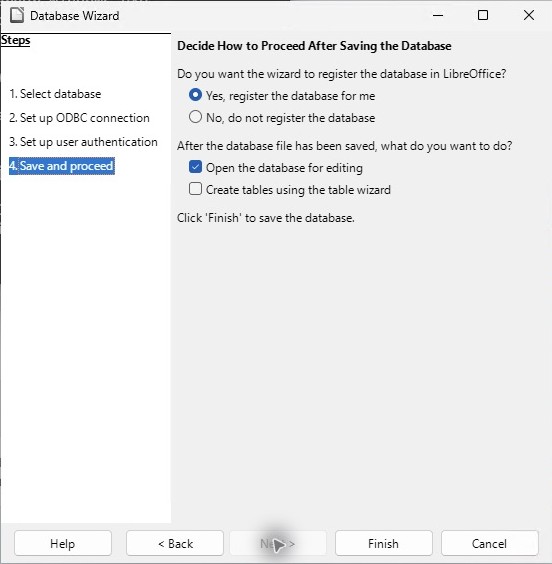
- Keep Yes, register the database for me and Open the database for editing selected. Leave the table wizard unchecked. Select Finish and save APPX-552-COUNTRY.odb locally.
- Select Queries → Create Query in SQL View. Enter the statement below without a trailing semicolon:
SELECT * FROM "appx"."dmo_dmo_country" ORDER BY "name"
- Select Edit → Run SQL command directly. Confirm the SQL command toolbar button is selected. This bypasses Base's SQL parser for the query; it does not change the driver or APPX server.
- Select Edit → Run Query or press F5. Check all seven records and nine fields against the complete expected result.
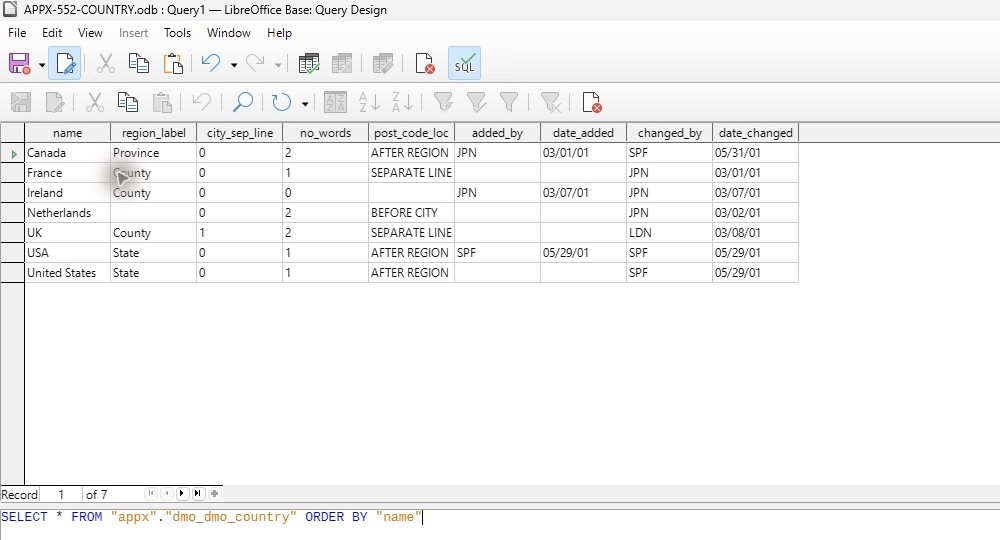
- Select the query's Save button and name it COUNTRY. Close the query editor, then save the Base document itself. Direct SQL mode must remain stored with the query.
- Close Base completely and reopen APPX-552-COUNTRY.odb in the same 32-bit LibreOffice profile. Select Queries, supply the APPX password when prompted, and double-click COUNTRY.
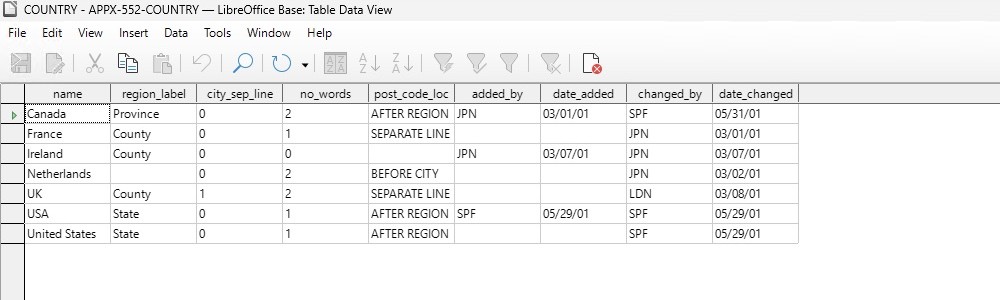
The fresh reopen passed with a new password prompt. The saved ODB identifies query COUNTRY, stores the exact qualified SQL above, and has SQL escape processing disabled. It requires a password without storing one. A saved query needs a live gateway and APPX server whenever it runs.
Do not switch back to design/parsed SQL mode and assume the same result. For the failed table-browse or parsed-query route, use this saved direct SQL query instead. The LibreOffice ODBC reference describes the connection wizard.