
Chapter 6: A Typical Query Process
Record Selection
After you select a menu option that invokes a specified report, if the report has a user-modifiable query associated with it, you are presented with a Record Selection screen. The Record Selection screen lists all of the fields that you are allowed to place constraints or limitations on. A sample Record Selection screen is shown in Figure 16 below.
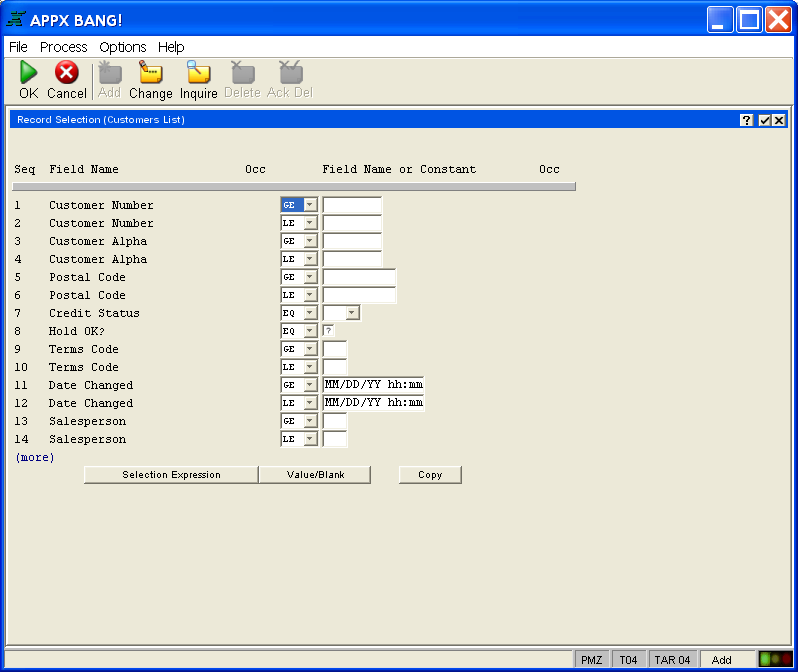
Each line in the upper portion of the Record Selection screen contains a field name (and occurrence number, if applicable), a relation (such as EQ for equal, LT for less than), and a place to enter a specific field value. The Record Selection screen lists along the left side all of the fields on which you can place constraints. Each line specifies a separate constraint and, unless you specify otherwise as described below, all of the constraints must be met for a record to be included. For example, you may want to generate a report that includes only customers in New York or California with bad credit that have customer numbers within a certain range. Assuming that STATE, CREDIT STATUS, and CUSTOMER NUMBER are listed on the left side of the Record Selection screen, you can generate the report you want.
- A relation defines the comparison you want to perform. Valid relations are:
EQ (equal),
GT (greater than),
GE (greater than or equal),
LT (less than),
LE (less than or equal),
NE (not equal),
IN (includes),
EX (excludes).
The two-character relation field is highlighted to indicate that you can change the value to any of the allowable values. - A constant value is used in conjunction with a relation to define a record selection constraint. In the example described earlier, three fields are compared with constant values (customer number, state and credit status). Constants can also be alphanumeric, such as names or parts of names. For example, you could specify that CUSTOMER NAME must be GE (greater than or equal to) S to include all customers whose names begin with the letters S through Z
When a field is a key field or is linked to the key field of another file, you can position your cursor in the constant value field box and select the Scan icon to the right of the field box. This allows you to “view” the field contents to determine valid values then return a selected value to the Record Selection screen. Just select the value you want to return by double-clicking the row on which it is displayed. Note that other scan options, such as selecting a different file or access path, are also available here
In some cases, the right-hand field may already be filled in with the name of another field. For these lines, you are allowed to specify the relationship between the two fields. For example, you may want to specify that the CURRENT BALANCE must be GT (greater than) CREDIT LIMIT for a customer to be included in the Credit Line Exceeded Report. In this case, only the relation value can be changed
Your application may allow you to place more than one constraint on a single field. For example, you may want to include customers in Regions 1 through 5. If this is the case, your selection screen allows you to specify two different constraints (REGION GE 1; REGION LE 5).
If no value is entered in either the relation or the constant field, APPX ignores the line as a constraint.
There are three options available on the bottom of the Record Selection screen.
- Selection Expression For a record to be selected, it must meet all of the separate constraints you specified. There may be times when you would like to combine constraints so that a record is selected if either of two constraints were met. For example, you may want to select a customer if either the BALANCE DUE is over $50,000, or if the BACKORDER CODE is Y (yes). The selection expression allows you to accomplish this objective. The Selection Expression overlay provides a number of blank lines on which you can specify combinations of selection constraints using AND, OR, and various levels of parentheses. Note that each line on the Record Selection screen has a unique number displayed at the far left side. You use these line numbers to specify combined selection criteria in the selection expression. If in the previous example the BALANCE DUE constraint is line 1, and the BACKORDER CODE constraint is line 2, you would enter 1 OR 2 on the first expression line. You can specify as many combinations as you want to achieve the desired set of constraints, such as:
(1 OR 2) AND (3 OR 4)
The Selection Expression overlay is shown in Figure 17. In some cases, the application may be designed so that the selection expression is not modifiable. - Value/Blank allows you to toggle between entering a constraining value for a field, or leaving the constraining value blank. When you place the cursor on the Value field, select Value/Blank, and the editable field will be replaced by “ ”. Select Value/Blank again to return to an editable value.
- Copy inserts another copy of the constraint that the cursor is resting on into the list of constraints. It also attempts to create an appropriate selection expression, and prompts you to review that expression. For example, the current record selection might consist of only two lines to select Customer Numbers. If you need to select three Customer Numbers, you would select one of the two Customer Numbers then click the Copy button to create a third Customer Number selection line.
