
Chapter 3: Recovery Processing
Option 1Purchase Orders
This function allows entry and maintenance of Purchase Orders. These records are updated during receipts entry and invoices post. These records are deleted by the Delete Completed Purchase Orders function.
When you use this function, a record of all entries will be printed. For additions, all new field contents are printed; for deletions, the deleted record’s contents are shown; for changes, both old field contents and new field contents are shown; and in all cases, the User ID, date, and time are printed.
Recovery Processing Purchase Orders screen
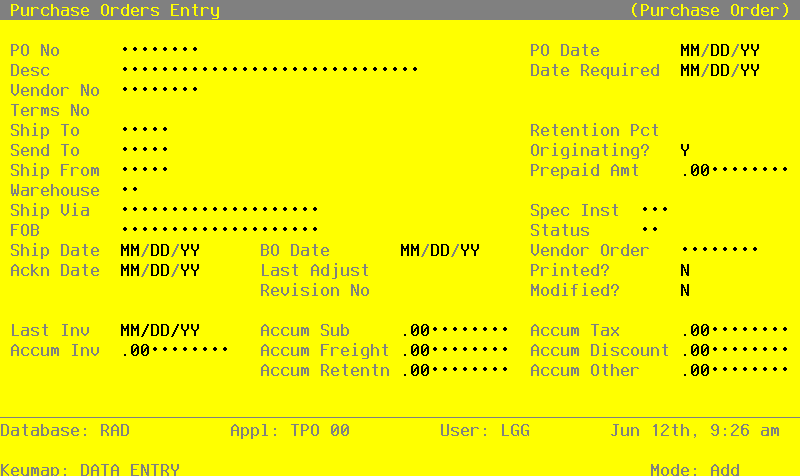
When the key value for a particular record is requested, you can review all the records in the file by selecting the Scan option. The records will be presented on an “Access” screen, and you will be allowed to scan the available data until you find the record you want. Then, position the cursor by that record and press ENTER; the record will be displayed for editing.
Data items for the preceding screen are described below:
- PO No
Enter a unique code of up to 8 characters to identify the purchase order. This is the number that will be used to recall or reference this record elsewhere in the system.
- PO Date
Enter the date for the purchase order.
- Desc
Enter up to l6 characters to describe this purchase order.
If Option 17 is used to create an invoice record from the purchase order (see the description of the Invoices Data Entry program), the description is transferred as the invoice description.
- Date Required
Enter the date the order is required. This date is used as a sort option for the Purchase Orders report.
- Vendor No
Enter the supplying vendor’s number from the Vendors file. You can use the Scan option to find an appropriate entry. The system displays the corresponding name so that you can verify your entry.
- Terms No
The system displays the terms code for the vendor you identified in the preceding field. You can enter another terms code from the Terms file to change this display. You can use the Scan option to find an appropriate entry. The system displays the corresponding description so that you can verify your entry. The system uses the terms selected here to calculate discount dates and amounts and due dates during invoice entry.
- Ship To
If the product will be shipped to an address other than that of the warehouse you select (see the Warehouse field description below), enter the corresponding code from the Alternate Addresses file. You can use the Scan option to find an appropriate entry. The system displays the corresponding Addressee Name so that you can verify your entry.
If no alternate address code is entered, the system displays the description from the Warehouses record.
This address is only printed on the purchase order form if you enter an alternate address code.
- Retention Pct
The system displays the Retention Percent field from the Vendors record. You can enter a different, nondecimal retention percentage to override the display.
The system uses this percentage to compute the retention amount during invoice entry.
- Send To
If the purchase order (that is, the physical paperwork) will be sent to an address other than the address on the Vendors record (see the Vendor No field description), enter the code from the Alternate Addresses file for that address. You can use the Scan option to find an appropriate entry. The system displays the corresponding Addressee Name so that you can verify your entry.
If no alternate address code is entered, the system displays the name from the Vendors record.
- Originating?
Enter ‘Y’ or ‘N’ to indicate whether this purchase order is an original order to the supplying vendor, or whether it is a confirmation of an order already placed with the vendor.
- Y
- This purchase order is the initial order to the vendor.
- N
- The purchase order is a confirmation of an order already placed with the vendor.
This field is for your information only.
- Ship From
If the order will be shipped from an address other than the address on the Vendors record (see the Vendor No field description), enter a code of up to 5 characters from the Alternate Addresses file for that address. You can use the Scan option to find an appropriate entry. The system displays the corresponding Addressee Name so that you can verify your entry.
If no alternate address code is entered, the system displays the name from the Vendors record.
The “ship from” address is only printed on the purchase order form if it is different from the address on the Vendors record.
- Prepaid Amt
Enter up to 7 digits and 2 decimals for the amount prepaid against this purchase order.
The prepayment is carried over to the invoice to reduce the invoice amount.
- Warehouse
Enter a warehouse number to identify the warehouse to which the order will apply. You can use the Scan option to find an appropriate entry. The system displays the corresponding description from the Warehouses file so that you can verify your entry.
This entry appears as the default Warehouse No when you enter line items for this purchase order.
- Ship Via
Enter up to 20 characters to identify the freight company to be used.
This entry is printed on the purchase order.
- Spec Inst
Enter a code of up to 3 digits from the Special Instructions file for the instructions that will be printed on the bottom of the purchase order. You can use the Scan option to find an appropriate entry. The system displays the corresponding description so that you can verify your entry.
- FOB
Enter up to 20 characters to identify the destination or shipping point to which the order will be shipped “free on board.”
This entry is printed on the purchase order.
- Status
Enter a 2-digit code from the Status Codes file to describe the status of this order. You can use the Scan option to find an appropriate entry. The system displays the corresponding description so that you can verify your entry.
The status code is included on the Purchase Orders Report and provides a way to selectively print purchase orders.
- Ship Date
Enter the date the order will be (or was) shipped. This field is for your information only.
- BO Date
If the purchase order is backordered, enter the date the order was placed on backorder. This field is for your information only.
- Vendor Order
Enter up to 8 characters for the vendor’s order number for the purchase order.
- Ackn Date
Enter the date that the vendor acknowledged the purchase order. This field is for your information only.
- Last Adjust
If the purchase order is revised or adjusted you may enter the date of the most recent revision.
- Printed?*
The system displays ‘Y’ or ‘N’ to indicate whether or not the purchase order has been printed since it was last modified.
- Y
- This purchase order has been printed.
- N
- This purchase order has not been printed.
This flag is reset to ‘N’ if any changes are made to this purchase order.
- Revision No
If the purchase order is revised, you may enter a Revision Number which will be printed on the Purchase Order form.
- Modified?*
The system displays ‘Y’ or ‘N’ to indicate whether or not the purchase order has been modified since the last time the Delete Completed POs function was run.
- Y
- This purchase order has been modified.
- N
- This purchase order has not been modified.
The system sets this flag to ‘Y’ if any changes are made to this purchase order, and resets the flag to ‘N’ when the delete completed POs function is run.
- Last Inv*
The system displays the date of the last invoice posted for the purchase order. The system updates this date as invoices are processed for the purchase order.
- Accum Sub*
The system displays the subtotal amount (line items exclusive of freight, tax, and “other” amounts) already invoiced on the purchase order. The system updates this figure as invoices are posted.
- Accum Tax*
The system displays the tax amount already invoiced on the purchase order. The system updates this figure as invoices are posted.
- Accum Inv*
The system displays the amount already invoiced on the purchase order. The system updates this figure as invoices are posted.
- Accum Frt*
The system displays the freight amount already invoiced for the purchase order. The system updates this figure as invoices are posted.
- Accum Discount*
The system displays the discount amount already taken on invoices for the purchase order. The system updates this figure as invoices are posted.
- Accum Retention*
The system displays the retention amount already withheld on invoices for the purchase order. The system updates this figure as invoices are posted.
- Accum Other*
The system displays “other” charges already invoiced on the purchase order. The system updates this figure as invoices are posted.
The entered data is validated. During validation, including access to other files, conditions may be found which cause messages to be displayed. Errors (E), Warnings (W), and Messages (M) that may result are shown below:
Press ENTER to save the information on this screen.
Select Next Record to go to the next Miscellaneous Vendor Name and Address record.
At this screen, the use of the MODE keys - ADD, DEL, CHG, or INQ - pertain to those records in the Miscellaneous Vendor Name and Address file.