
Chapter 2: Initial Setup File Maintenance
Option 11Alternate Addresses
This file contains alternate addresses that are used regularly as the “ship to”, “send to”, or “ship from” addresses on purchase orders. The “ship to” address refers to where the merchandise is sent; “send to” is where the paperwork should go; and “ship from” is the address from which the merchandise originates.
By default, the system uses the address from the Warehouses file for the “ship to” address. It uses the address from the Vendors file for the “send to” and “ship from” addresses. These default addresses are used if these fields are left blank during purchase order entry. If you often use alternate addresses, they can be set up here and identified by code on the purchase order.
Select “Alternate Addresses” from the File Maintenance menu. Here is the Alternate Addresses entry screen:
Alternate Addresses screen
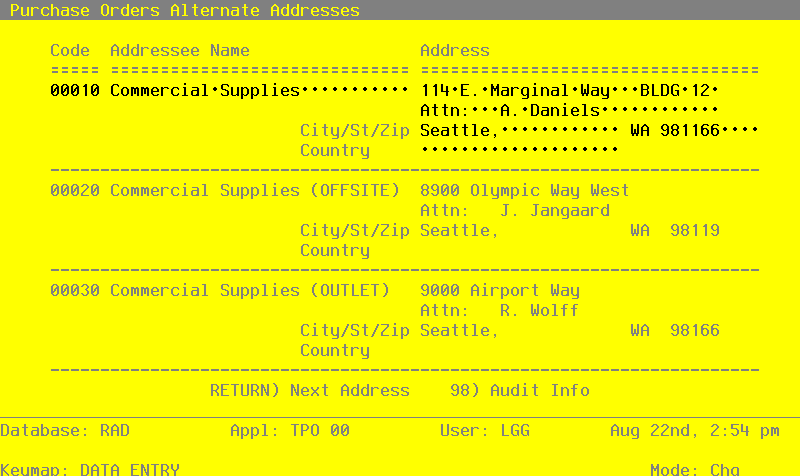
When the key value for a particular record is requested, you can review all the records in the file by selecting the Scan option. The records will be presented on an “Access” screen, and you will be allowed to scan the available data until you find the record you want. Then, position the cursor by that record and press RETURN; the record will be displayed for editing.
Data items for the preceding screen are described below:
- Address Code
Enter a unique code of up to 5 characters to identify the alternate address.
This code could be associated with the vendor number or the warehouse number to make it easier to remember. For example, the alternate “ship from” address for vendor 500 might have ‘500’ for the Address Code.
- Addressee Name
Enter up to 30 characters for the name of the addressee.
- Address Line 1
Enter up to 30 characters for the first line of the address.
- Address Line 2
Enter up to 30 characters for the second line of the address.
- City
Enter up to 30 characters for the name of the city.
- State/Zip Code
Enter 2 characters to identify the state and up to 10 characters for the zip code, if applicable.
- Country
Enter up to 20 characters to identify the country.
Press RETURN to save the information on this screen.
Select Next Record to go to the next Alternate Addresses record.
At this screen the use of the MODE keys—ADD, DEL, CHG, or INQ—pertain to those records in the Alternate Addresses file.