
Chapter 2: Initial Setup File Maintenance
Option 9Special Instructions
This file contains special instructions that are printed on purchase order forms. Each instruction in this file is identified by a code. To include a special instruction on an order, enter the code on the purchase order during data entry. Special instructions can apply either to an entire purchase order (these are printed at the bottom of the form) or to a specific line item on a purchase order (these are printed with the line item on the form).
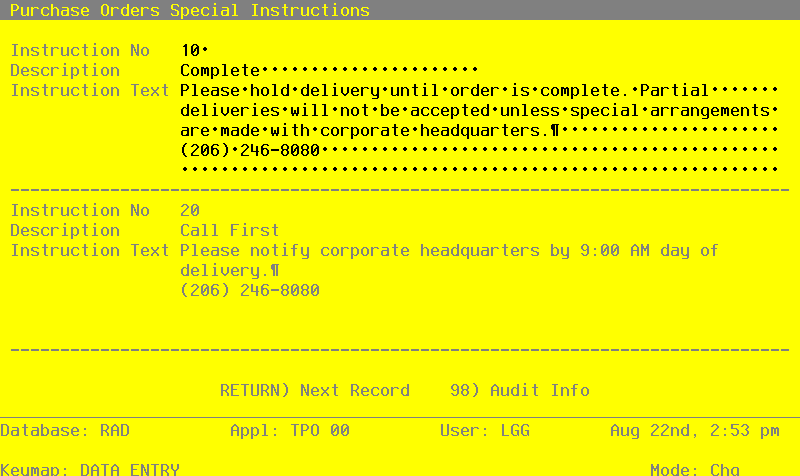
Select “Special Instructions” from the File Maintenance menu. Here is the Special Instructions entry screen:
Special Instructions screen
When the key value for a particular record is requested, you can review all the records in the file by selecting the Scan option. The records will be presented on an “Access” screen, and you will be allowed to scan the available data until you find the record you want. Then, position the cursor by that record and press RETURN; the record will be displayed for editing.
Data items for the preceding screen are described below:
- Instruction No
Enter a unique code of up to 3 digits to identify the instruction. This is the number requested when the item is recalled or referenced on a purchase order.
- Description
Enter up to 10 characters to describe the instruction. This description is displayed when the code is entered on a purchase order.
- Instruction Text
Enter up to 5 lines of 60 characters each for the special instruction or standard message. This instruction or message is printed on the purchase order form.
Press RETURN to save the information on this screen.
Select Next Record to go to the next Special Instructions record.
At this screen the use of the MODE keys—ADD, DEL, CHG, or INQ—pertain to those records in the Special Instructions file.