
Chapter 2: Initial Setup File Maintenance
Option 4Salespersons
This function is used to set up and maintain a record for each member of your sales staff. Each salesperson must be assigned a unique number for identification. The salesperson number is used to recall and reference the Salespersons record. Also, to identify salespersons who receive credit for sales, the salesperson number is included on invoices and recurring billings (entered through Accounts Receivable), and on sales orders (entered through Order Entry).
If you made an entry in the Salesperson for “House Account” field in the Parameters file, you should set up a Salespersons record in this file for that “house account.” Since a sales commission basis of 100% is not always allocated to salespersons, the residual amount would be allocated to the “house.” “House account” commissions transferred from Accounts Receivable and Order Entry are considered noncommissionable. Thus, when setting up this record, be sure to assign it a blank pay code.
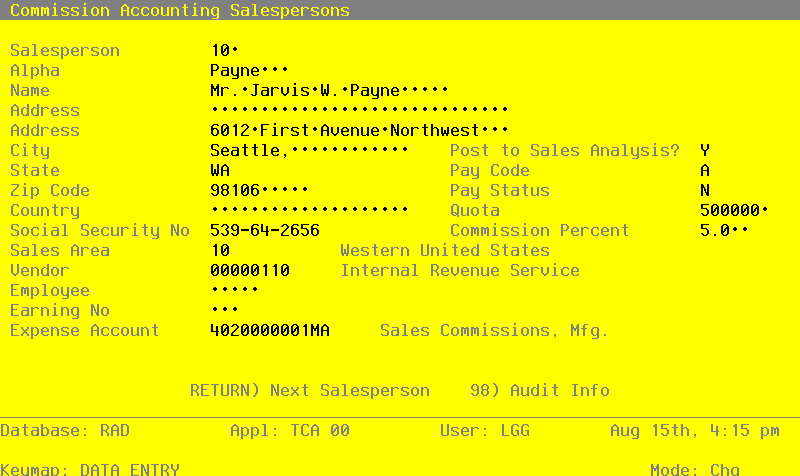
Select “Salespersons” from the File Maintenance menu. A sample Salespersons screen is below:
Salespersons screen
When the key value for a particular record is requested, you can review all the records in the file by selecting the Scan option. The records will be presented on an “Access” screen, and you will be allowed to scan the available data until you find the record you want. Then, position the cursor by that record and press RETURN; the record will be displayed for editing.
Data items for the preceding screen are described below:
- Salesperson
Enter up to 3 digits to identify the salesperson.
- Alpha
Required
Enter a code of up to 8 characters to provide an alternative identification for the salesperson. You may want to use a portion of the salesperson’s name for the salesperson Alpha.
You can use the salesperson alpha to sort data during report processing or, during data entry, to locate a salesperson if you do not know the salesperson number.
- Name
Required
Enter up to 30 characters for the salesperson’s name.
- Address (Line 1)
Enter up to 30 characters for the salesperson’s address.
- Address (Line 2)
If necessary, enter up to an additional 30 characters to complete the salesperson’s address.
- City
Enter up to 20 characters for the city in the salesperson’s address.
- Post to Sales Analysis?
Enter ‘Y’ to transfer detailed information for this salesperson to the Sales Analysis application, for use in sales reports.
Enter ‘N’ if the Sales Analysis application is not included in your system, or if the transfer of summary information for this salesperson to the Sales Analysis application will suffice.
- State
Enter the standard 2-letter state abbreviation.
- Pay Code
Enter one of the following pay codes to specify the manner in which commissions are considered paid for this salesperson:
- A
- Commissions are transferred to Accounts Payable for payment.
When commissions for this salesperson are transferred to Accounts Payable, the system creates an invoice in Accounts Payable. It is at this point that commissions are considered paid by Commission Accounting. (See the description of the Transfer Commissions function in the Transaction Processing chapter.) If you choose this Pay Code, you must enter a valid vendor number in the Vendor field on this screen.
E: Commissions are marked as paid within Commission Accounting during Close Month processing. Use this pay code if you do not have Accounts Payable or Payroll, or you do not wish to transfer commissions to either of these applications.
“ ”: If the pay code is left blank, commissions are neither transferred to an application nor marked as paid. If this Salespersons record is set up for a “house account,” you should leave the pay code blank. All unpaid commissions are deleted during Close Month processing if the pay code is blank.
- Zip Code
Enter up to 10 characters for the salesperson’s zip code.
- Pay Status
Enter a 1-character code from the Descriptions file to define the pay status for this salesperson. The system displays the corresponding description. This entry serves as the default during Transaction Processing. Choices are:
N (Normal): Pay commissions only after the invoice has been fully receipted in Accounts Receivable.
P (Pay Commission): Pay commissions regardless of the status of the invoice in Accounts Receivable.
H (Hold Payment): Do not pay commissions for this invoice until this status is changed.
- Country
Enter up to 20 characters for the salesperson’s country.
- Quota
Enter up to 7 digits for the quota assigned to this salesperson. This field is used for information only.
Enter the salesperson’s Social Security number for income to be reported on the 1099 form.
Use this field only if you plan on generating a 1099 form for this salesperson from within Commission Accounting. If you make an entry in this field, the system automatically calculates reportable income for this salesperson when 1099 forms are printed.
If this salesperson has some income that is reportable and other income that is not reportable, you should establish two separate Salespersons records.
- Commission Percent
Enter up to 3 digits and 1 decimal for the percentage used to calculate this salesperson’s commission. This field serves as the default for this salesperson during Transaction Processing in Commission Accounting, Accounts Receivable, and Order Entry.
- Sales Area
Enter a valid sales area number of up to 2 digits from the Sales Areas file. This entry identifies the sales area to which this salesperson belongs. You can use the Scan option to find the appropriate entry. The system displays the sales area name so that you can verify your entry. This field is primarily used for sorting reports.
- Vendor
If you entered ‘A’ for Pay Code, you must enter a vendor number from the Accounts Payable Vendors file. You can use the Scan option to find an appropriate entry. The salesperson must have a record with this vendor number in the Vendors file. This field is used when commission invoices are created in Accounts Payable. The system displays the corresponding vendor name so that you can verify your entry.
- Expense Account
Enter the number of the expense account used when commissions are paid. You can use the Scan option to find an appropriate entry. If your system includes General Ledger, this account must be on file in the Chart of Accounts file. The account description is displayed so that you can verify your entry.
If you are operating without Accounts Payable, this field is for your information only.
If you are transferring commissions records to Accounts Payable or Payroll for payment, this expense account is used in creating the transaction entry records in those applications. This account is debited when the liability is recognized.
The entered data is validated. Press RETURN to save the information on this screen.
Select Next Record to go to the next Salespersons record.
At this screen the use of the MODE keys—ADD, DEL, CHG, or INQ—pertain to those records in the Salespersons file.