
6Utilities
Option 1Create Budgets from Balances
This function creates an entire set of budget records, or it can create budget records for just a range of accounts. The actual account balances may be used as the default budget values or you may initialize all the budget amounts to zero. The following processing steps accomplish this job.
- Step 1This function allows you to enter an account range and a fiscal year to create Budget Amounts records from General Ledger Account Balances records. For example, you might want to create fiscal year 1990 budgets from the actual balances of fiscal year 1989. An optional percentage is provided which you can use to increase or decrease the budget values for all records within the specified range. An option is also available to allow you to default all budget values to zero.
The screen shown below allows you to enter parameters needed by the Create Budgets from Balances utility.
Create Budgets from Balances screen
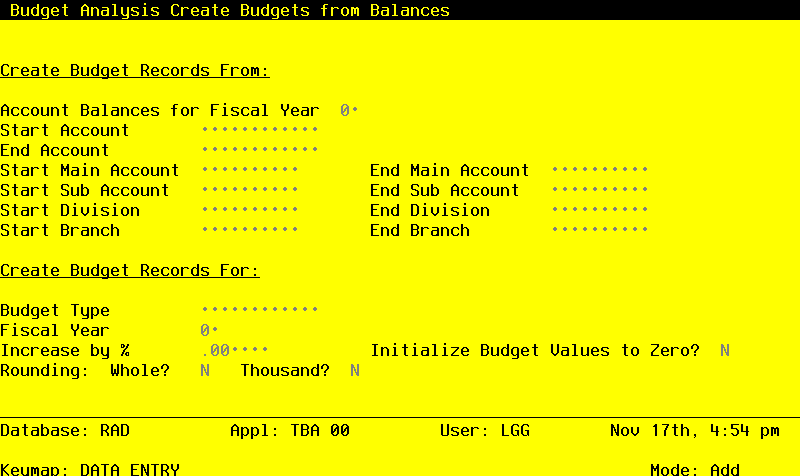
Data items for the preceding screen are described below:
- Account Balances for Fiscal Year
Positive number, up to 2 digits
Supply the fiscal year of the balance records you want to create budgets from. For example, if you want to create budgets for fiscal year 1990 from the actual account balances for fiscal year 1989, then enter ‘89’.
- Start /End Account
Upper case, up to 12 characters Required Scan available
Define the starting and ending account numbers of the range of accounts for which budgets are to be created. For example, if you want to create budget records for fiscal year 1990 from actual account balances of 1989 for the account range 400000000000 through 999999999999, then enter ‘4000000000000’ for the Start Account and ‘999999999999’ for the End Account.
- Start/End Main Account
Upper case, up to 10 characters
A start and end range on the first component of the account structure can be entered to further refine the range selection of the budget records to be copies or created For example, if you want to copy or create only accounts whose first account component is in the range 10100 to 12000, then enter ‘10100’ and ‘12000’ as the Start and End range respectively.
- Start/End Sub Account
Upper case, up to 10 characters
A start and end range on the second component of the account structure can be entered to further refine the range selection of the budget records to be copies or created For example, if you want to copy or create only accounts whose second account component is in the range 300 to 320, then enter ‘300’ and ‘320’ as the Start and End range respectively.
- Start/End Division
Upper case, up to 10 characters
A start and end range on the third component of the account structure can be entered to further refine the range selection of the budget records to be copies or created For example, if you want to copy or create only accounts whose third account component is in the range 15 to 20, then enter ‘15’ and ‘20’ as the Start and End range respectively.
- Start/End Branch
Upper case, up to 10 characters
A start and end range on the fourth component of the account structure can be entered to further refine the range selection of the budget records to be copies or created For example, if you want to copy or create only accounts whose fourth account component is in the range 50 to 60, then enter ‘50’ and ‘60’ as the Start and End range respectively.
- Budget Type
Alphanumeric, up to 12 characters Required Scan available
Supply the budget type of the budget records to be created. For example, if you want to create budget records with budget type ‘Version 1’ for Fiscal 1990 from account balances for fiscal 1989, then enter ‘Version 1’ as the budget type. This must be a valid entry on the Types file.
- Fiscal Year
Positive number, up to 2 digits
Supply the fiscal year of the budget records you want to create. For example, if you want to create budget records for fiscal year 1990 from actual account balances of fiscal year 1989, then enter ‘90’.
- Increase by %
Number, up to 3 digits and 2 decimals
If you want to increase or decrease the values of the budgets to be created by a percentage of the actual account balance they are created from, then enter the appropriate percentage. For example, an entry of ‘5.5’ would increase all budgets in the range of budgets to be created 5.5% of the corresponding account balances (i.e., Budget Amount = Account Balance * 1.055). An entry of ‘-15.0’ would decrease all budgets in the range of budgets to be created by 15.0% of the corresponding account balances (i.e., Budget Amount = Account Balance * .85).
- Initialize Budget Values
Y or N Default N Required
If the budget records to be created are to have initial values of zero for all months then enter ‘Y’; if the actual account balance values are to be copied into the actual budget months then use the default value of ‘N’.
- Rounding: Whole?
Y or N Default N Required
If you want the budget amounts that are created to be rounded to the nearest whole dollar amount, enter ‘Y’. For example, if the balance amount was determined to be $1108.32, and you entered ‘Y’, then the amount would be rounded to $1108.
- Rounding: Thousand?
Y or N Default N Required
If you want the budget amounts that are created to be rounded to the thousand dollars, enter ‘Y’. For example, if the balance amount was determined to be $1108.32, and you entered ‘Y’, then the amount would be rounded to $1000.
The entered data is validated. During validation, including access to other files, conditions may be found which cause messages to be displayed. Errors (E), Warnings (W), and Messages (M) that may result are shown below:
W Budget Records Already Exist for this Type, Year, Account Range Press ENTER to display system-supplied information and then press ENTER again to save the information on this screen.
- Step 2In preparation for performing a sort/selection process on the Account Balances information, this step provides sequencing of data records by Account, with no option to change the sequence at run time.
- Step 3This disposition type is used for all standard processing functions within General Ledger.
- Step 4According to previously specified criteria, this step actually performs the desired selection and/or sorting process.
- Step 5This step processes the information for Account Balances. Under certain conditions, records in the Budget Amounts and Budgets files will be added. Updates to certain fields in the Budgets file will occur.